Stop Copy-Pasting Reports: Let AI Handle Your Project Management Busywork
A step-by-step guide to automations that write your reports, route your requests, and give you hours back every week

💡 This article is the companion piece to a paid video series I’m producing with Zapier
I have seen this workflow before with customers and teams I have been on - every morning you open your project management tool, scroll through tickets, copy the relevant ones into a doc, format it for your team, then do it again — differently — for leadership. Then at end of day, another report. Different format. Different audience. Same tedious copy-paste grind.
Leadership wants a polished weekly summary. The building team needs a detailed morning task list. And the end-of-day report — what’s waiting for review so nobody’s blocked tomorrow — is a completely different format.
[

](https://substackcdn.com/image/fetch/$s_!BPfV!,f_auto,q_auto:good,fl_progressive:steep/https%3A%2F%2Fsubstack-post-media.s3.amazonaws.com%2Fpublic%2Fimages%2Fac51fc9a-90f0-48ee-a339-e8260b49166c_1488x811.png) Automate the redundant work

What if all three of those reports just… showed up? Written, formatted, and delivered — without you touching a spreadsheet?
That’s what we’re going to build in this post using Zapier. By the end you’ll have a system that:
Writes your weekly leadership report every Friday and drops it in Slack
Sends your team a morning task list at 9am
Delivers an end-of-day review report at 3pm
Takes feature requests from Slack and turns them into organized tickets — automatically
No code required. Just Zapier’s agent builder and some well-written instructions.
Two ideas make this work: writing clear instructions that AI actually follows, and setting up one central “manager” that coordinates all the moving parts. Let’s start with the manager.
The Manager: One Agent to Run the Show
[
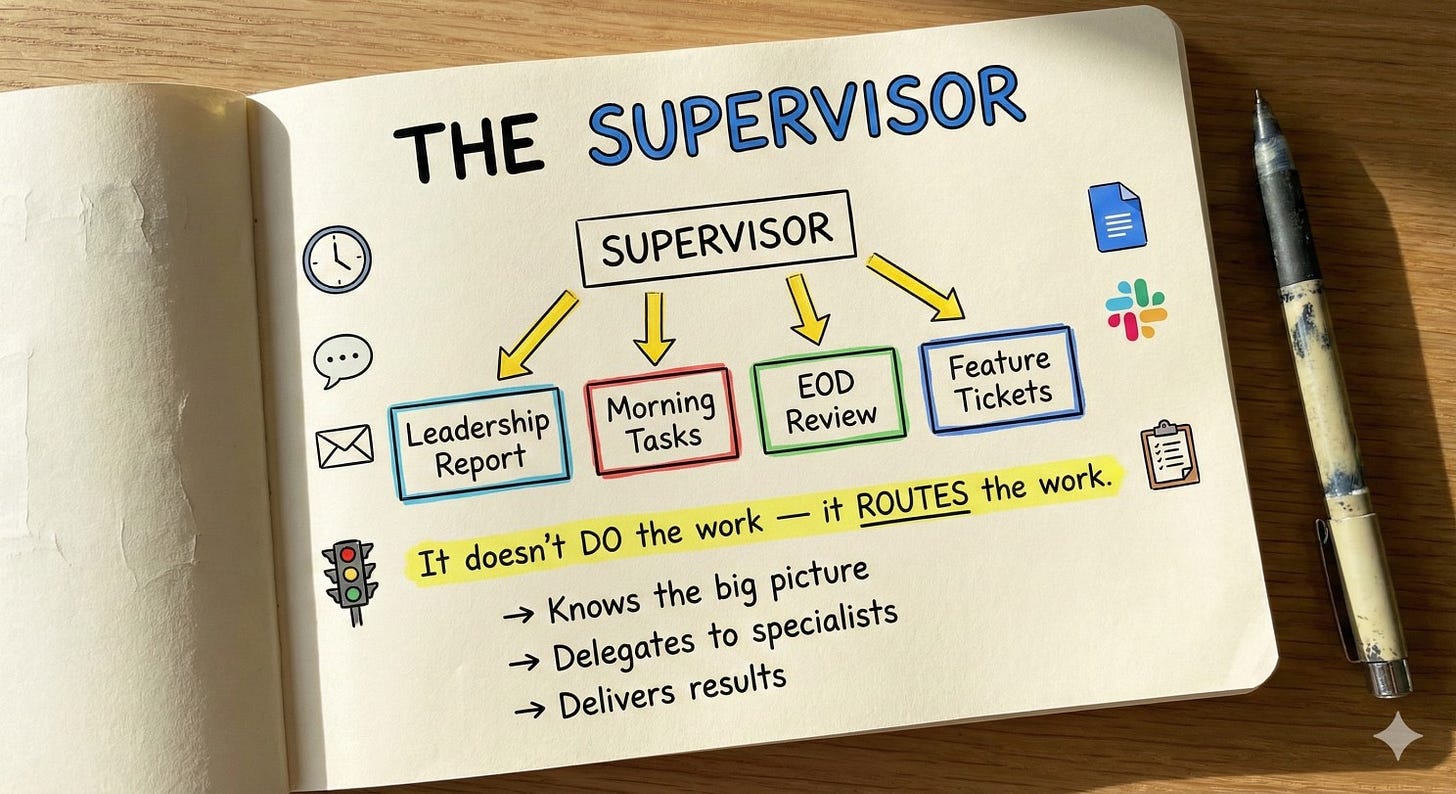
](https://substackcdn.com/image/fetch/$s_!eHiH!,f_auto,q_auto:good,fl_progressive:steep/https%3A%2F%2Fsubstack-post-media.s3.amazonaws.com%2Fpublic%2Fimages%2F502ee73e-c2dd-49df-a949-7f9f2efb0e41_1488x811.jpeg) The Supervisor Agent
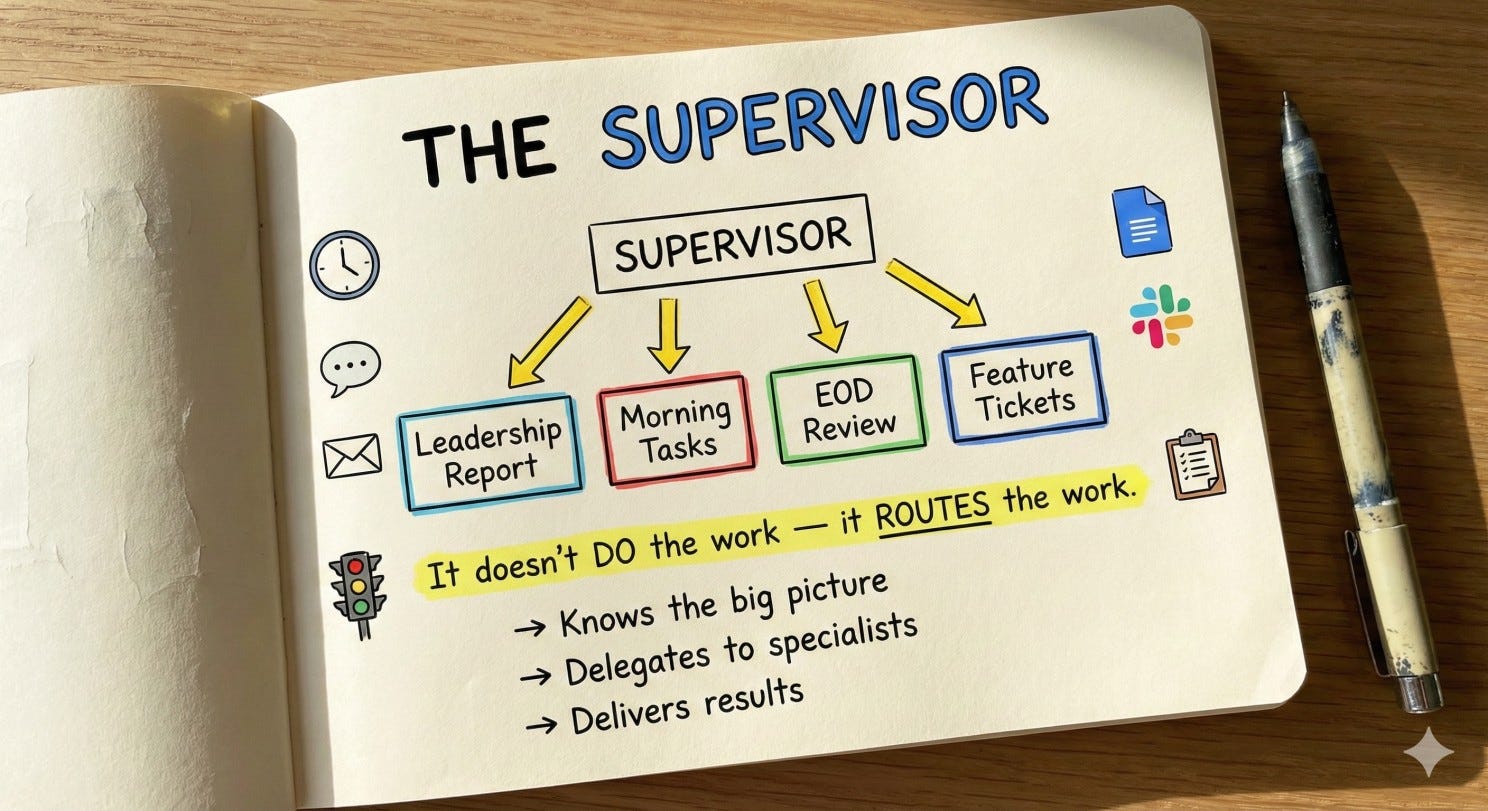
Think of this like hiring a really organized assistant. You wouldn’t hand them five different jobs with no context — you’d sit them down, explain the company, explain the goals, and then tell them who to talk to for what.
That’s exactly what we’re doing in Zapier. We’re creating one central AI agent — I call it the Supervisor — and it works like this:
It knows the big picture. You write instructions that explain your company, your project, and what matters. Think of it as the onboarding doc you’d give a new hire.
It connects to your tools. Google Drive, Slack, whatever you use day to day. The Supervisor can read and write to these on your behalf.
It delegates the real work. Instead of doing everything itself, it hands specific tasks to specialist agents — one that writes the leadership report, one that builds the morning task list, and so on.
It learns over time. You can give it a knowledge base — past reports, writing style examples, team preferences — so it gets better the longer you use it.
It wakes up when needed. A scheduled time, a Slack message, a forwarded email — these are all “triggers” that tell the Supervisor to do something.
Writing Instructions the AI Will Actually Follow
This is where you should spend the most time. The instructions (called a “prompt” in AI terms) are how you tell the Supervisor what your business needs, what tone to use, and which specialist to call for which job
[
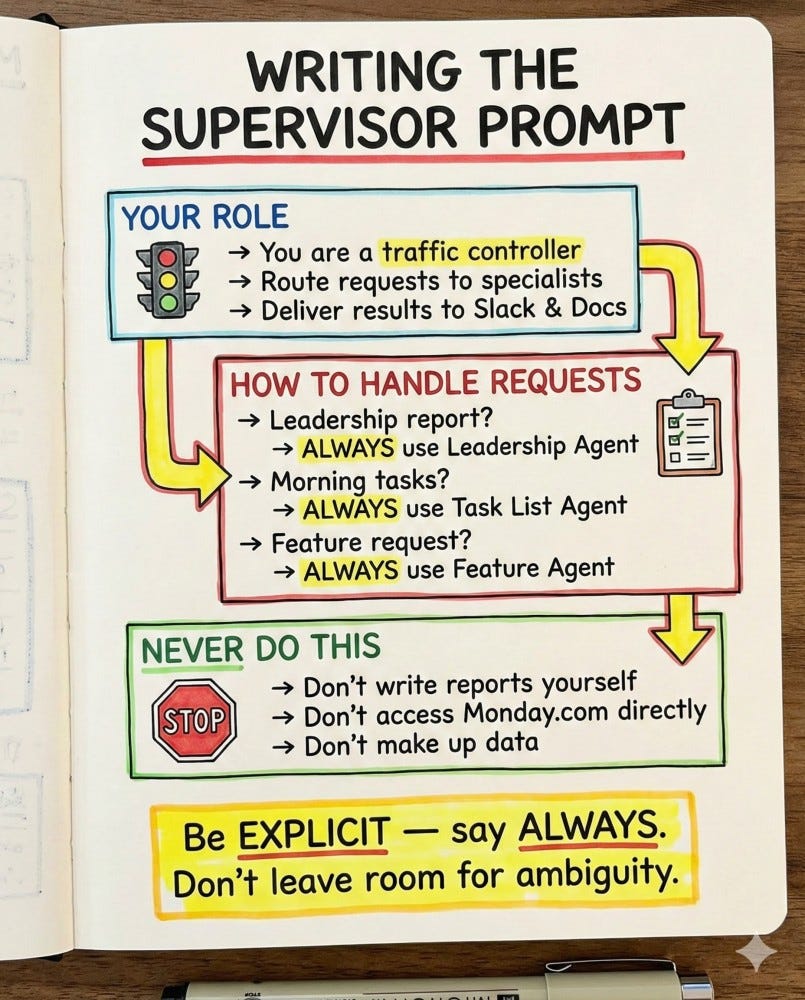
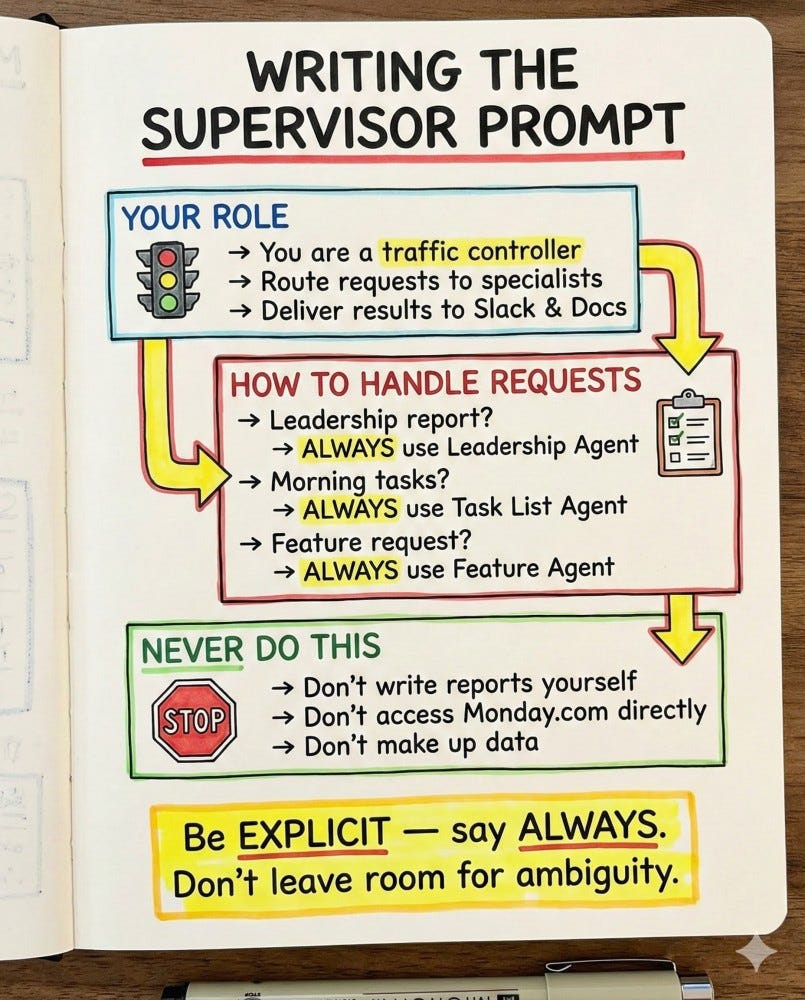
There’s no magic formula here. But there is a reliable process — and I’ll show you a fast way to test and improve your instructions in the next section.
Here is what it will look like in Zapier:
[
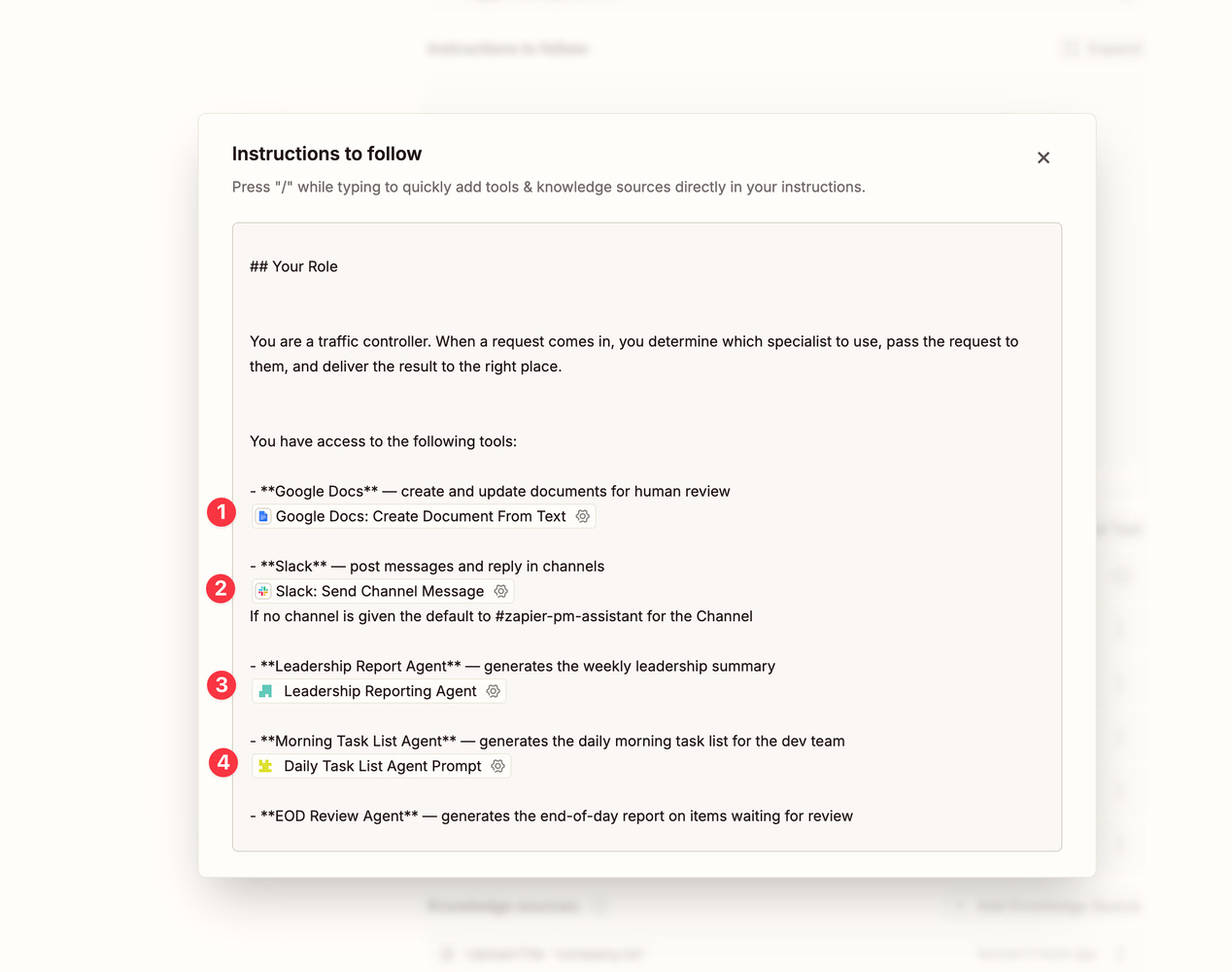
](https://substackcdn.com/image/fetch/$s_!juIW!,f_auto,q_auto:good,fl_progressive:steep/https%3A%2F%2Fsubstack-post-media.s3.amazonaws.com%2Fpublic%2Fimages%2F8c7fc074-9bd5-470a-9cb3-5ccff50af2ac_1268x1000.png) This is how it looks in Zapier
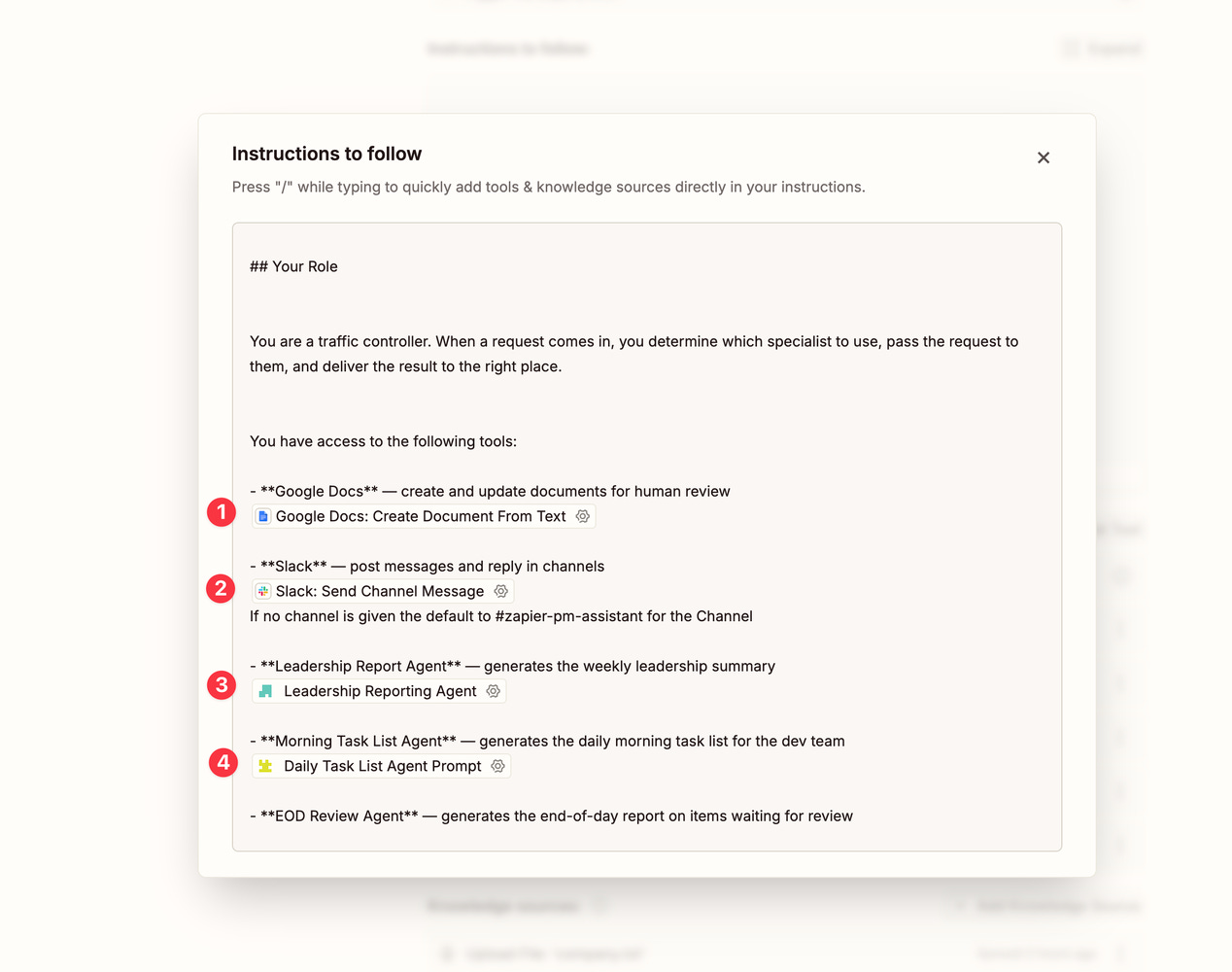
#1 - shows reference to the Google Docs tool it will use
#2 - shows the Slack tool the Supervisor will use
#3 and #4 will show the Agents being used
Here’s the key thing to notice: the Supervisor itself isn’t writing any reports. It’s a traffic controller. When a request comes in — “create the leadership report” — it knows to hand that off to the specialist who does that job. Then it takes the result and delivers it where it needs to go (Slack, Google Docs, email, wherever).
This separation matters. Trying to make one AI do everything leads to confused, mediocre results. Giving each job to a focused specialist gets you much better output.
Connecting the Supervisor to Your Tools
The Supervisor needs a few basic connections:
Google Docs — so it can create documents for review (this keeps you in the loop — you can always check the output before it goes anywhere)
Slack — so it can reply to requests and post results to channels
That’s it for the Supervisor. It doesn’t need access to your project management system directly. That’s the specialist’s job. Keep each agent focused on as few tools as possible — AI works better when it isn’t overwhelmed with options.
Now let’s build our first specialist.
Building Your First Specialist: The Leadership Report
Let’s say every Friday, leadership wants a summary of what got done this week. Right now, someone is manually pulling that together. Here’s what it looks like after we automate it:
Every Friday at 9am, the Supervisor wakes up, asks the Leadership Report specialist to pull completed tickets from your project management tool and format them into a clean summary. That summary gets saved to a Google Doc and the link gets posted to your #project-manager channel in Slack. You review it, forward it to leadership, done. Eventually, if the output is good enough, you skip the review step and enjoy a longer lunch.
[
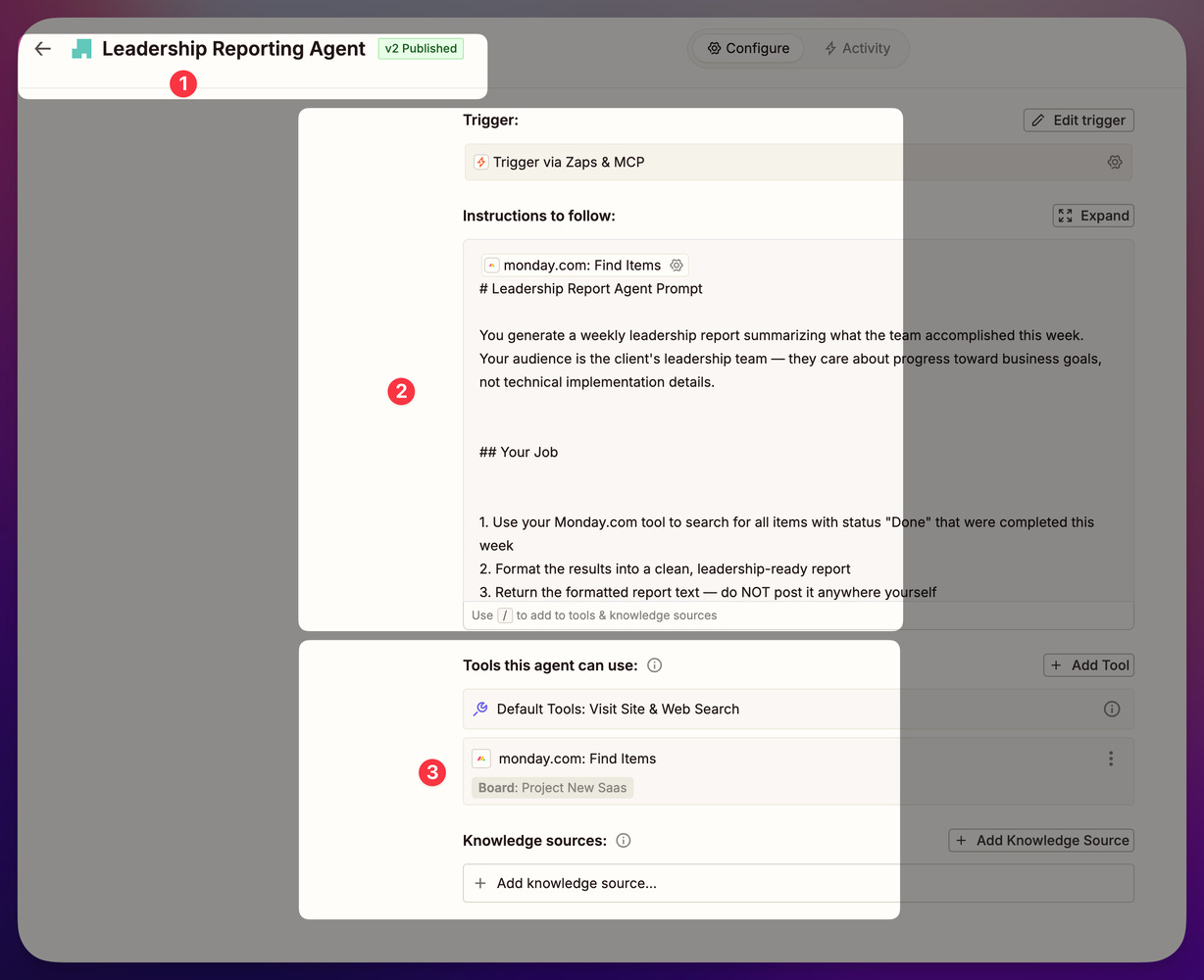
](https://substackcdn.com/image/fetch/$s_!uXnD!,f_auto,q_auto:good,fl_progressive:steep/https%3A%2F%2Fsubstack-post-media.s3.amazonaws.com%2Fpublic%2Fimages%2F6be5f03a-9a5d-4521-bfce-32aa8813eff5_1228x1000.png) The Leadership Agent
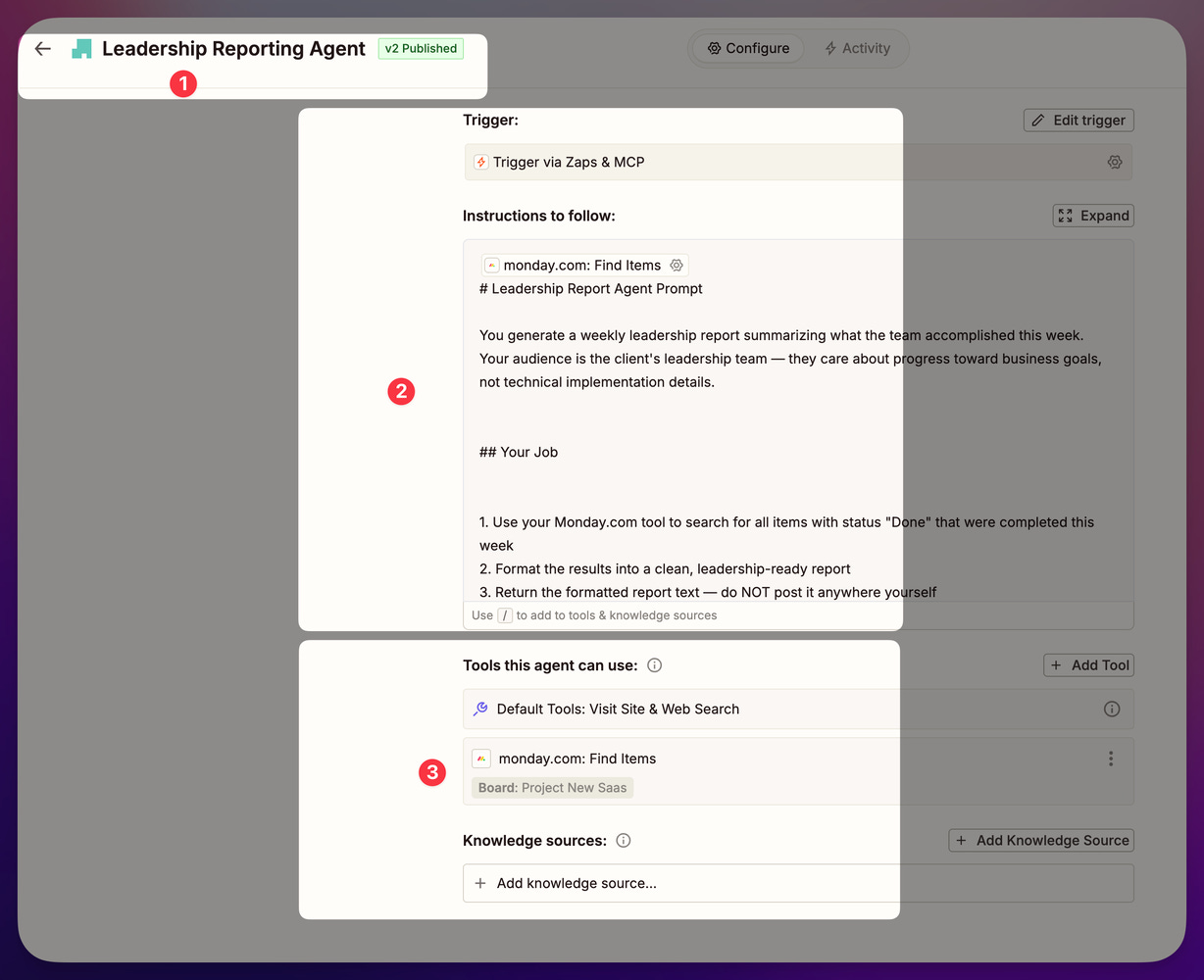
Here’s how we set it up. The specialist agent gets:
One job: search your PM tool (Jira, Asana, Monday, ClickUp — whatever you use) for tickets completed this week
Clear instructions: how to format the results into a leadership-friendly summary — what to include, what to skip, what tone to use
One tool: read-only access to your PM system. It doesn’t need to create tickets, assign people, or do anything else. Just search.
You might notice a web search tool included by default — you can remove it since this specialist only needs your PM tool.
The specialist does its job and hands the result back to the Supervisor, who delivers it.
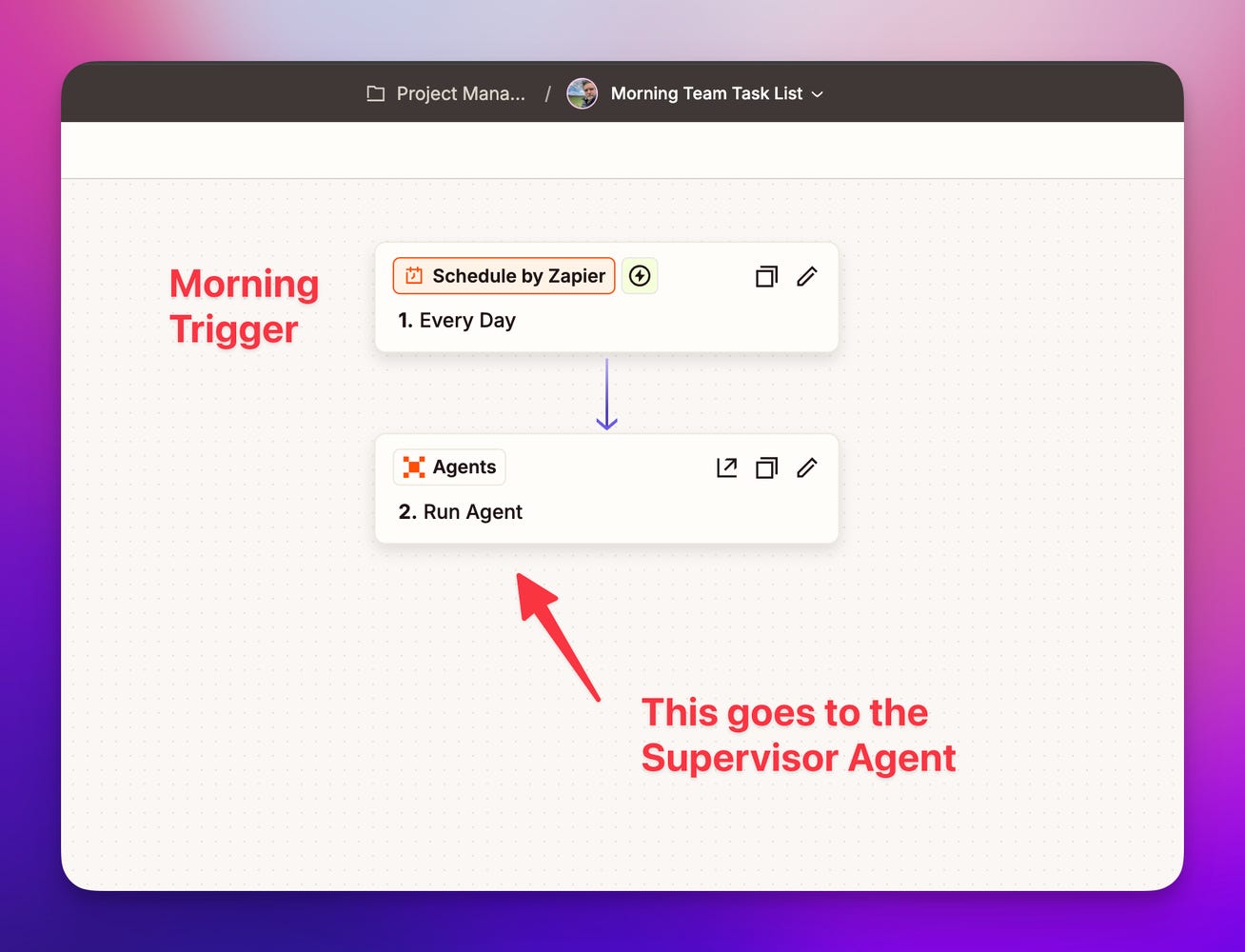
And the simple Zap to do this every morning.
[
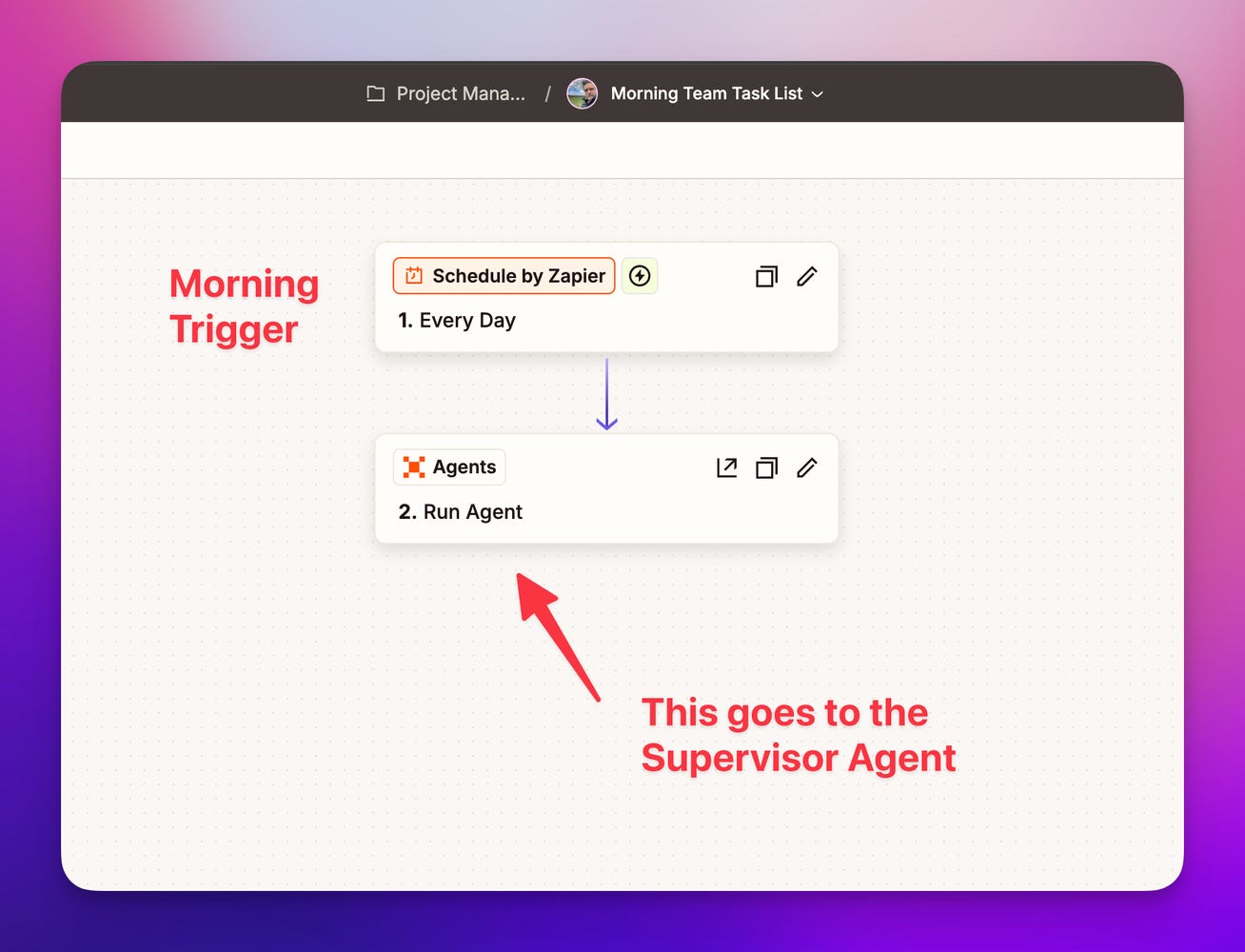
](https://substackcdn.com/image/fetch/$s_!6pZL!,f_auto,q_auto:good,fl_progressive:steep/https%3A%2F%2Fsubstack-post-media.s3.amazonaws.com%2Fpublic%2Fimages%2Fac7f0c4f-cd96-49d7-8fa5-39293858f200_1308x1000.png) The Zap to Schedule the Leadership Report
Getting Your Instructions Right (Without Waiting Forever)
Here’s a practical tip that will save you a lot of time. Every time you test this inside Zapier, it has to run the full automation — connect to your PM tool, pull data, process it. That’s slow when you’re just trying to tweak the wording of your output.
Instead, do this:
Run the agent once inside Zapier and copy the test results
Open up a regular AI chat (ChatGPT, Claude, whatever you prefer — just make sure it’s the same AI model Zapier is using, or the results may differ)
Paste your instructions and the test data into that chat
Tweak your instructions, re-run, see the output instantly
When you’re happy with the format, paste the final instructions back into Zapier
[
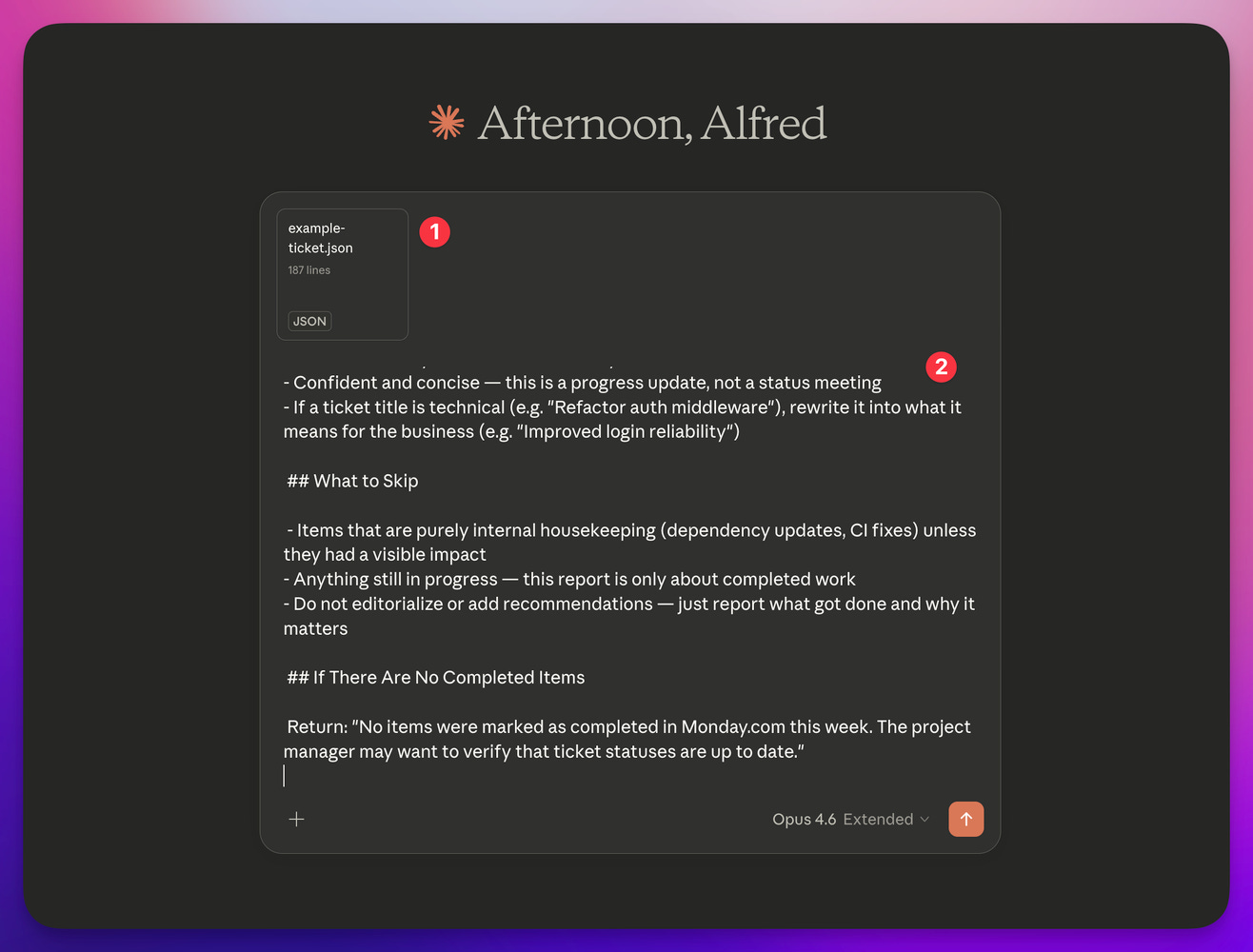
](https://substackcdn.com/image/fetch/$s_!WLdL!,f_auto,q_auto:good,fl_progressive:steep/https%3A%2F%2Fsubstack-post-media.s3.amazonaws.com%2Fpublic%2Fimages%2F985fac1c-9967-446f-9772-b5d8da3eeab7_1316x1000.png) Using a chat ui to quickly get the prompt right
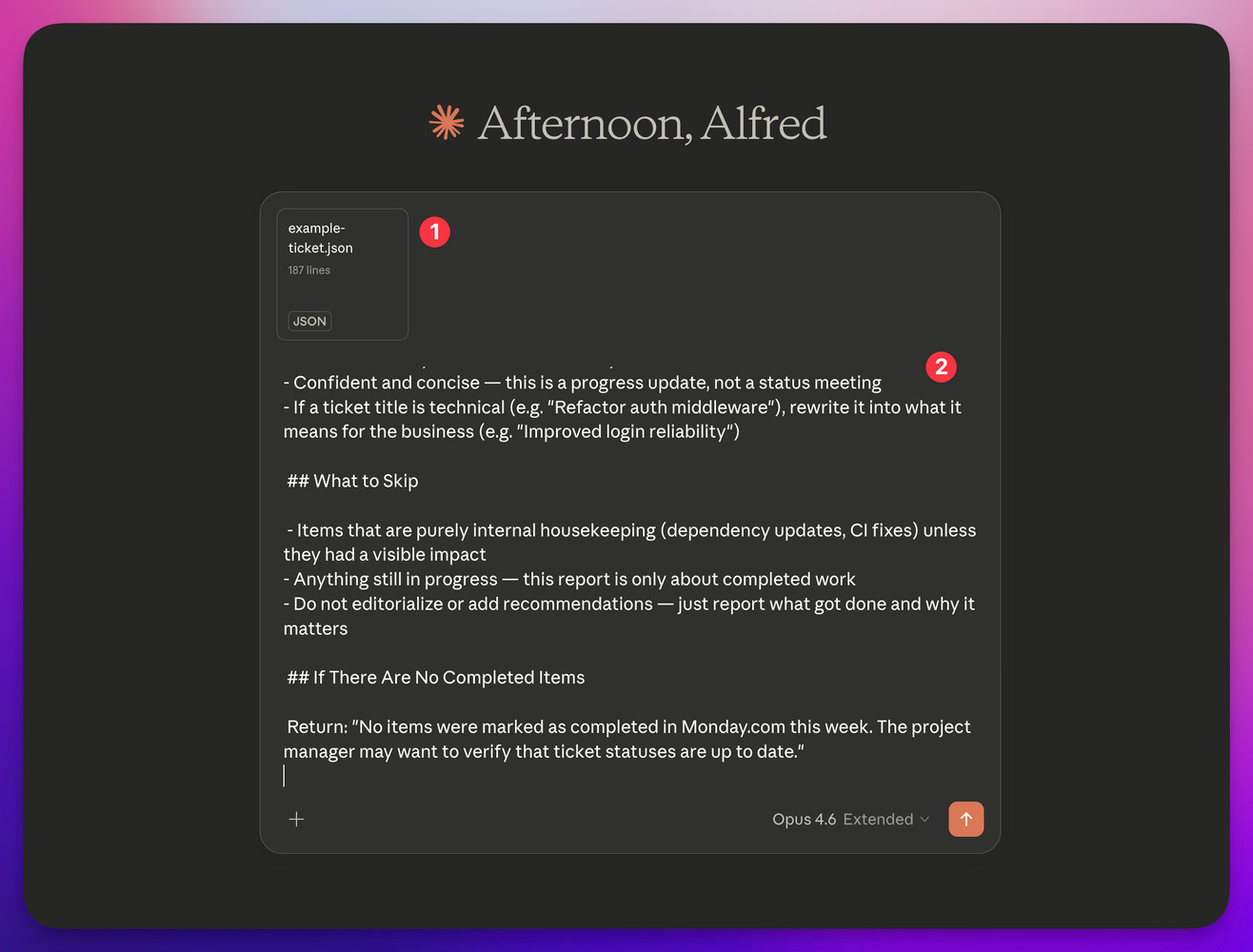
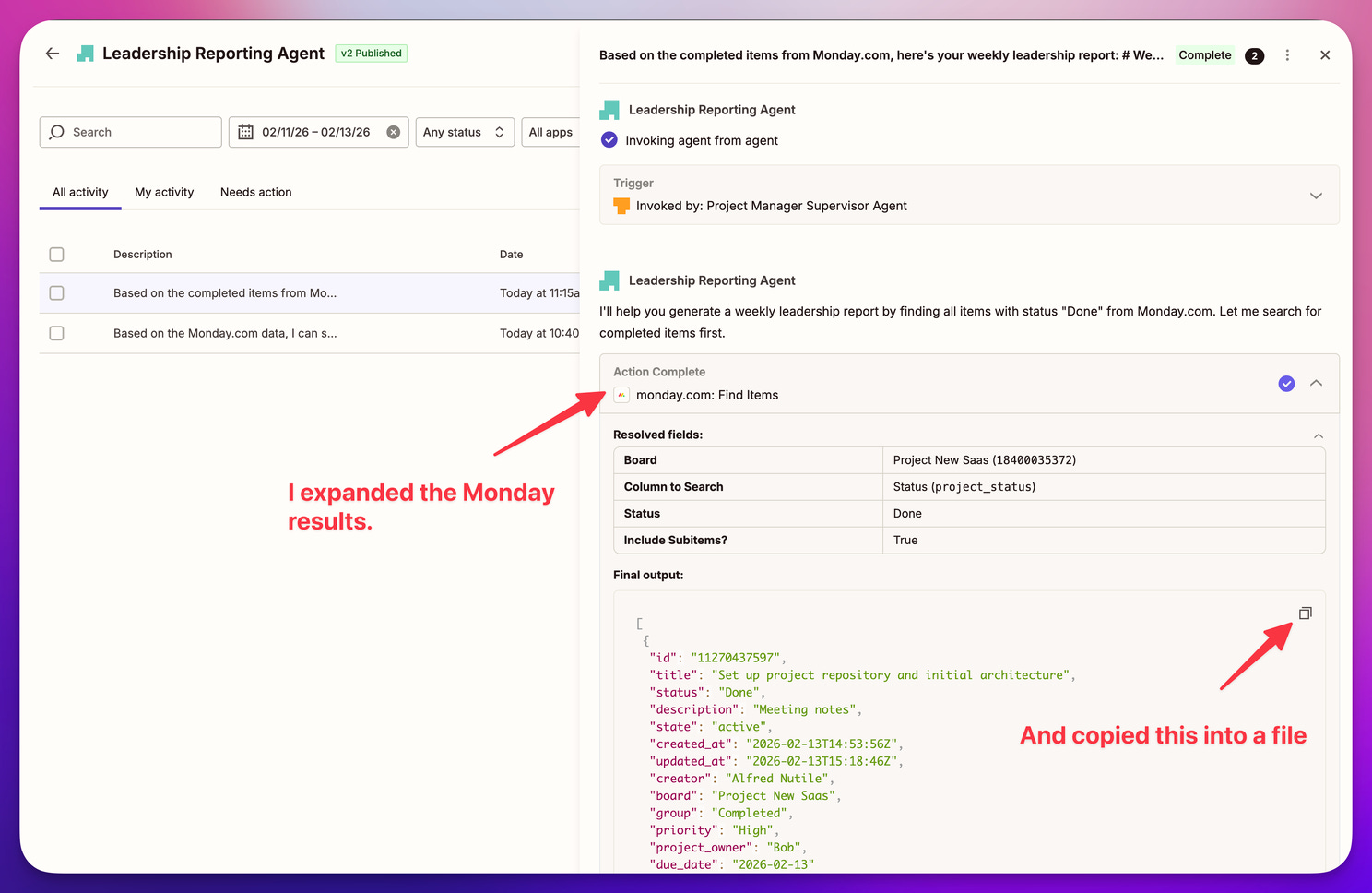
In this case I looked at a past Agent log and pasted the output from Monday into a file and uploaded it in the the chat I was using.
[
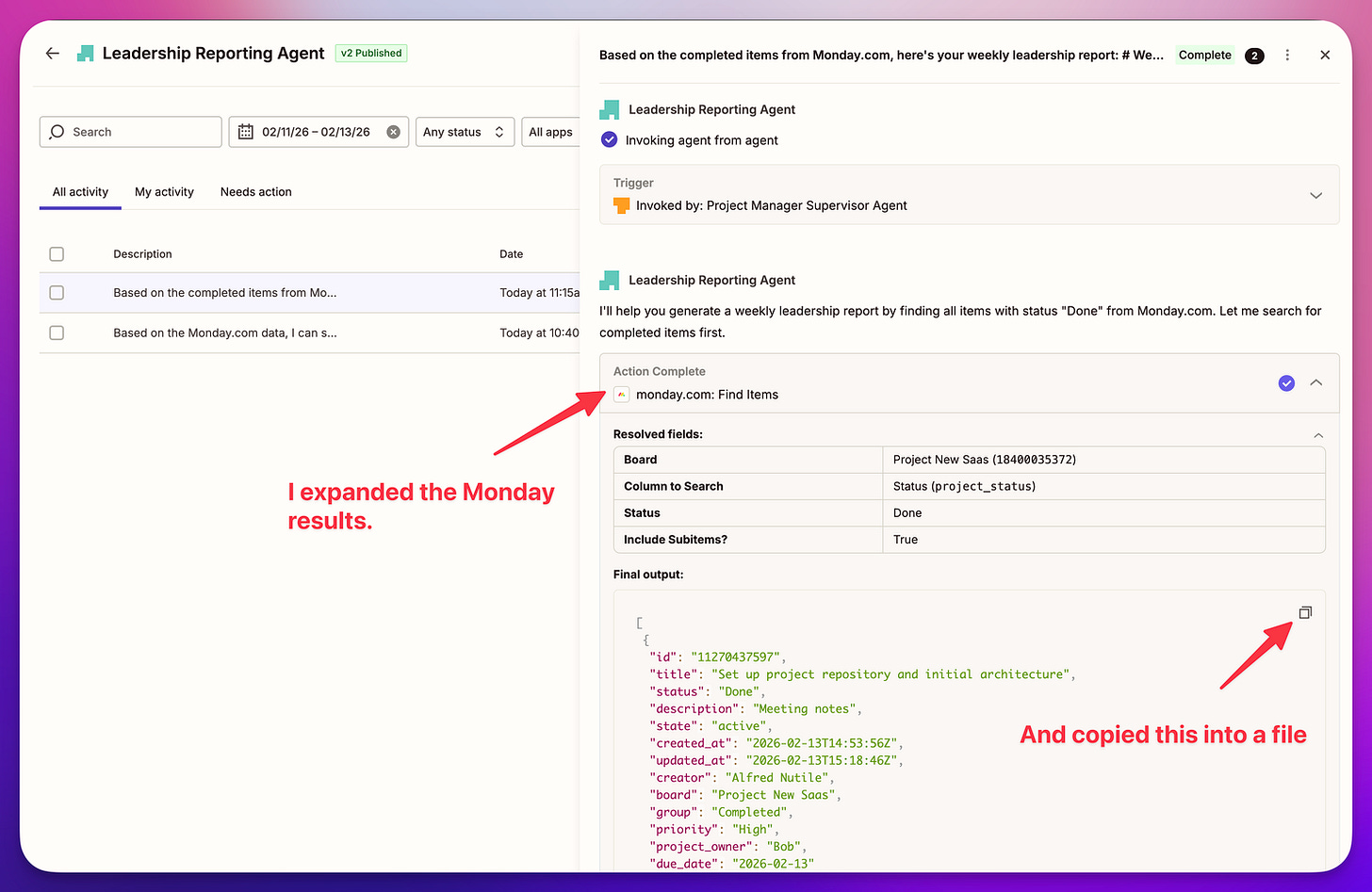
](https://substackcdn.com/image/fetch/$s_!vjje!,f_auto,q_auto:good,fl_progressive:steep/https%3A%2F%2Fsubstack-post-media.s3.amazonaws.com%2Fpublic%2Fimages%2F9a162d92-7168-4a10-8cda-20d4389ec4db_1488x968.png) Getting data out of Zapier
You’re not testing whether the PM tool connection works. You’re not testing the Supervisor. You’re just proving that your instructions clearly explain the format you want. That’s the piece worth getting right, and this approach lets you iterate in minutes instead of waiting for full automation runs.
Pro tip: if your instructions aren’t producing the output you expect, ask the AI itself. Paste your instructions and the bad output and say “why did you format it this way instead of what I asked for?” AI is surprisingly good at debugging its own instructions.
Connecting the Specialist and Setting the Schedule
[

](https://substackcdn.com/image/fetch/$s_!R-d3!,f_auto,q_auto:good,fl_progressive:steep/https%3A%2F%2Fsubstack-post-media.s3.amazonaws.com%2Fpublic%2Fimages%2F566009ee-9910-4f0a-b829-a19a8297cbd2_1488x811.jpeg) Connecting the Subagents to the Supervisor Agents

Now we plug the Leadership Report specialist into the Supervisor and set up the schedule.
Two things to do:
Add the specialist as a tool in the Supervisor agent
Update the Supervisor’s instructions so it knows when to use it. Be explicit — I literally write “ALWAYS use the Leadership Report tool when asked to create a leadership report.” Don’t leave room for ambiguity.
Then we create a scheduled trigger — a “Zap,” which is just an automation that runs on a schedule or when something happens. This one fires every Friday at 9am and sends a simple message to the Supervisor: “Create the leadership report, save it to a Google Doc, and post the link in #project-manager on Slack.”
Like I talk about in this video Zapier Agents: What, Why, and How we see how triggers kick everything off.
Adding More Specialists: Morning Tasks and End-of-Day Reports
Here’s where the pattern pays off. Your second and third specialists follow the exact same steps:
Write focused instructions for that specific report format
Test the instructions using the copy-paste-to-chat method
Give the specialist read access to your PM tool
Add it to the Supervisor as a tool
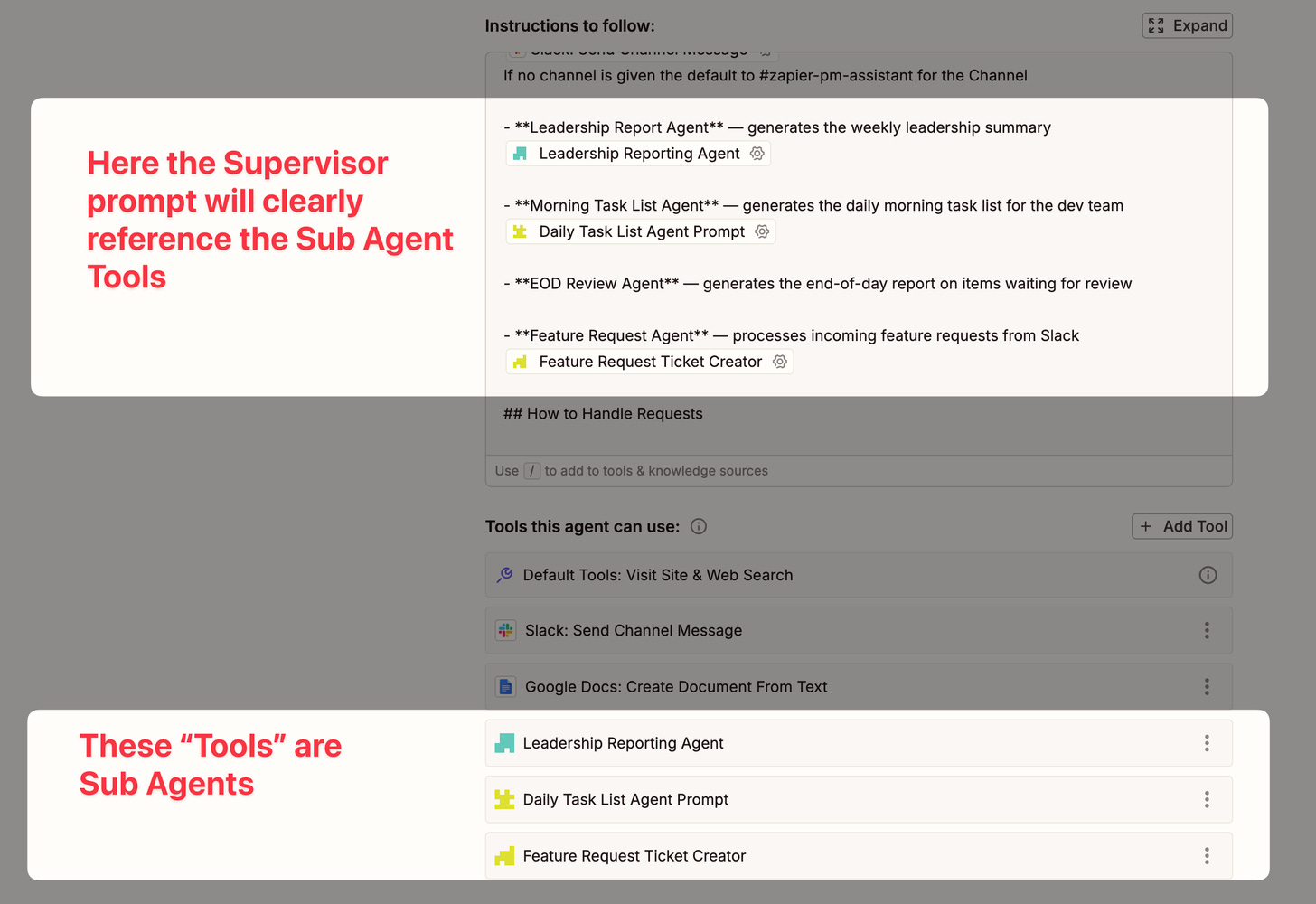
Update the Supervisor’s instructions so it knows about the new hire
Create a scheduled trigger
[
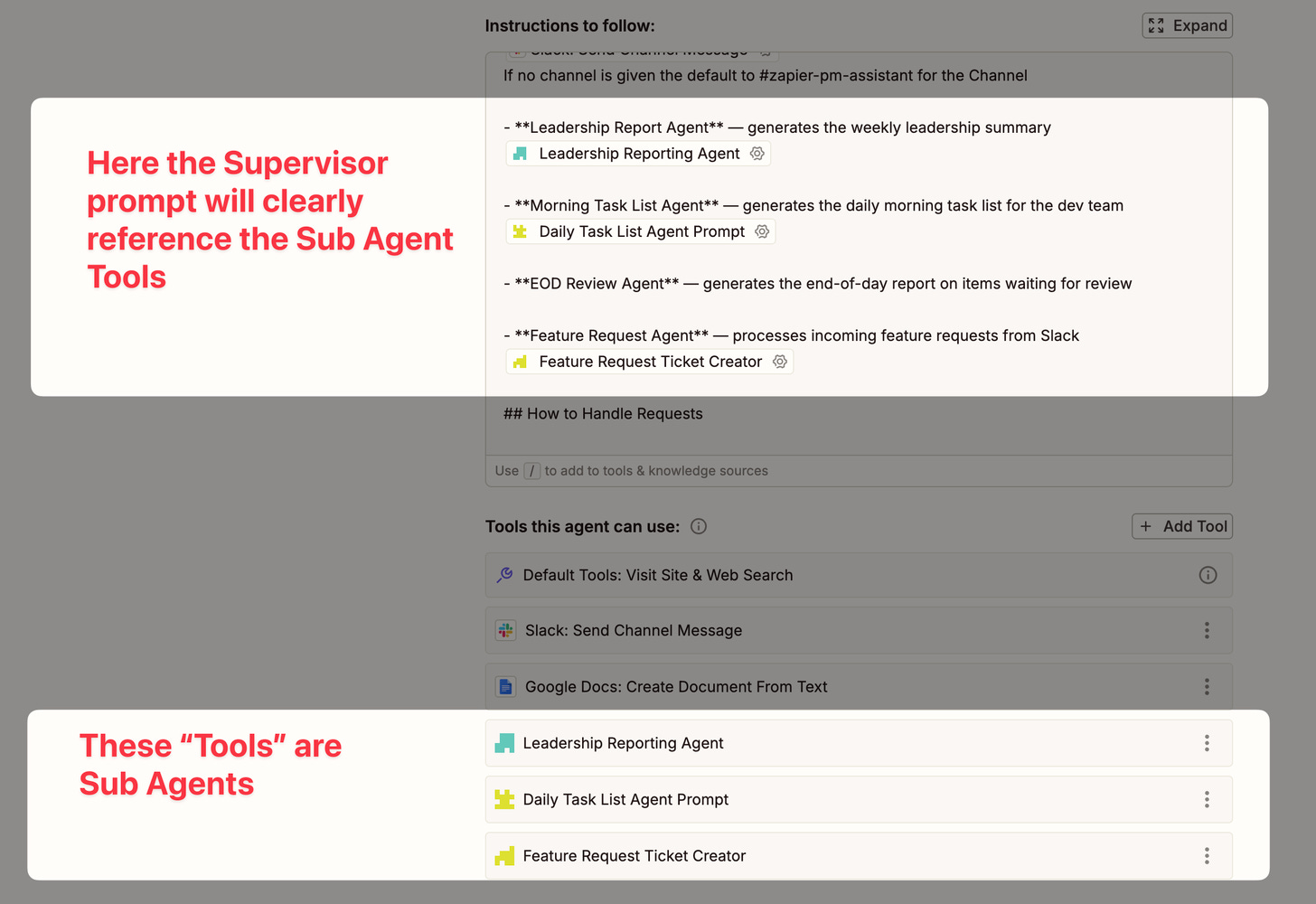
](https://substackcdn.com/image/fetch/$s_!Vy6W!,f_auto,q_auto:good,fl_progressive:steep/https%3A%2F%2Fsubstack-post-media.s3.amazonaws.com%2Fpublic%2Fimages%2Fcf631059-9b4b-4517-b46f-2b7e9c2c62b5_1456x1000.png) The Supervisor Prompt clearly points to the Tools
For the morning task list, the trigger fires at 9am and tells the Supervisor “create today’s task list for the team.” For the end-of-day report, it fires at 3pm EST: “create the review report — what’s waiting for approval so nobody’s blocked tomorrow.”
Each specialist has its own instructions tuned for its audience. The leadership report is high-level and polished. The morning task list is detailed and actionable. The end-of-day report is focused on what’s stuck and what needs someone else’s attention. Same data source, different output — because each specialist has different instructions.
This is the foundation. Once you see the pattern — write instructions, test them fast, plug the specialist in, add a trigger — you can add new automations in an afternoon.
The Lazy Feature Request: From Slack Message to Organized Ticket
This one’s my favorite. Here’s the situation: someone on your team has an idea for a feature. Right now they either forget about it, bury it in a Slack thread, or — if you’re lucky — fill out a form and create a ticket. Most of the time the request is vague, duplicates something that already exists, and nobody follows up.
Now imagine this: they type a quick message in Slack — “hey, we should add bulk export to the reports page” — and behind the scenes, AI does the rest.
[
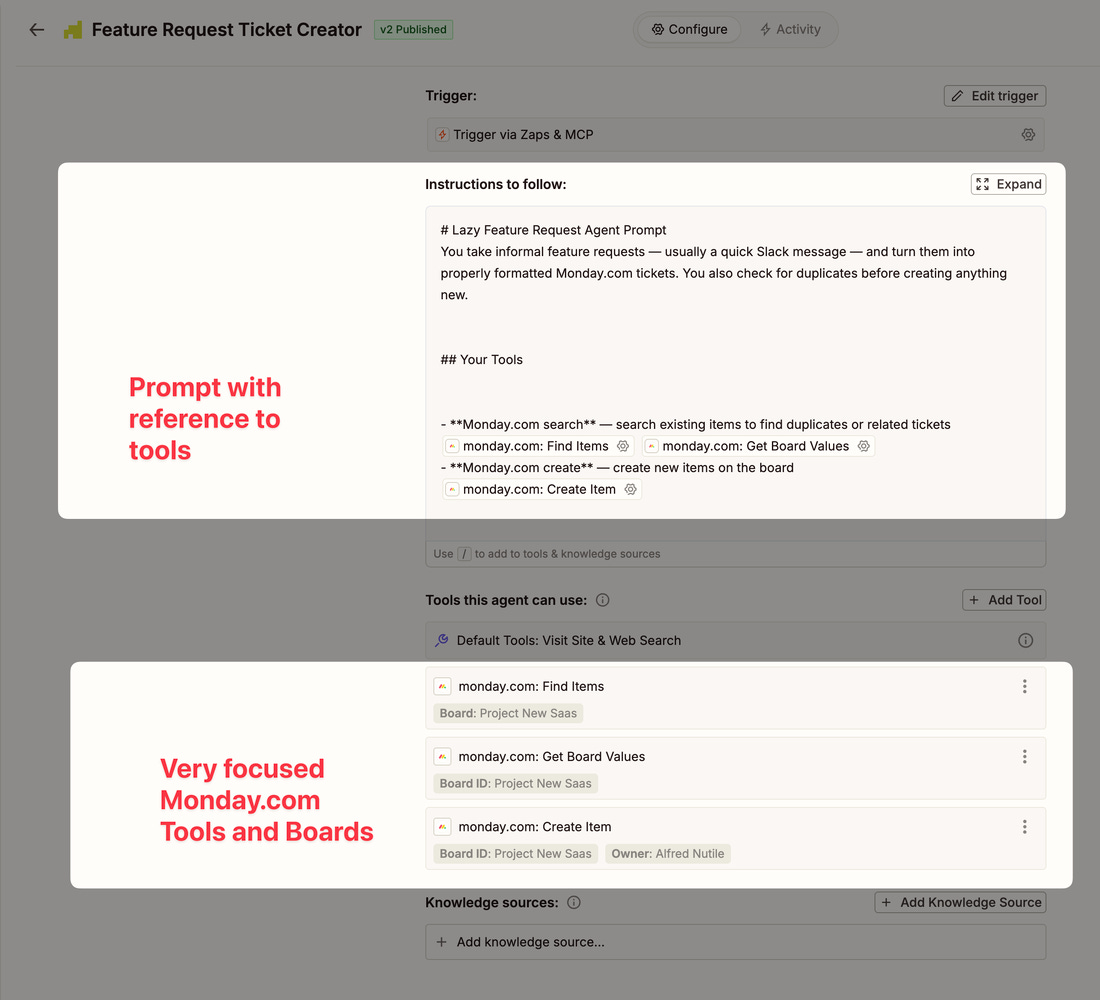
](https://substackcdn.com/image/fetch/$s_!zp7Z!,f_auto,q_auto:good,fl_progressive:steep/https%3A%2F%2Fsubstack-post-media.s3.amazonaws.com%2Fpublic%2Fimages%2F1f9c6bb7-28d0-4904-9b07-89d78db5d7ba_1100x1000.png) This is the Sub Agent for Feature Requests
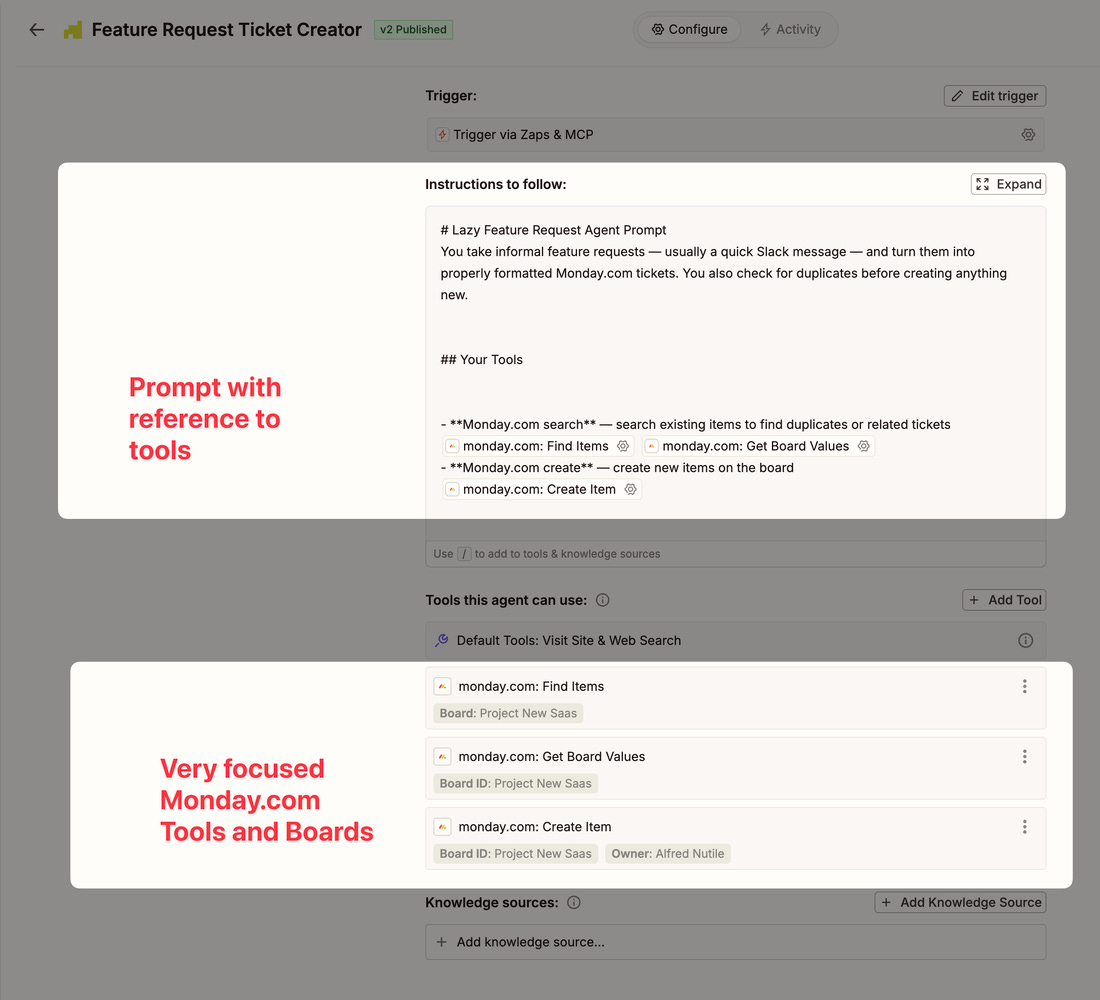
This specialist:
Searches your PM tool for existing tickets that match the request — no more duplicates
Links the request to an existing ticket if one fits, or creates a new ticket with proper formatting if it’s genuinely new
Reports back through the Supervisor to the person who asked, right there in Slack: “Found an existing ticket for this — linked your request to it” or “Created a new ticket, here’s the link”
[
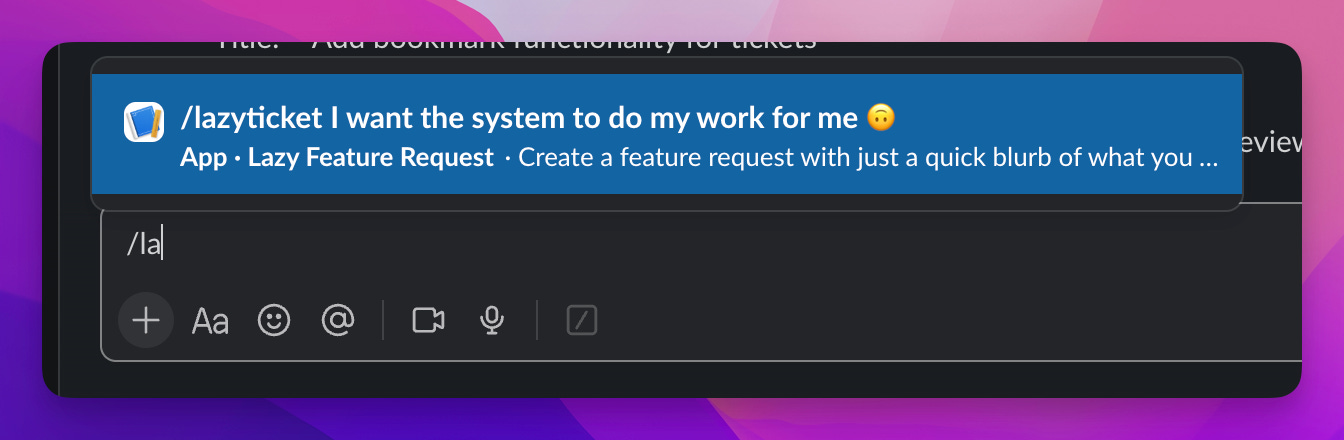
](https://substackcdn.com/image/fetch/$s_!bgXw!,f_auto,q_auto:good,fl_progressive:steep/https%3A%2F%2Fsubstack-post-media.s3.amazonaws.com%2Fpublic%2Fimages%2Fbbed894d-a6ca-4060-9cc1-126c6e209ee6_1344x440.png) Slack Slash Command
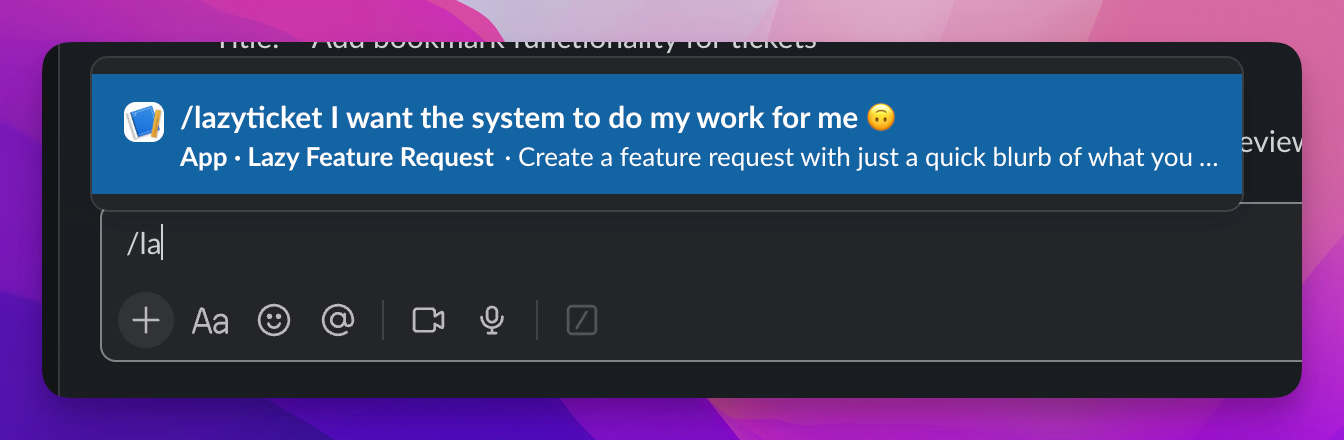
Then in a few moments:
[
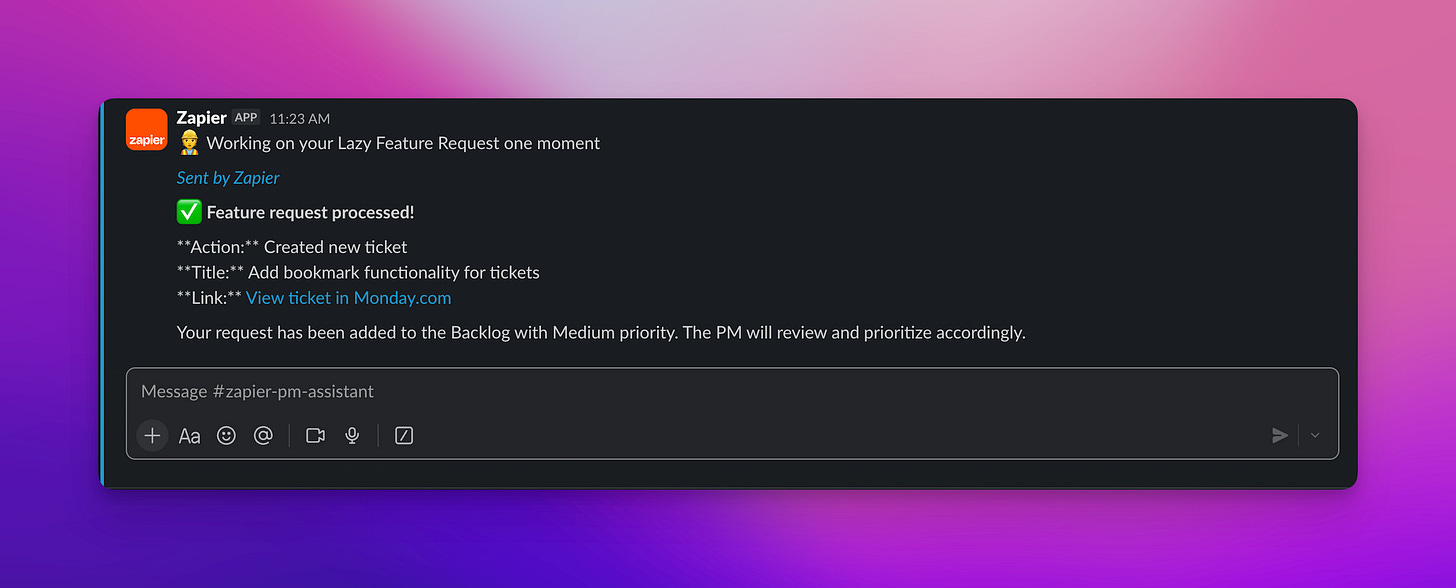
](https://substackcdn.com/image/fetch/$s_!CxX7!,f_auto,q_auto:good,fl_progressive:steep/https%3A%2F%2Fsubstack-post-media.s3.amazonaws.com%2Fpublic%2Fimages%2Fb1a575b3-a2f3-4c6a-91c2-cda927212740_2232x901.png) Sub Agent replies via the Supervisor
The person who made the request didn’t fill out a form. They didn’t search through tickets to check for duplicates. They just said what they wanted in plain English, and the system handled the rest.
Testing this specialist is a bit different since you need to prove it makes good decisions — does it find the right existing ticket? Does it create clean new ones? A handful of test runs with different scenarios gets you there.
What You’ve Built and Where to Go Next
Take a step back and look at what’s running now:
Friday 9am: Leadership report writes itself, lands in Slack
Daily 9am: Morning task list hits the team channel
Daily 3pm: End-of-day review report goes out
Anytime: Someone Slacks a feature idea and a clean ticket appears
And the whole system runs through one Supervisor that you can keep expanding.
Here are ideas for what to add next:
An email inbox — set up an email address for the Supervisor, forward messages to it, and let it act on them. “Hey, can you check the status of the login bug?” becomes an automated lookup and reply.
A midday check-in — “anything at risk of missing this week’s deadline?” pulled straight from your PM tool.
Meeting prep notes — pull recent activity on a project before your standup and drop a summary in your channel.
The pattern is always the same: write clear instructions, test them fast outside Zapier, plug in the specialist, add a trigger.
The next lesson will dig deeper into writing better instructions, building specialist skills, and getting the most out of AI for your day-to-day work.
Use my link below to support more lessons like this one:
👉 Try Zapier here: https://bit.ly/4aVM99d
Frequently asked questions
- How can I stop manually writing the same status reports every day?
- Build an automation that pulls from your project management tool and writes the reports for you — a detailed morning task list for the team, a polished weekly summary for leadership, and an end-of-day review of what is waiting. Each audience gets its own format, generated automatically.
- Do I need a separate automation for each report format?
- No. One system can produce several outputs from the same source data — the building team's detailed list, leadership's summary, and the end-of-day blocked-items report — each formatted for its audience.
- What does automating my reports actually save me?
- Hours every week of copy-paste grind, plus the mental load of reformatting the same information for different people. The reports just show up, written, formatted, and delivered.