Claude Desktop Intro - It really is for anyone
Getting Started with Claude Desktop — For Normal People 🙃
Update: Sorry I left a grammar check message in the content. I write these AI helps me with review (audience, grammar etc) I can share that workflow if people are interested.
This post will go over Claude Desktop. I just want to show how to make it part of your day-to-day workflow. We’ve all gone to ChatGPT in the browser. or we have gone to Claude in the browser, maybe. But this company who made Claude, Anthropic, released a desktop app — which ChatGPT has too — but I think these guys are really pulling off some things here that will honestly make your day a lot easier. You do not have to be an ai export, developer, coder, etc just normal day to day work or non-work tasks.
Installing It
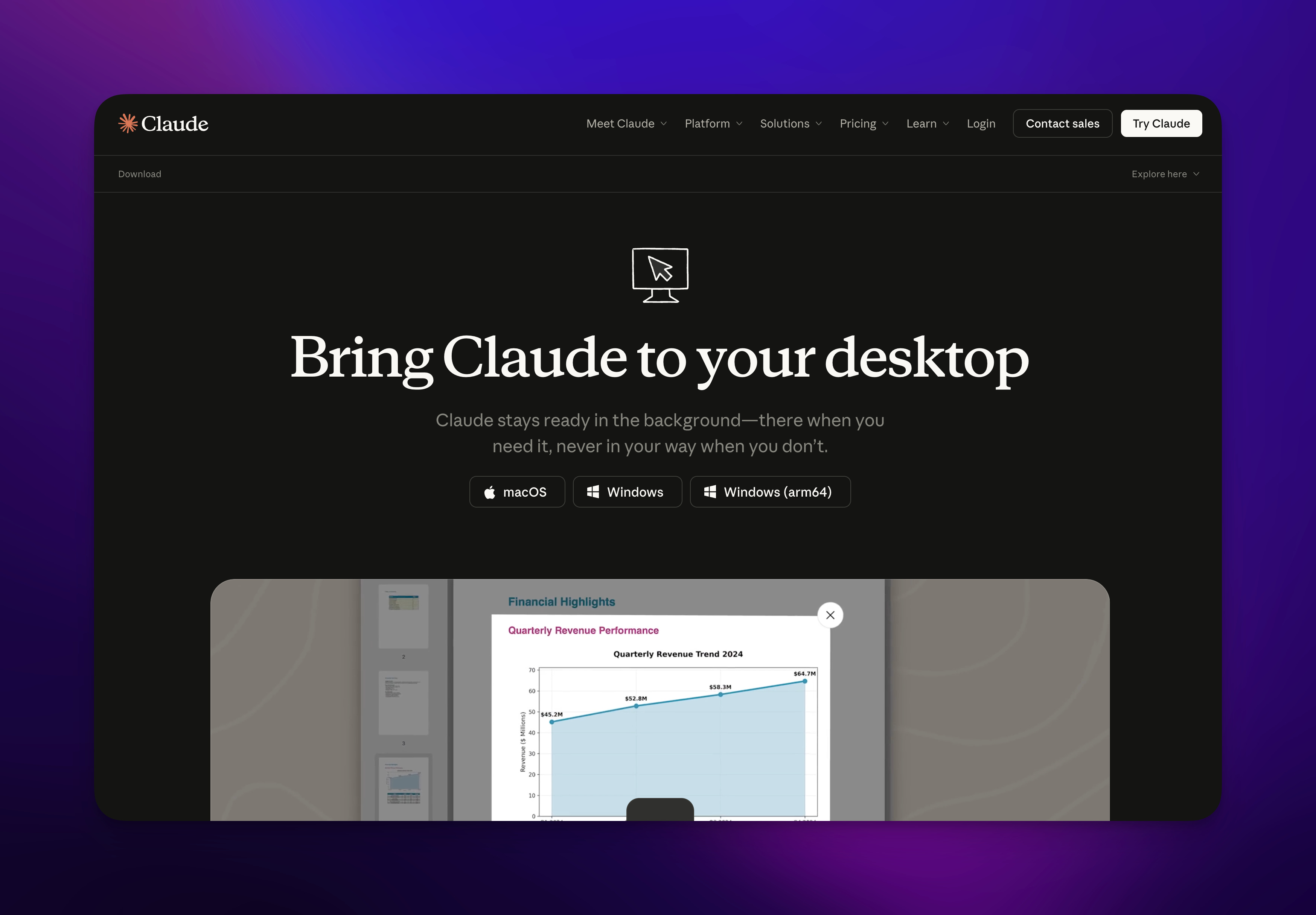
It can be a bit confusing since “Claude Code” pops up everywhere. But if you go to https://claude.com/download
[
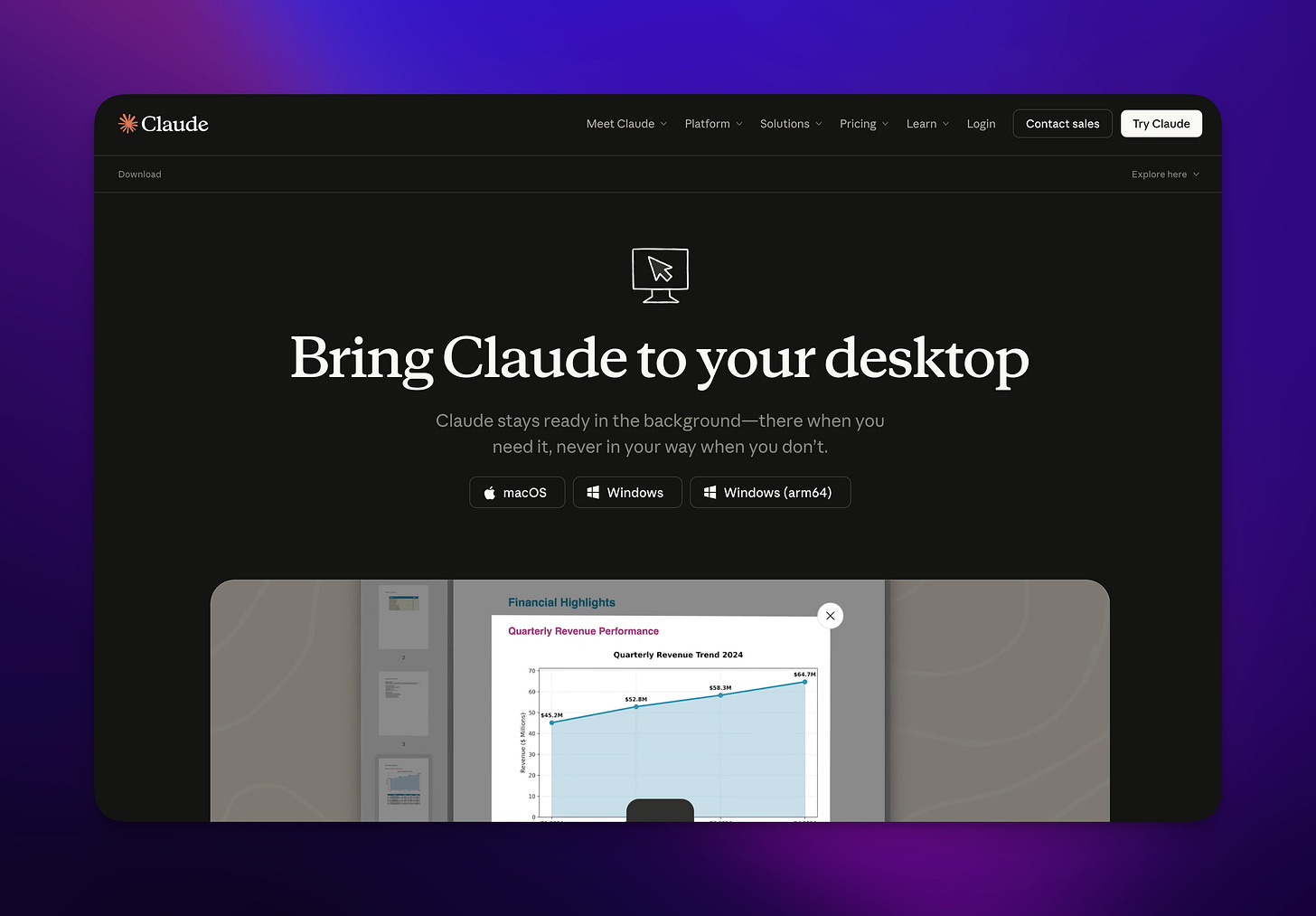
You’ll be able to download it and get a sense of what’s possible from their video on the site.
Chat — The Starting Point
[
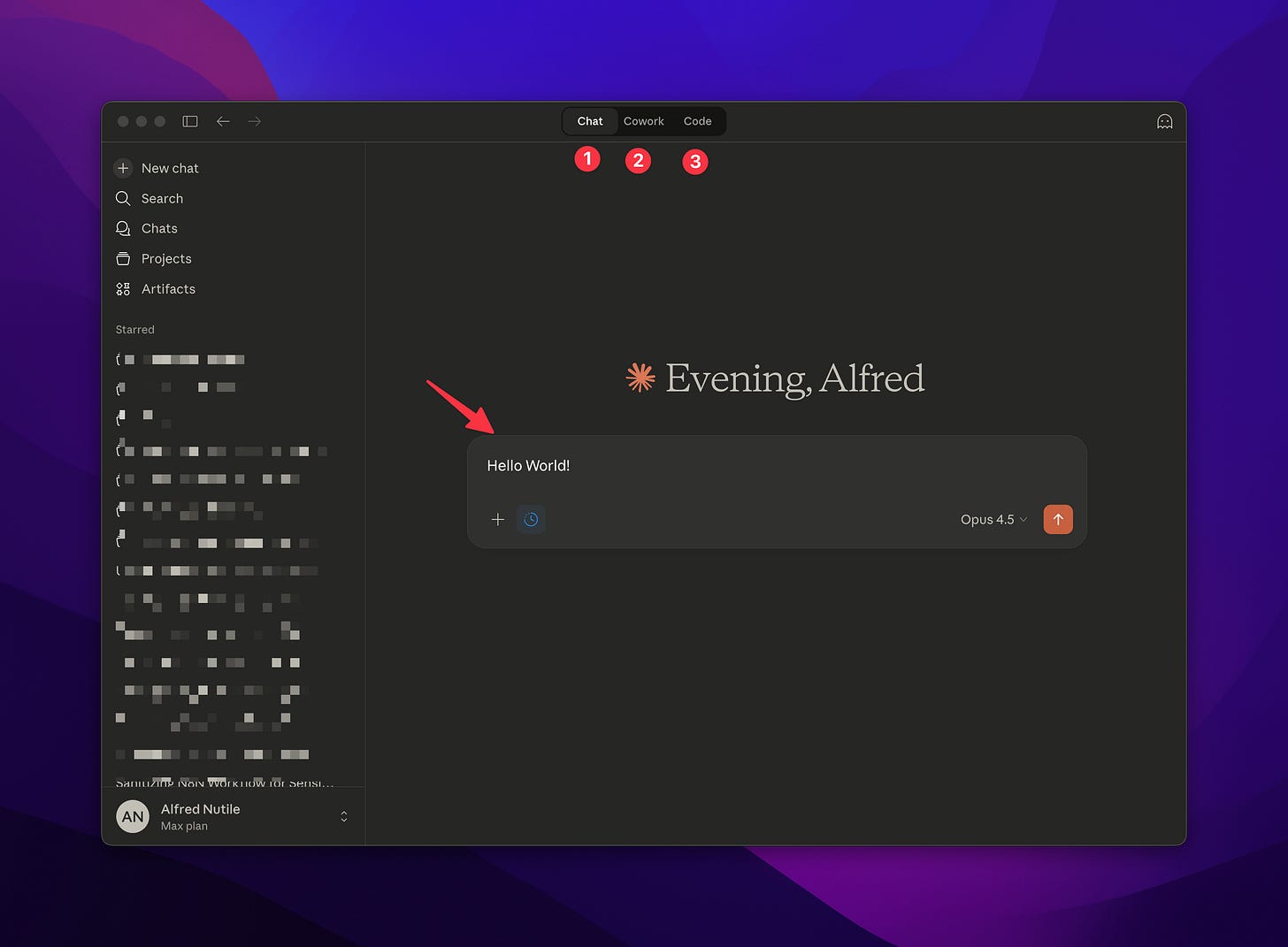
First, we start with chat. You have that normal chat experience, but right away you can see I have connections I might not normally have — like connections to my messages, to my notes, to my files and folders.
[
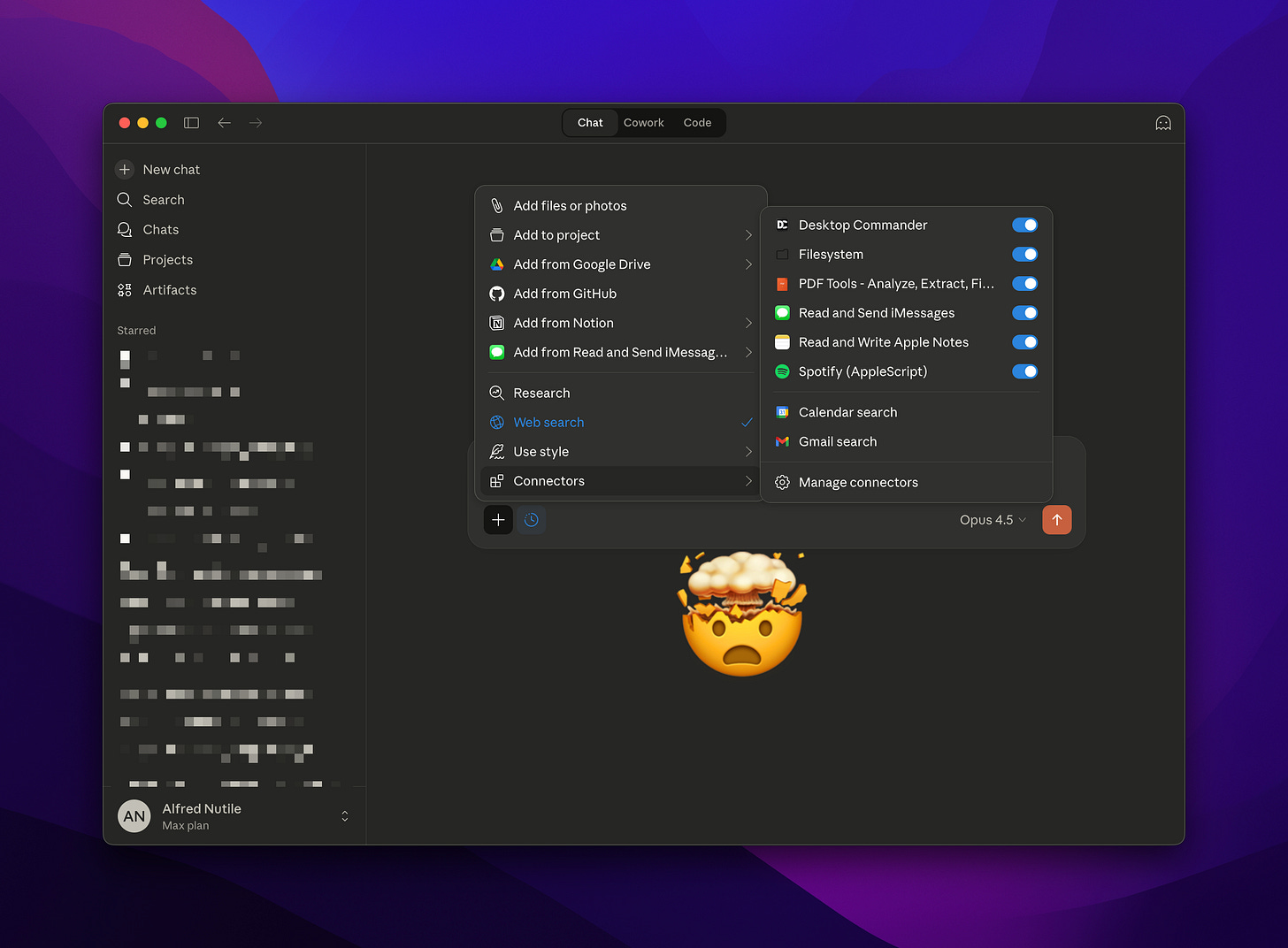
They’re a little more seamless. I’m going to show you a project in a moment where we take chat to the next level, but this is just normal chat that we’re used to. I can have it look over meeting notes to generate a quote, for example, and with that we can get what we want from the chat.
[
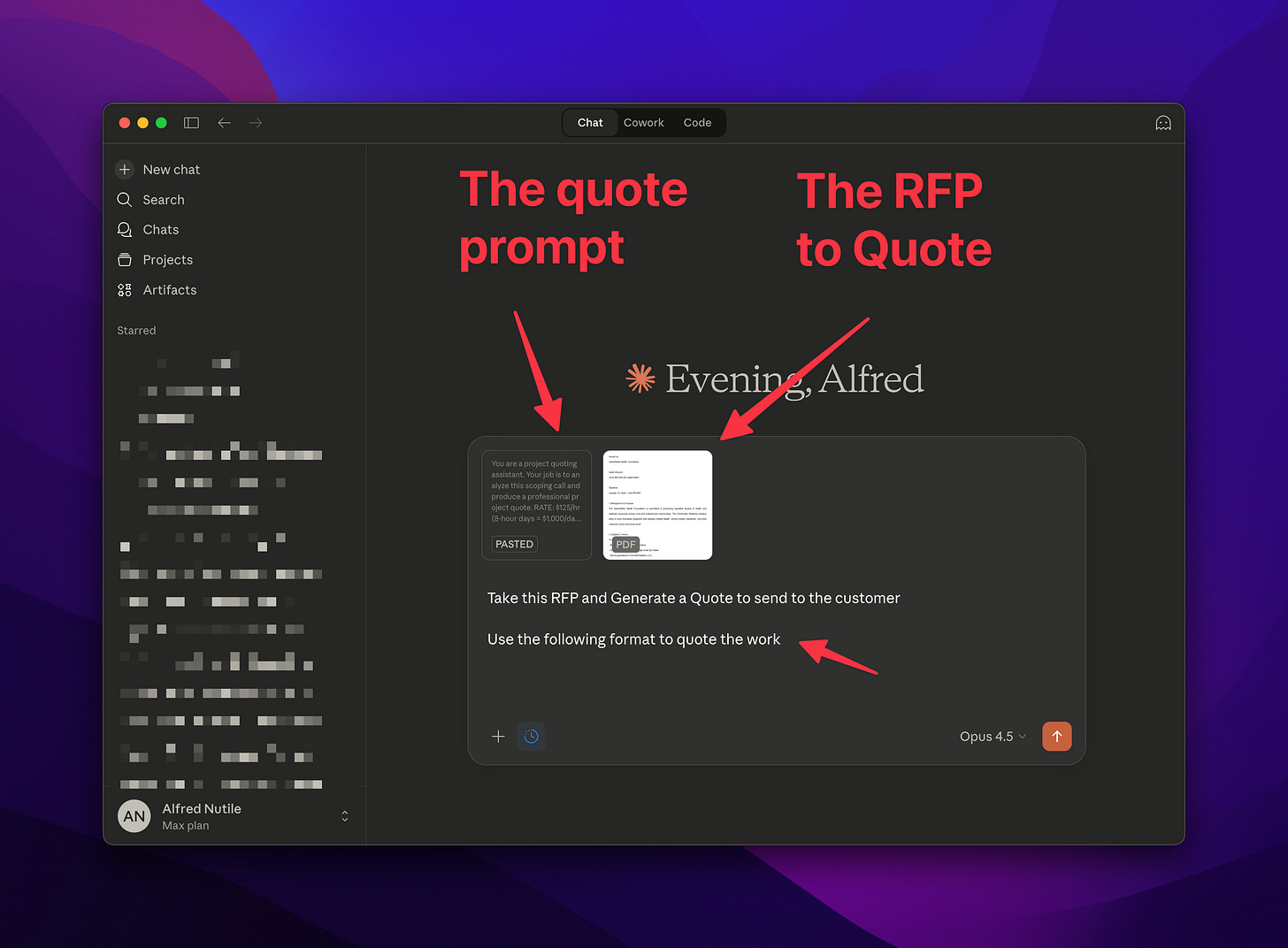
That’s great, but here’s something you have to realize — I’ve had to tell this AI how I like to quote, and then I had to give it the meeting notes, and then it gave me what I wanted. I don’t want to do that every time. So then we enter into “Projects.”
Projects — Organized Context
So then we evolve into Projects, which everybody’s seen on ChatGPT and other places. But just to remind people, Projects are a way to organize context for the AI. You open the project and you can keep coming back to it to work on it — like job postings, resume updates, how you like to reply to quotes, how you like to organize your week, apply to socials.
Here we start to build up “Instructions” that you can use again and again. Files that will give it more data. In our example, past quotes that might be useful to see how we did past work, or how we work and who we are, so it doesn’t make up solutions we won’t actually do.
Whatever it is that you do again and again, you could really get a lot out of this. How you like to reply to RFPs. I mean, it goes on. It’s really amazing what it can do for you once you build up that context, the information, how it works, and give it data.
[
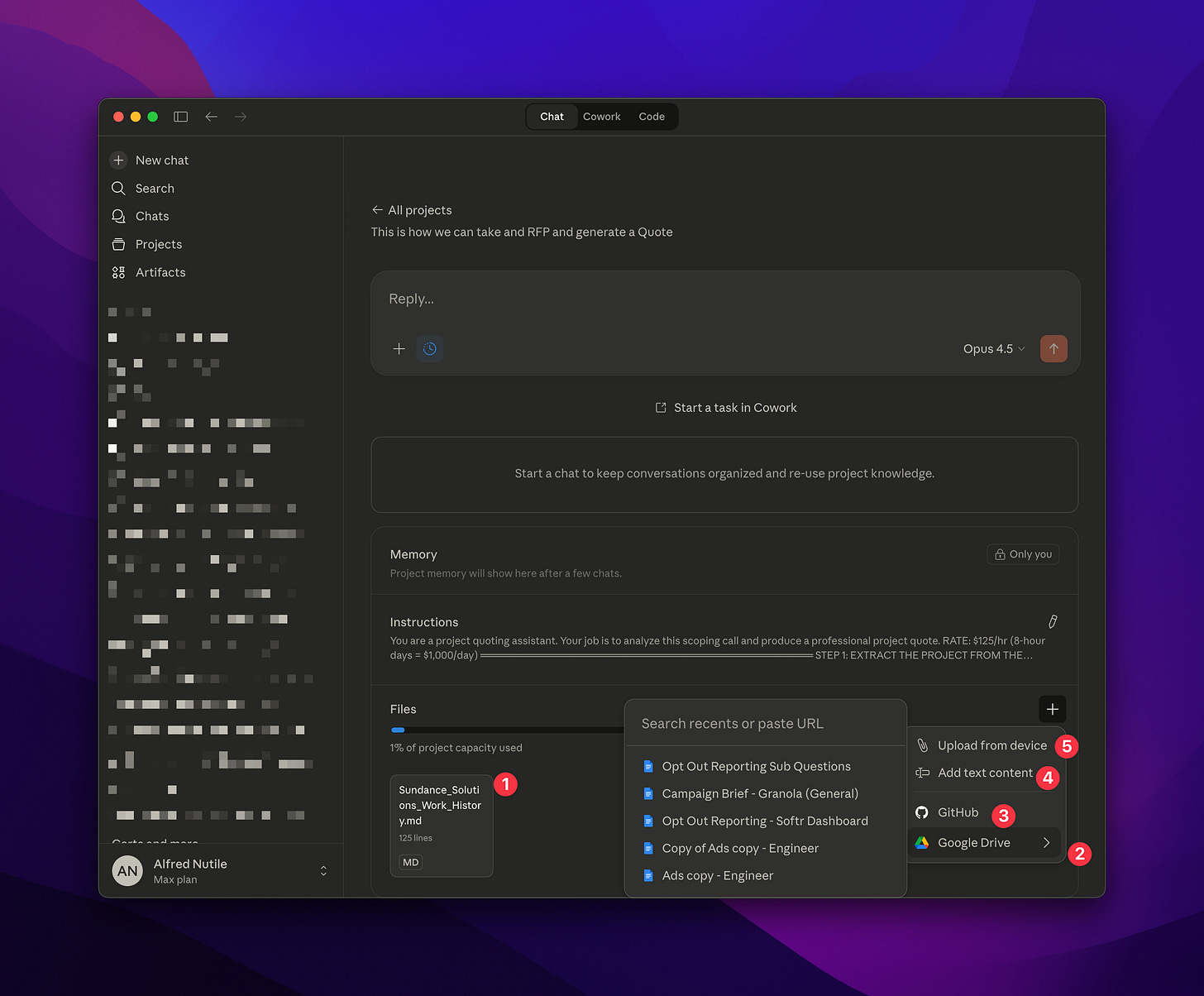
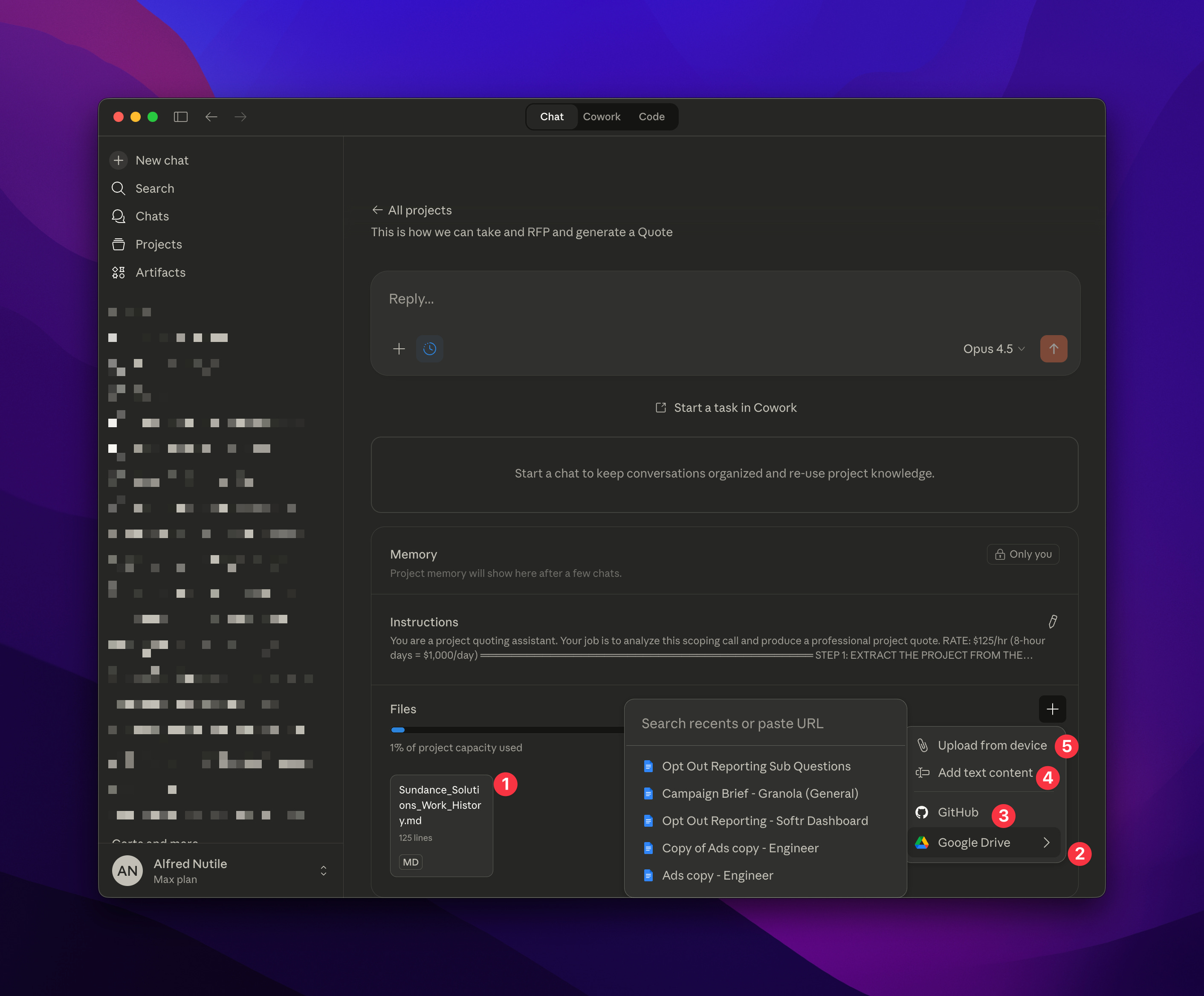
Here you can now see I uploaded our “How We Work” files, but I could also connect it to Google Drive documents, GitHub (don’t ask 🙂), upload files, and paste text. That context will continue to pay off with every chat in this Project.
Instructions become the “Project” prompt so the AI knows how you like to do things in this project. The memory will help too, continuing to grow in understanding how you like to do these tasks. Or say this was a “Project” about you communicating with a potential sponsor, customer, etc. — now it has a history of all the communications you had with them.
I could easily build a “Job Reply” project and upload my resume and share other data to then fill in job postings with good, current, relevant data!
Cowork — Let It Use Your Desktop
This leads to another thing where they have Cowork.
[
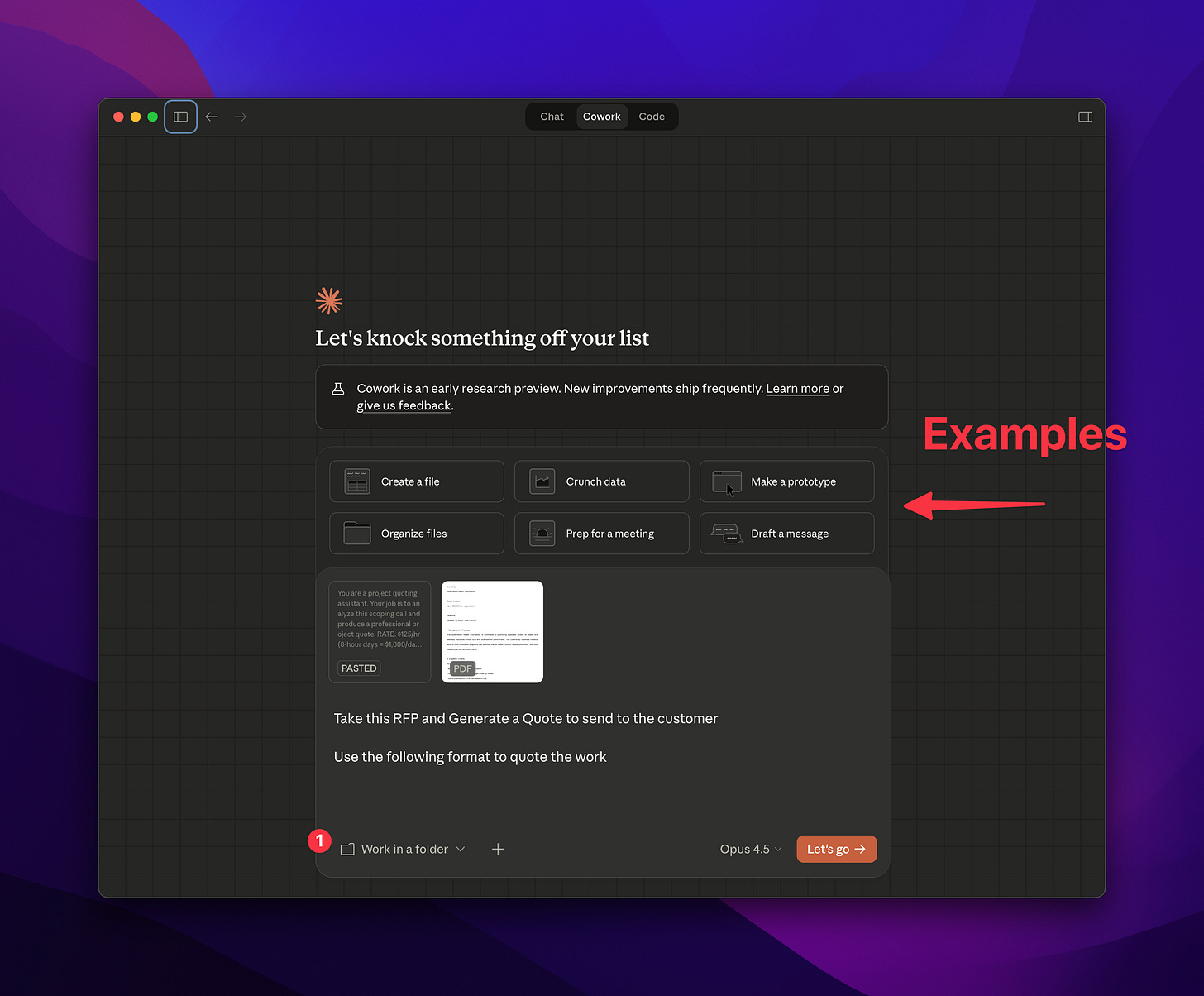
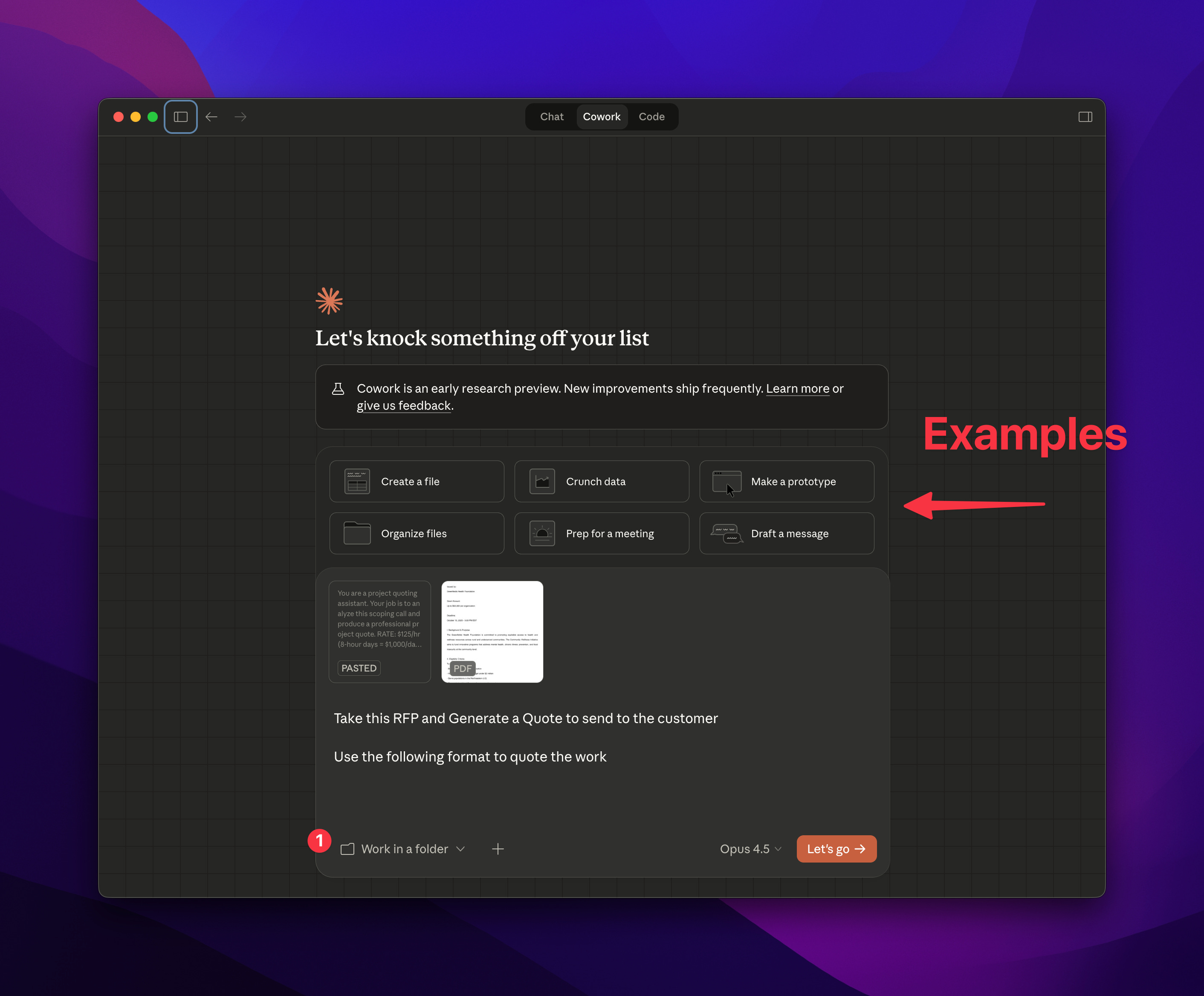
There are some good use cases here: https://claude.com/resources/use-cases
[
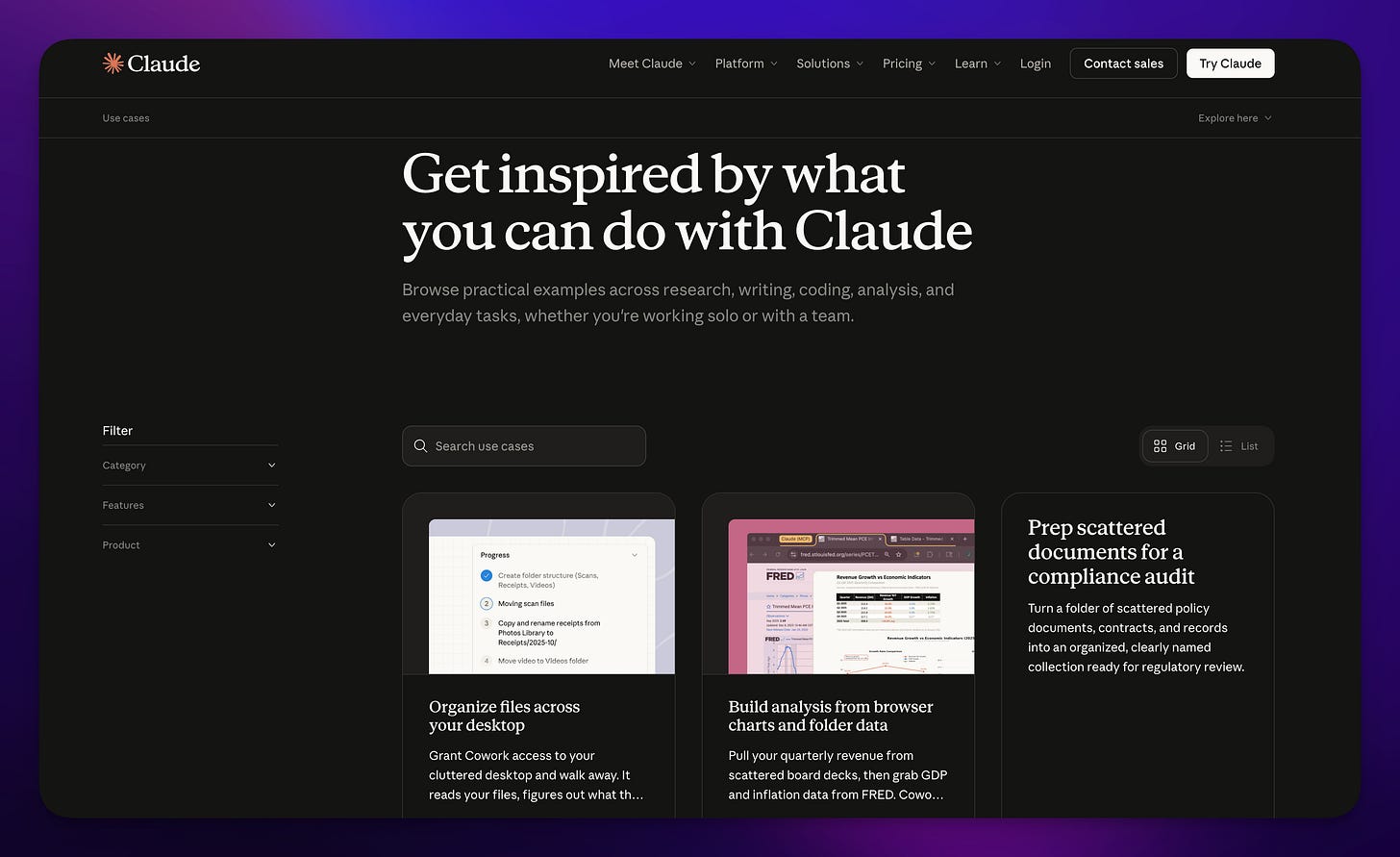
This is another moment where you’re saying, hey, here’s my desktop, use it to get a job done — which is empowering for the AI and for you.
So here I could say, here is my folder, I’m going to put stuff in this folder — my resume, a couple of examples of some work I did, maybe some images. I dumped in a few images I like that are kind of infographics.
[
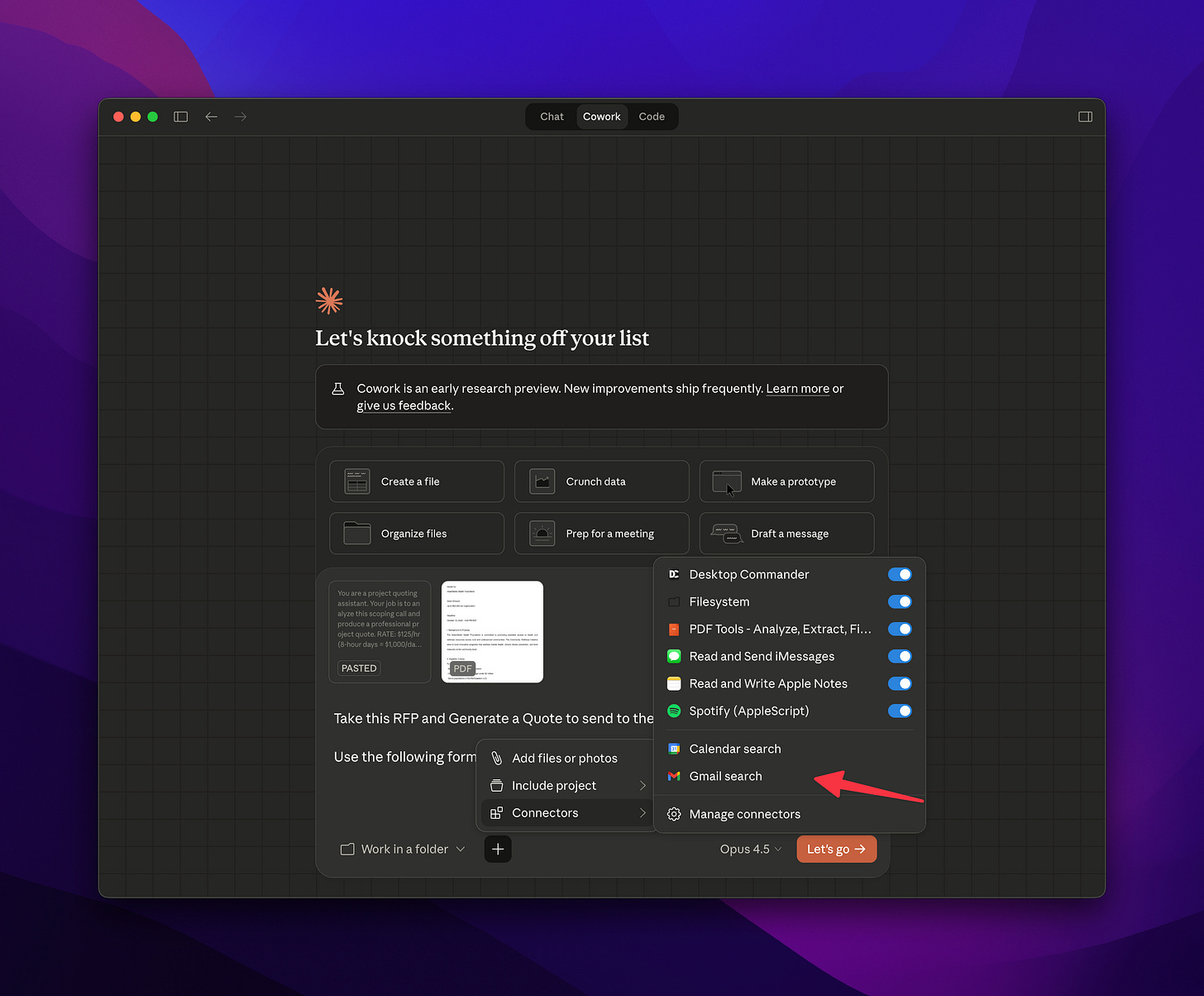
I can also say here is some other information or integrations I want you to think about — Apple Notes or Google Drive. And on the right side, we have other integrations or context or knowledge.
Now, this gets a little tricky — what’s the difference between Projects and Cowork? This is where things get a little interesting. But those examples should help you start thinking about how you can use it for your day-to-day work. Watch how it starts to move things on your computer, but at the same time you can keep using your computer.
Here is where things really get interesting — it can run my browser while I continue to use the computer!
[
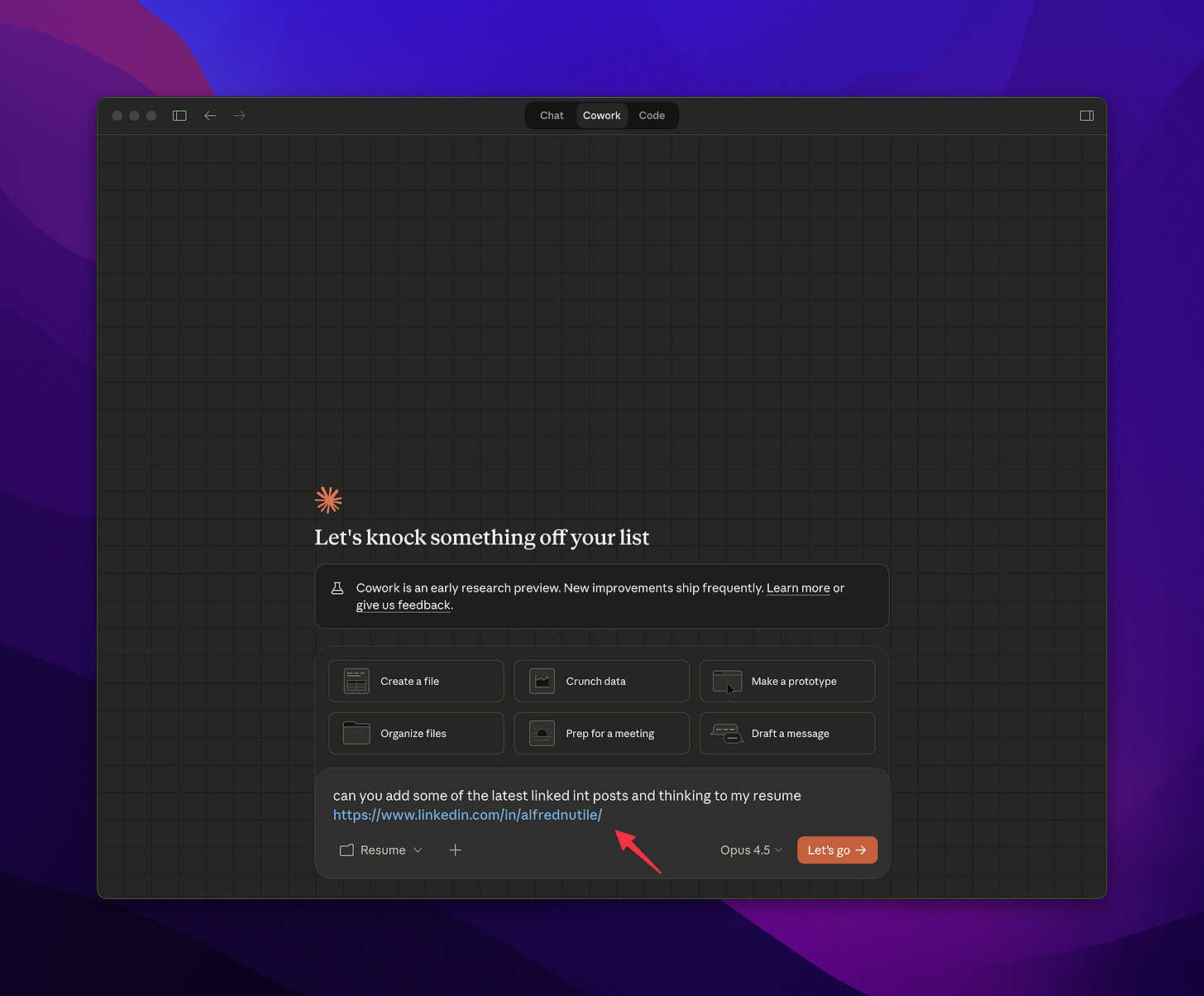
This task is not something it could do before, and tasks that require you to be authenticated were even more impossible — until now. In this example I needed it to research some info about me!
[
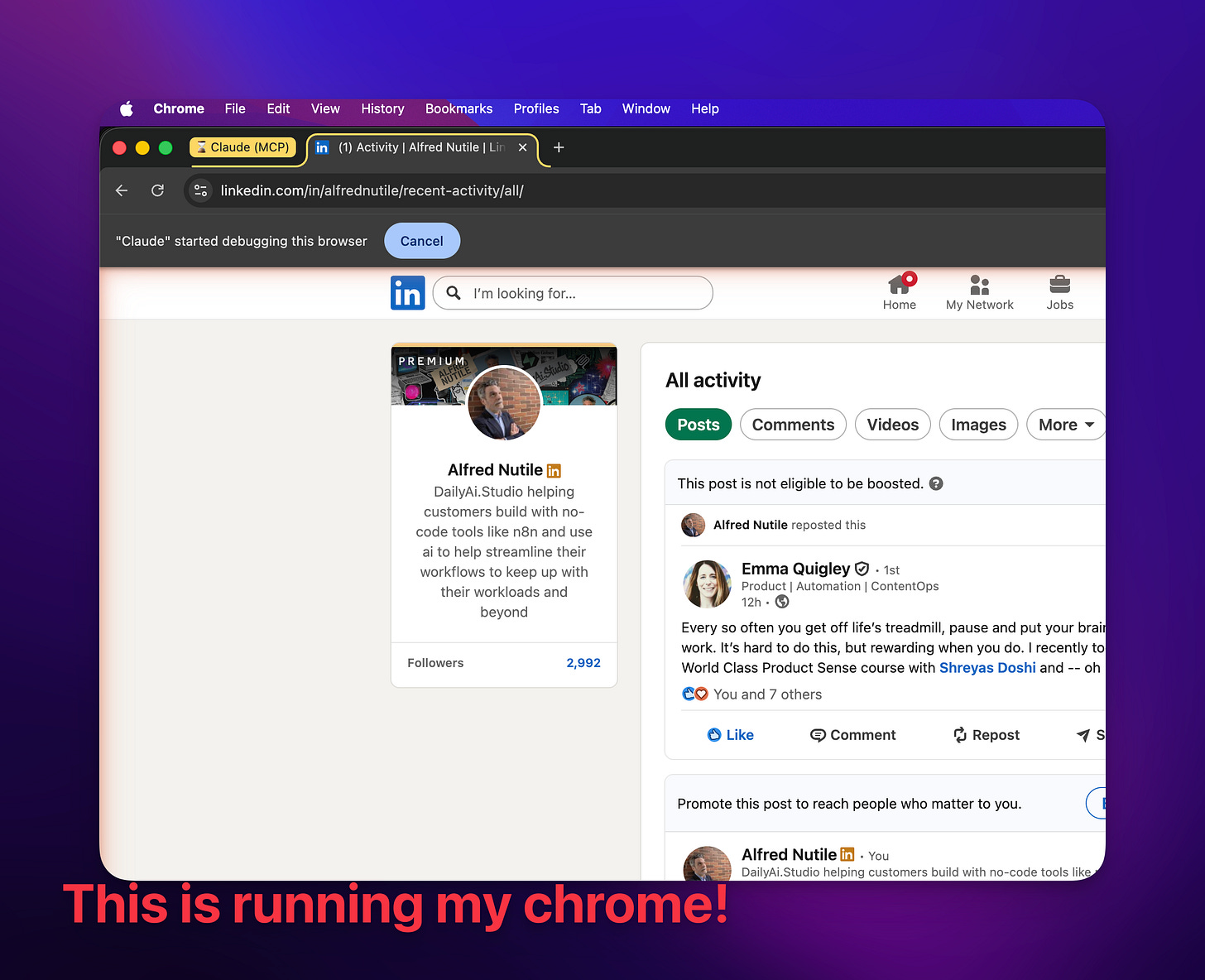
Pretty amazing! The other day I had to update something on WordPress and I didn’t know how. Claude did it for me! This gets into the next item you need to set up — the Claude Extension.
You can download it here:
[
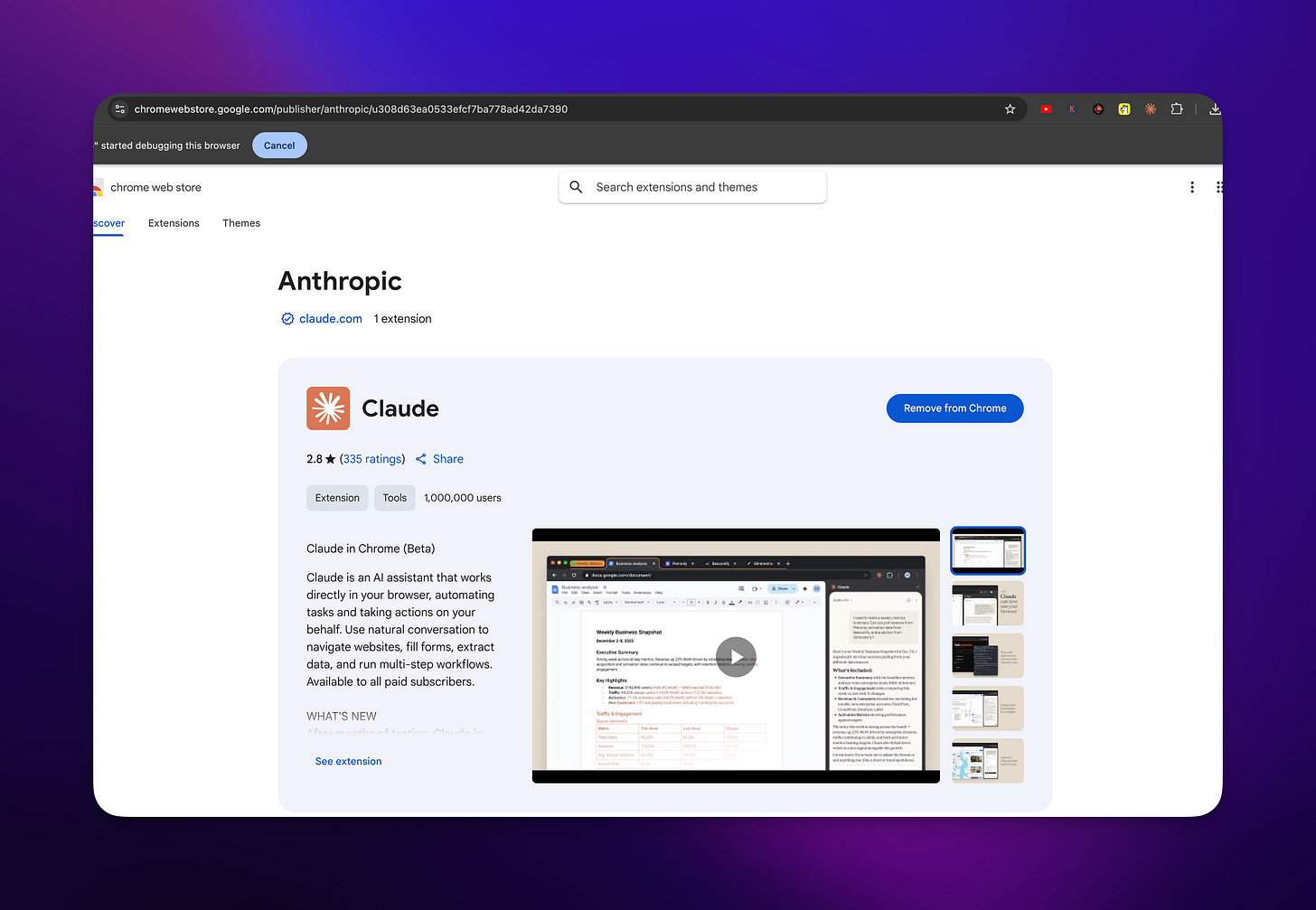
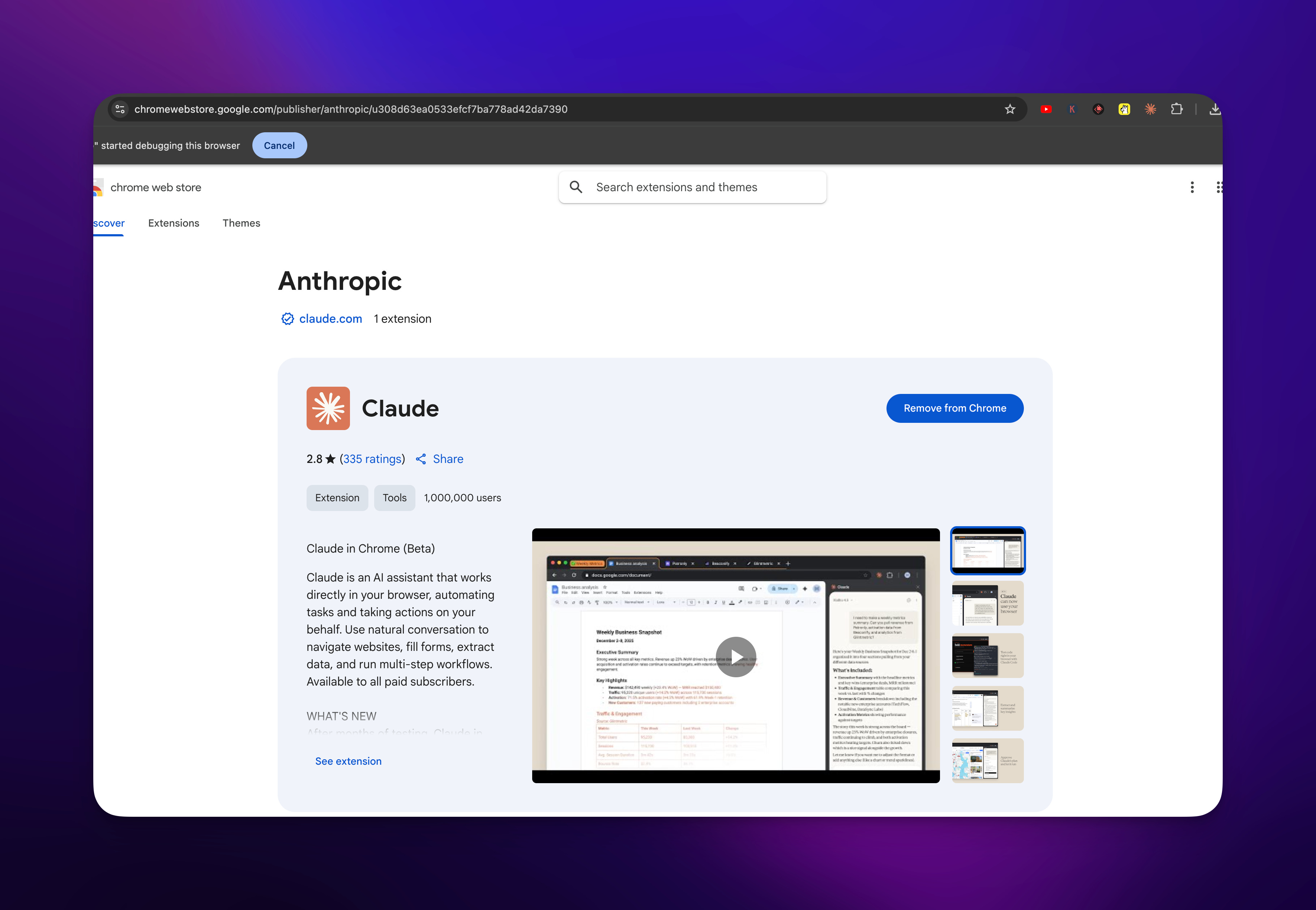
Once downloaded, you now have this area in your browser.
[
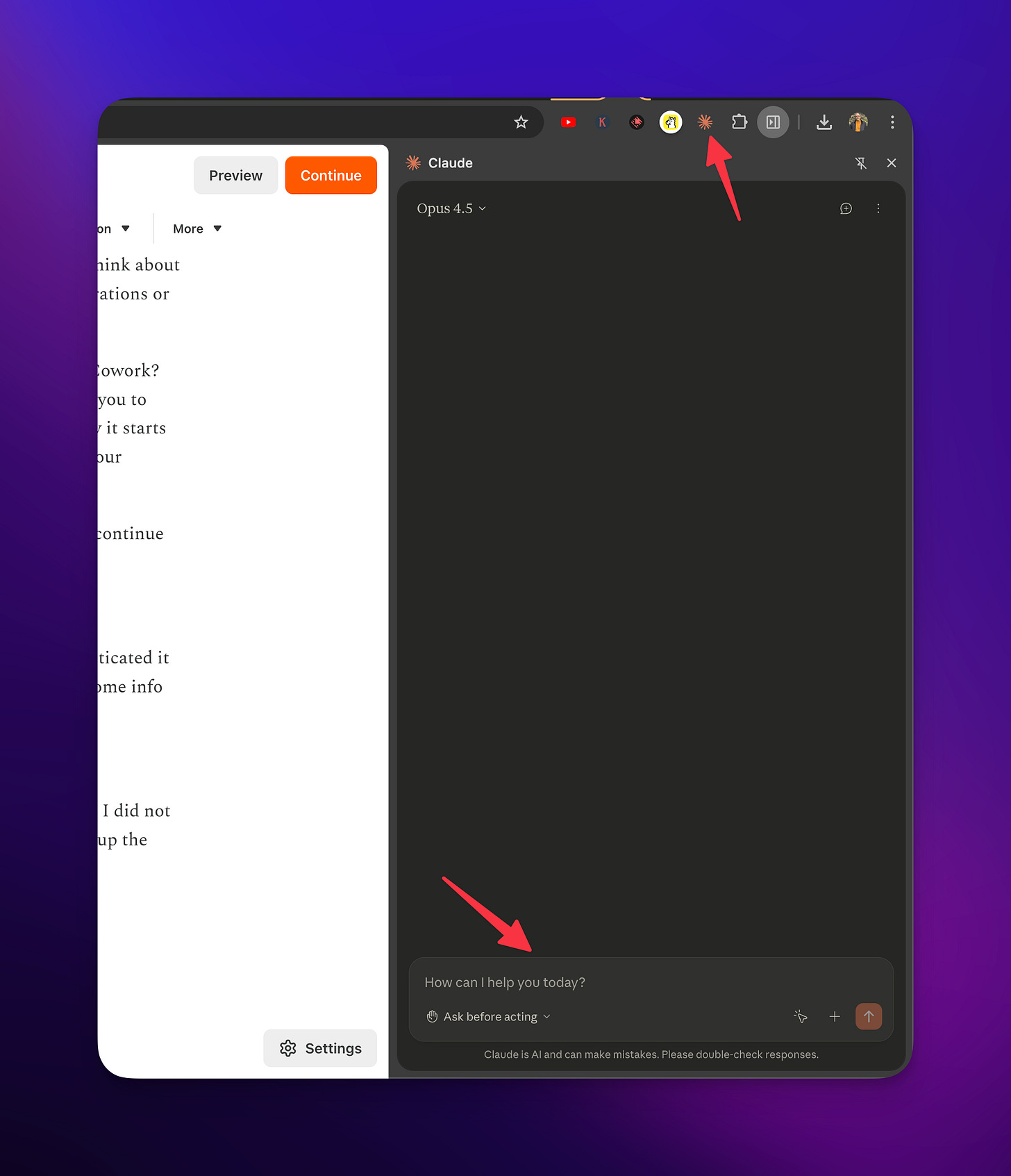
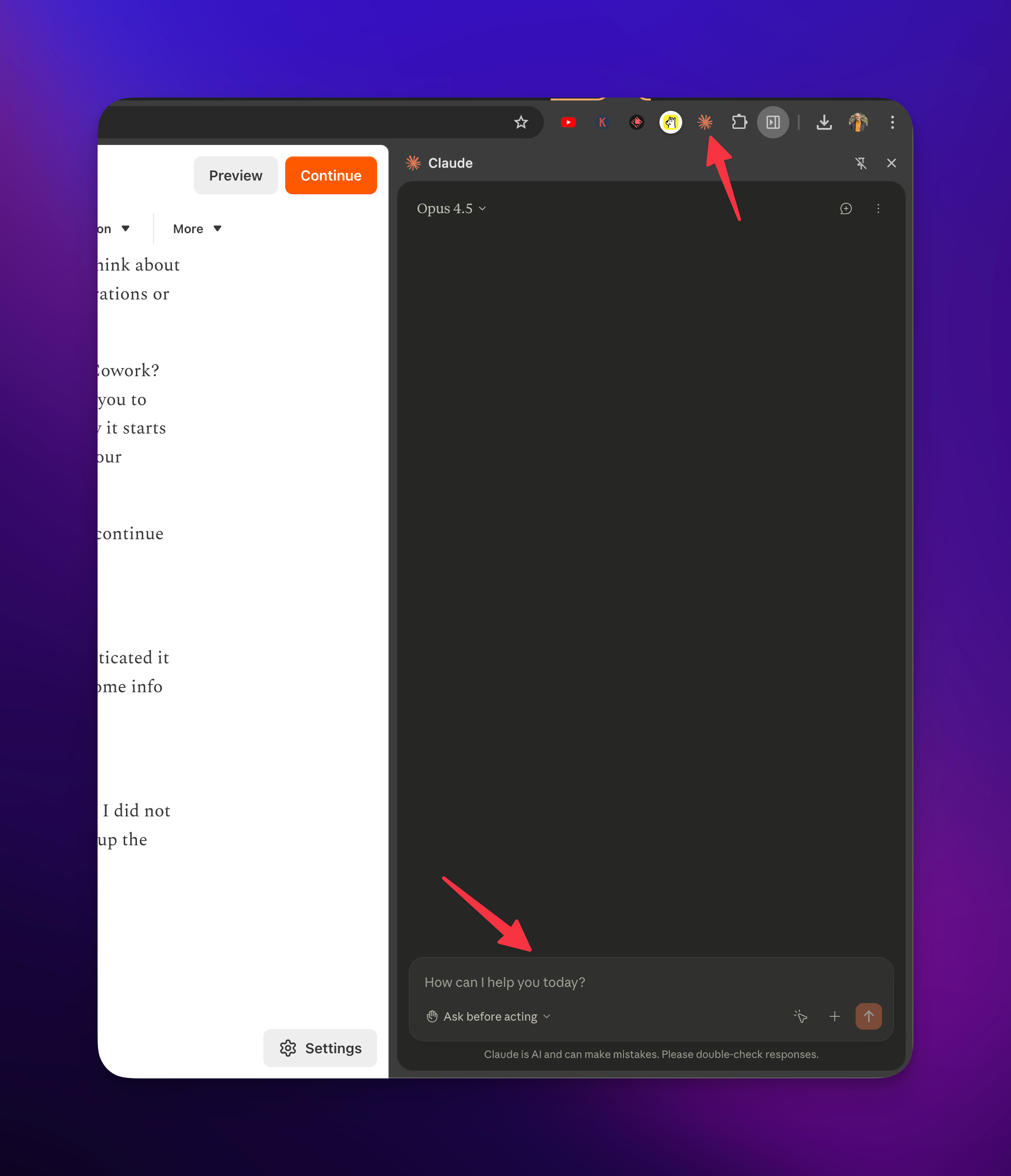
This enables the Cowork area to use your browser, and you can do quick one-off automations there as well.
The Chrome Extension
Now I can ask it, hey, there’s a job posting here, go look at this and with all the information you have about me, help me build up a reply to this so I can go back to it and fill it in. I could have pasted the job posting there, but if we do this right, we’ll get to a place where it can fill in the job posting for me. Not that you should. But just so you know, you could have it do this kind of work for you. Or in this case — “Go check and fix my Substack article for all those grammar mistakes!” It can be a little slow, so keep that in mind, but you can keep working while it works.
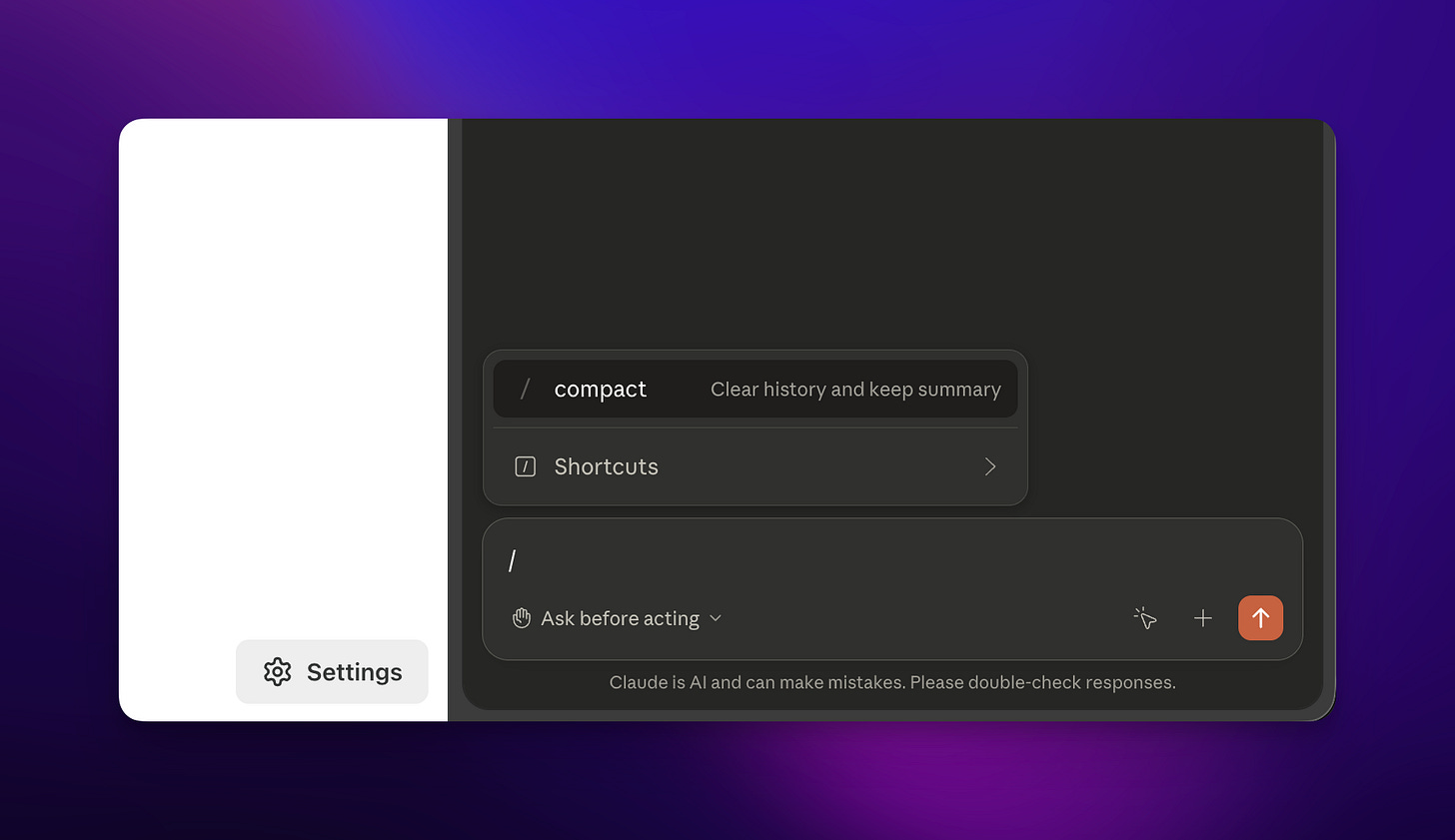
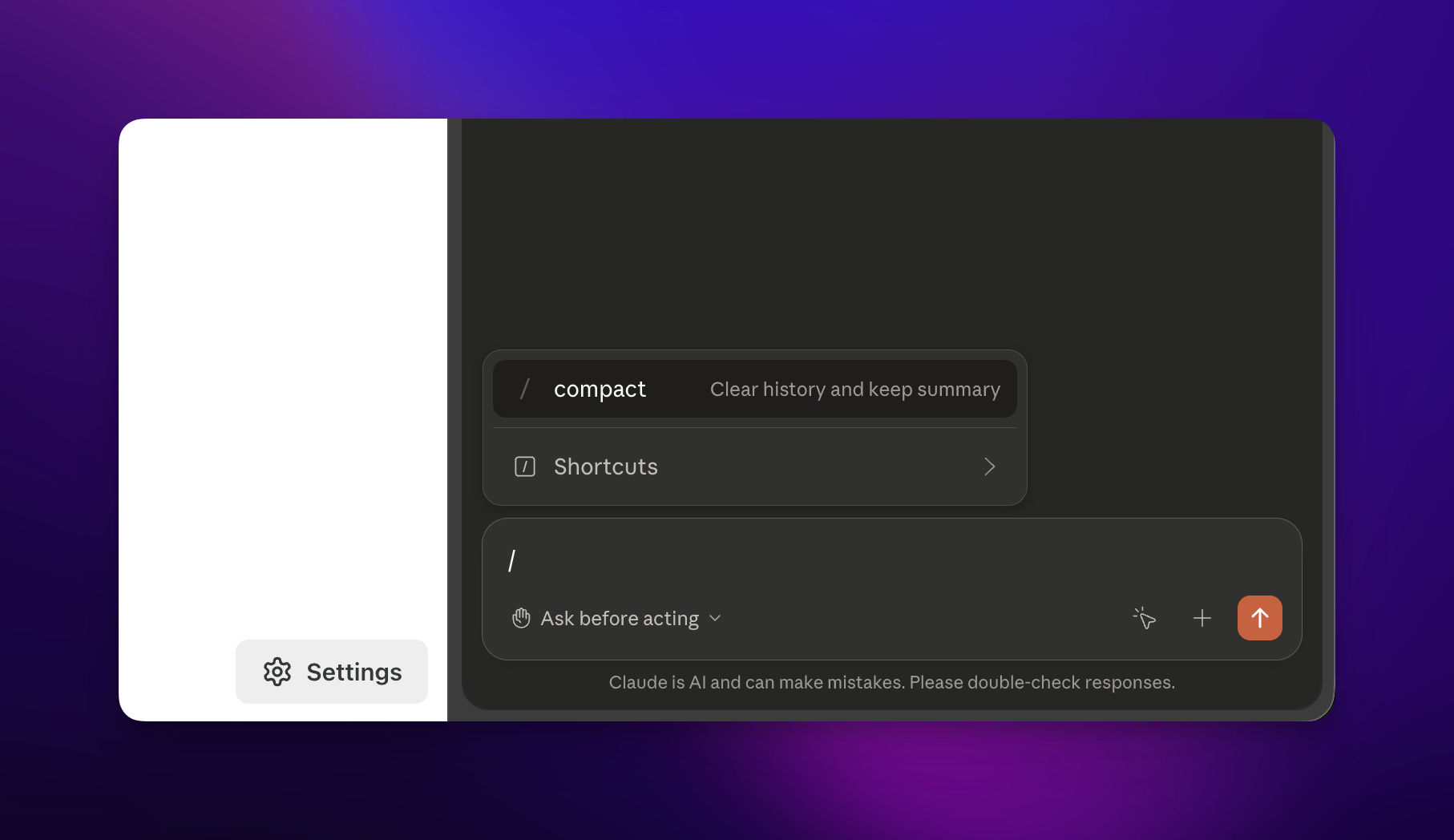
One more note — “Shortcuts.” Here you can save and have it record actions so it can then reproduce them on a schedule or at a later time! Every Friday I go here, I click these buttons, and then I send these invoices to this customer. Save as “Shortcut,” then use it every week!
[
Wrap Up
That’s it. Claude Desktop. It’s really worth digging into. Take your time, get over the learning curve, play around, look at the page they have with examples. Start taking a moment to throw your ideas in here versus a web browser tab. And with the Chrome extension for Claude, you can actually just have it do things for you. You get to this place where it’s doing things for you — because it’s a Friday and you told it every Friday to get you some news stories.
Hope you enjoyed this. I hope you can see some advantage here to Claude Desktop in your day-to-day work. Good luck with this stuff.