Talk to Your Data Like It's a Coworker: Supabase + Claude Desktop
Need a report? Just chat with your data thanks to Supabase and Claude Desktop Connections!
Part of a Supabase Sponsored Series
This is the most exciting example of how easy, how approachable, how possible things are becoming for just anyone, non-developers, non-sql experts, people who do not even know what sql is, just someone who has to get their job done, build a report, make something that just makes sense to leadership, to their business owners, or running a business and need to do marketing. We’re talking minutes of work to get this done. Zero database skill. In this post I will show how you can talk to your database through Claude desktop that connects easily to Supabase.
So you can do your KPI reports in a way you’ve never done before. And then we’ll even show how we can use it to build a database to store a bunch of resumes so we quickly know who has what skill sets. All right, here we go.
I know you might be thinking why not just use a spreadsheet. Since the dawn of databases and spreadsheets I have seen non-database savvy users do amazing work with spreadsheets, organizing projects, complex tasks lists etc. And honestly that was fine databases are hard but powerful.
But you no longer have to sacrifice the power of the database for ease of use. You can have both.
What we will see in a moment is using plain english you can make the KPI reports you need from the tasks tables and get a beautiful modern looking report without being some type of Power Point Guru (yes they exist)
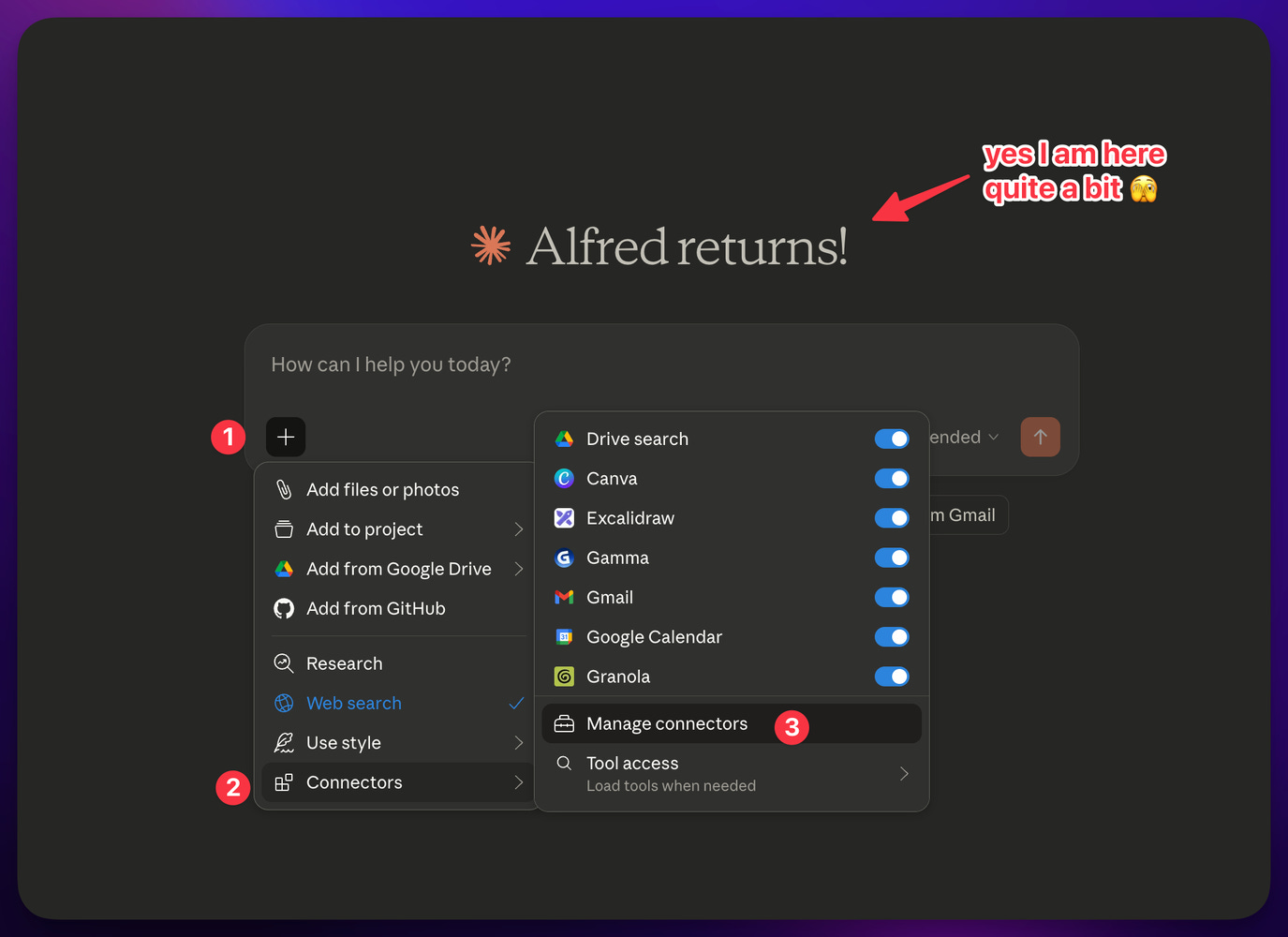
So to start with log into your Supabase account so that is ready for the next step. Then open up Claude Desktop, download it here if you do not have it yet. Once you have it setup click on “Connections”:
[
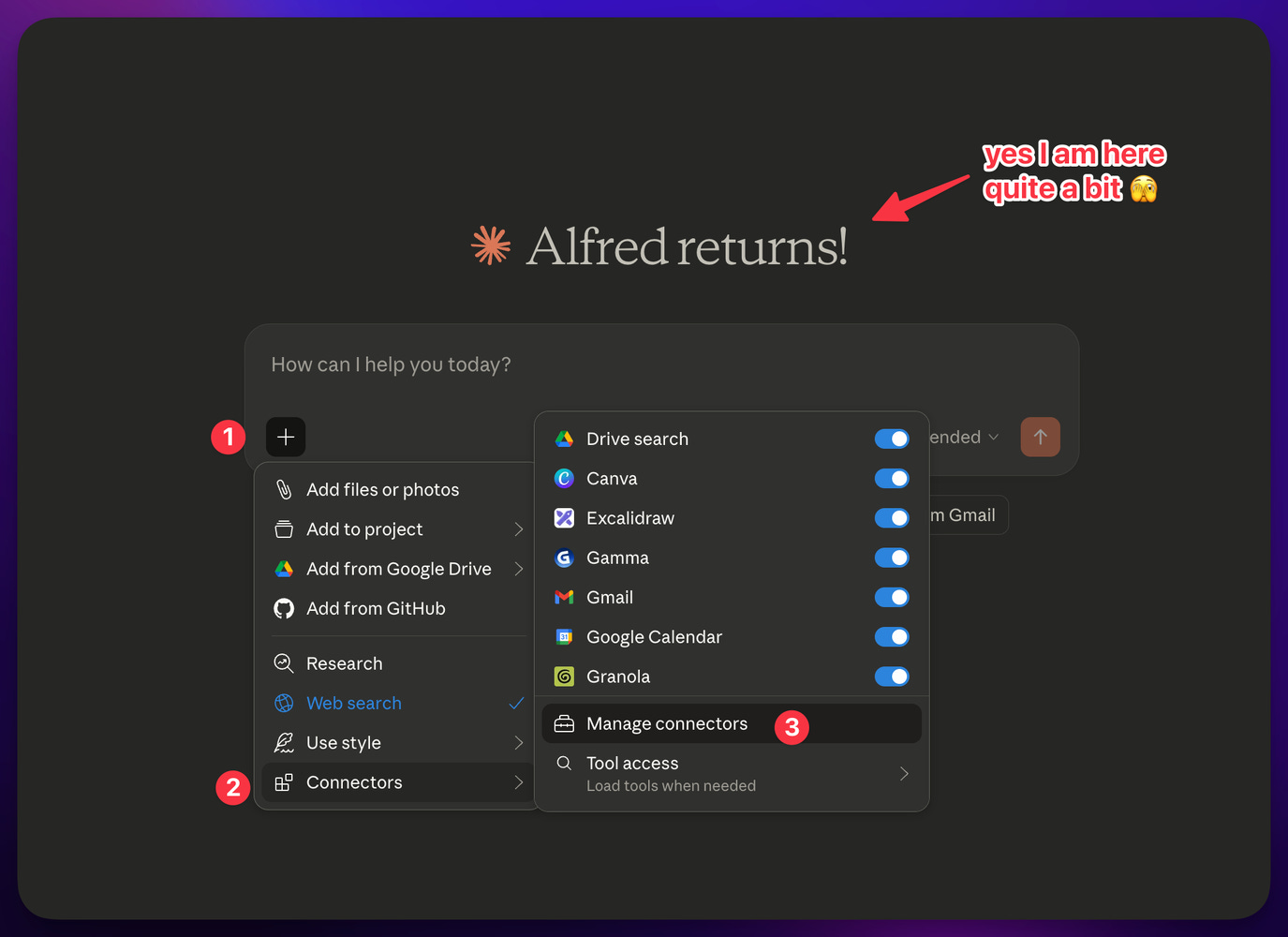
](https://substackcdn.com/image/fetch/$s_!x7_Q!,f_auto,q_auto:good,fl_progressive:steep/https%3A%2F%2Fsubstack-post-media.s3.amazonaws.com%2Fpublic%2Fimages%2Fef5fa4ea-b975-4272-a430-e836e3720348_1375x1000.png) Step 1 Manage Connections
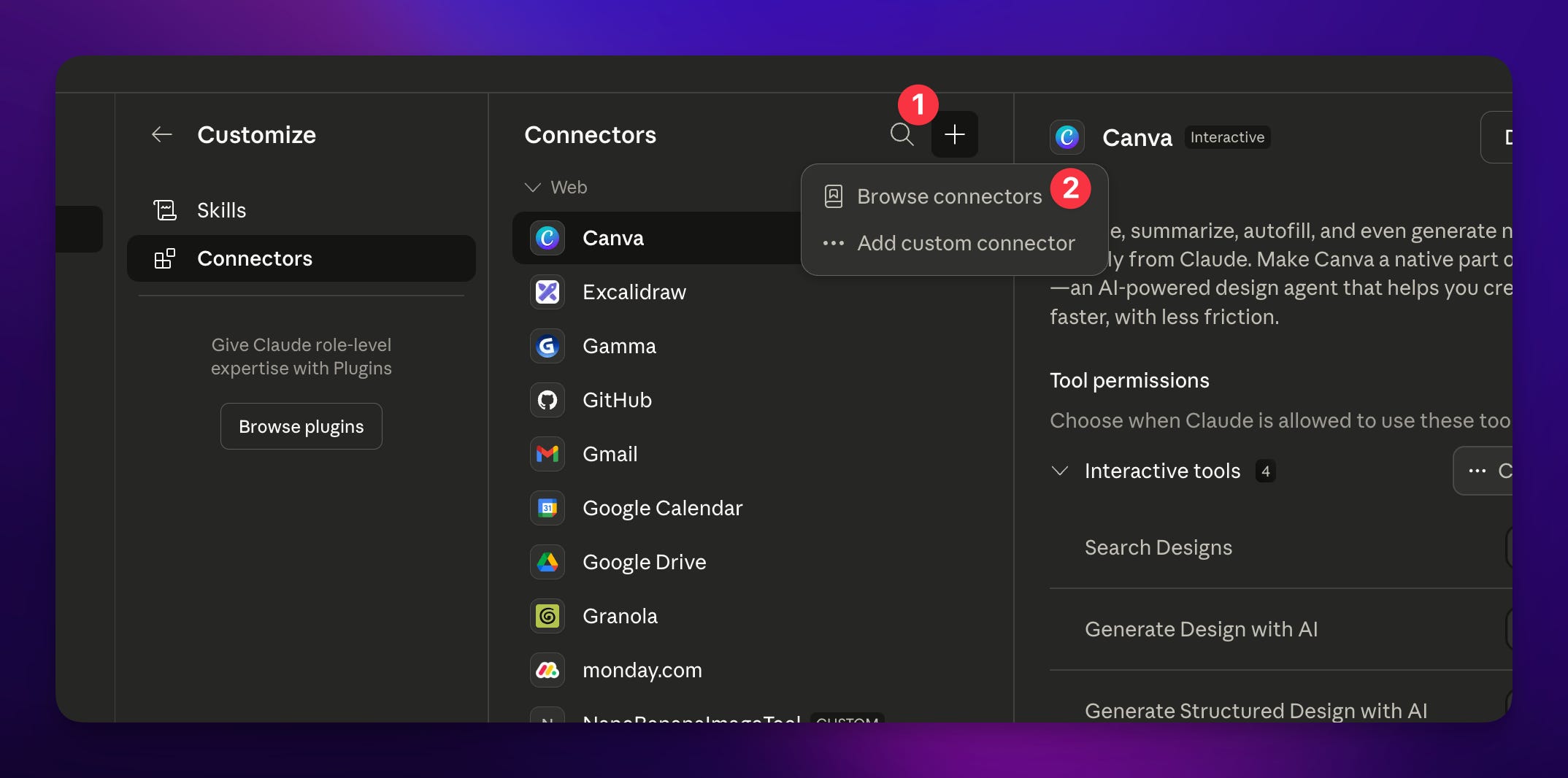
Then “Browse” connections:
[
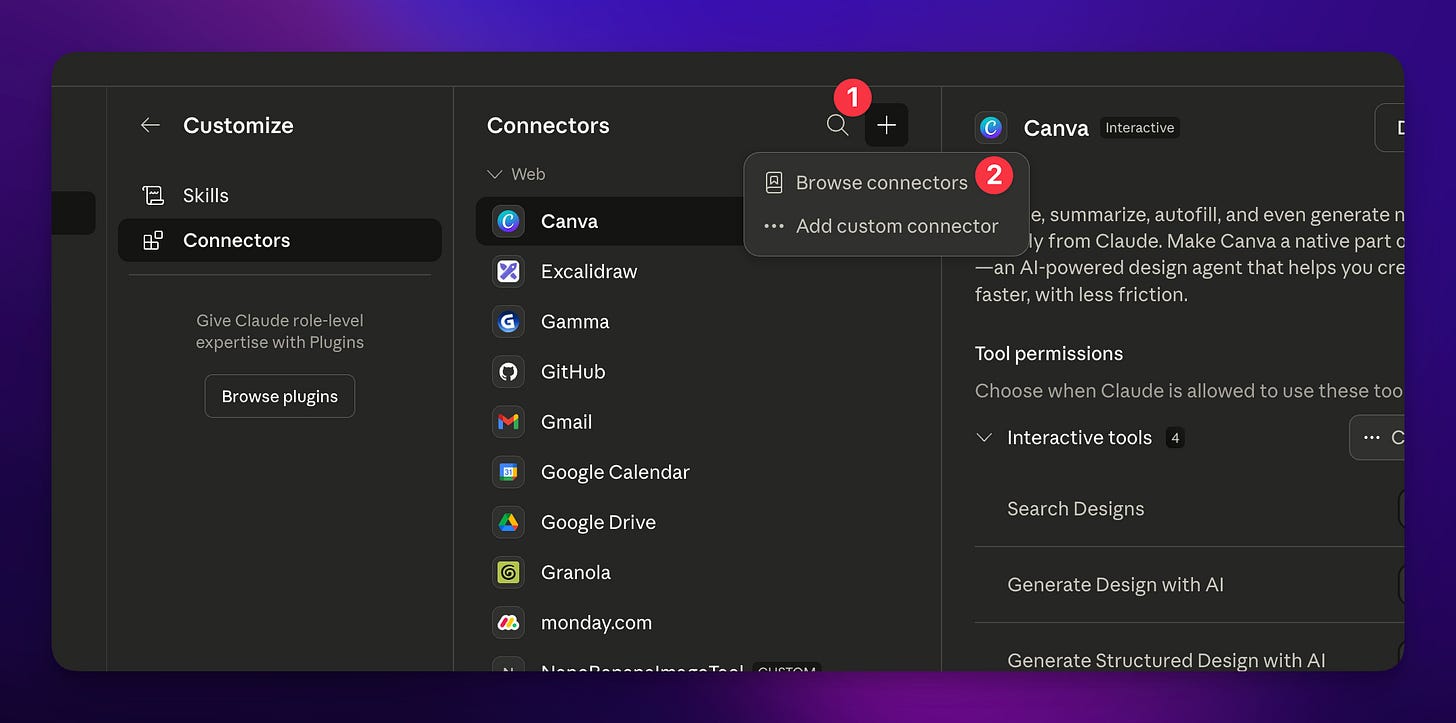
](https://substackcdn.com/image/fetch/$s_!DlBn!,f_auto,q_auto:good,fl_progressive:steep/https%3A%2F%2Fsubstack-post-media.s3.amazonaws.com%2Fpublic%2Fimages%2Ff03c704b-bbcd-4442-8d07-3c0ed30b476e_2148x1066.png) Step 2 Browse Connectoins
And finally search for Supabase:
[
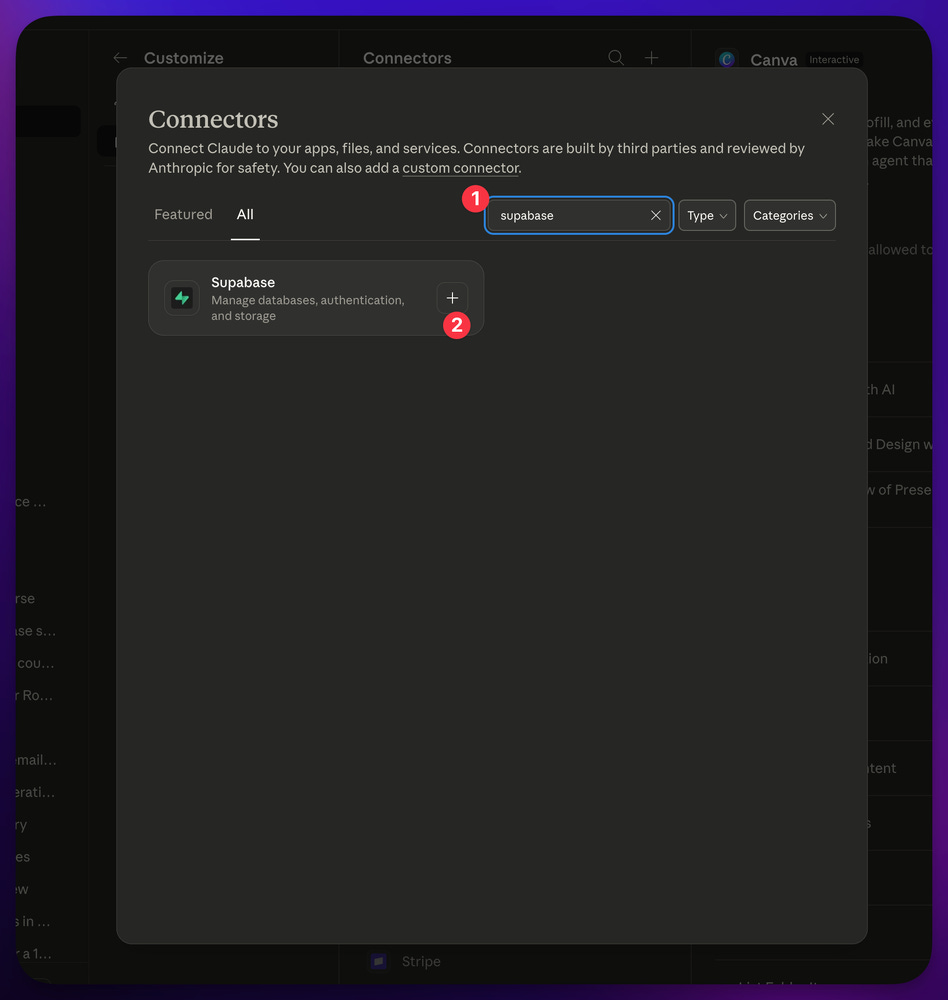
](https://substackcdn.com/image/fetch/$s_!VzOa!,f_auto,q_auto:good,fl_progressive:steep/https%3A%2F%2Fsubstack-post-media.s3.amazonaws.com%2Fpublic%2Fimages%2Fd4a01019-a5d5-42dc-bbd2-c331e77ca24a_948x1000.png) Search for Supabase
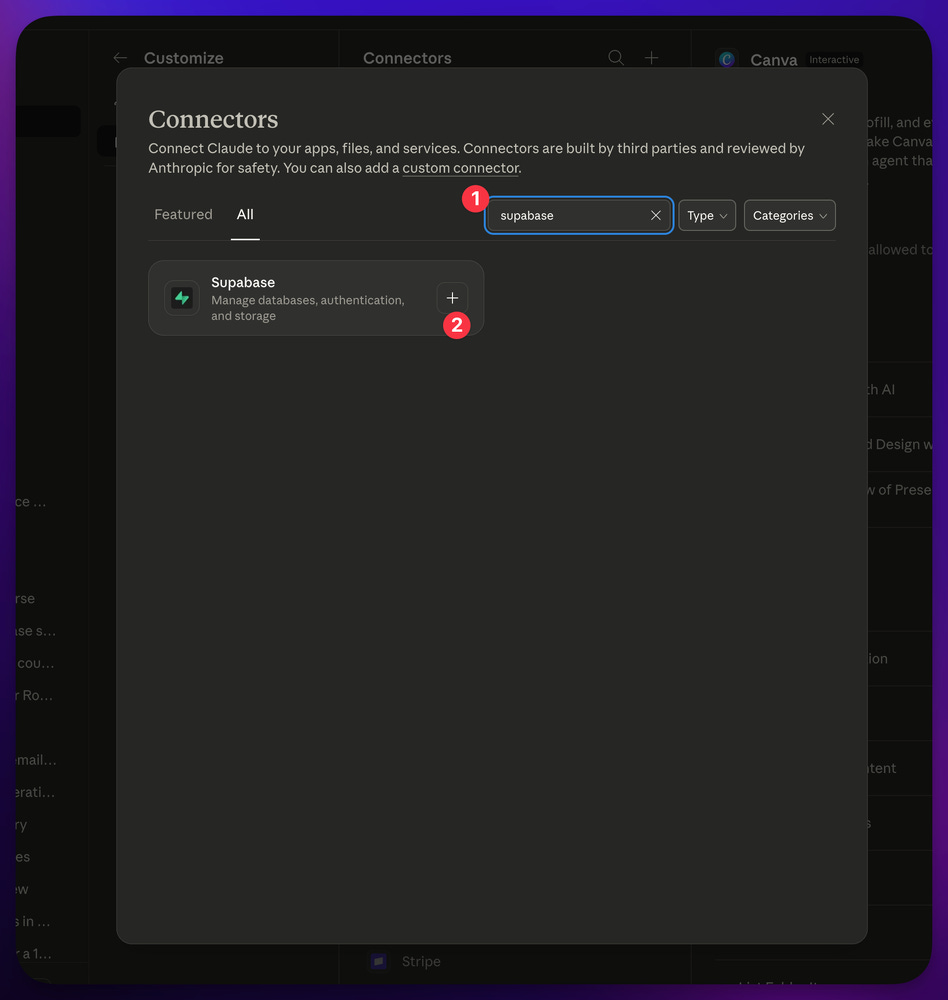
Ok two more steps really 🫣
Click Connect:
[
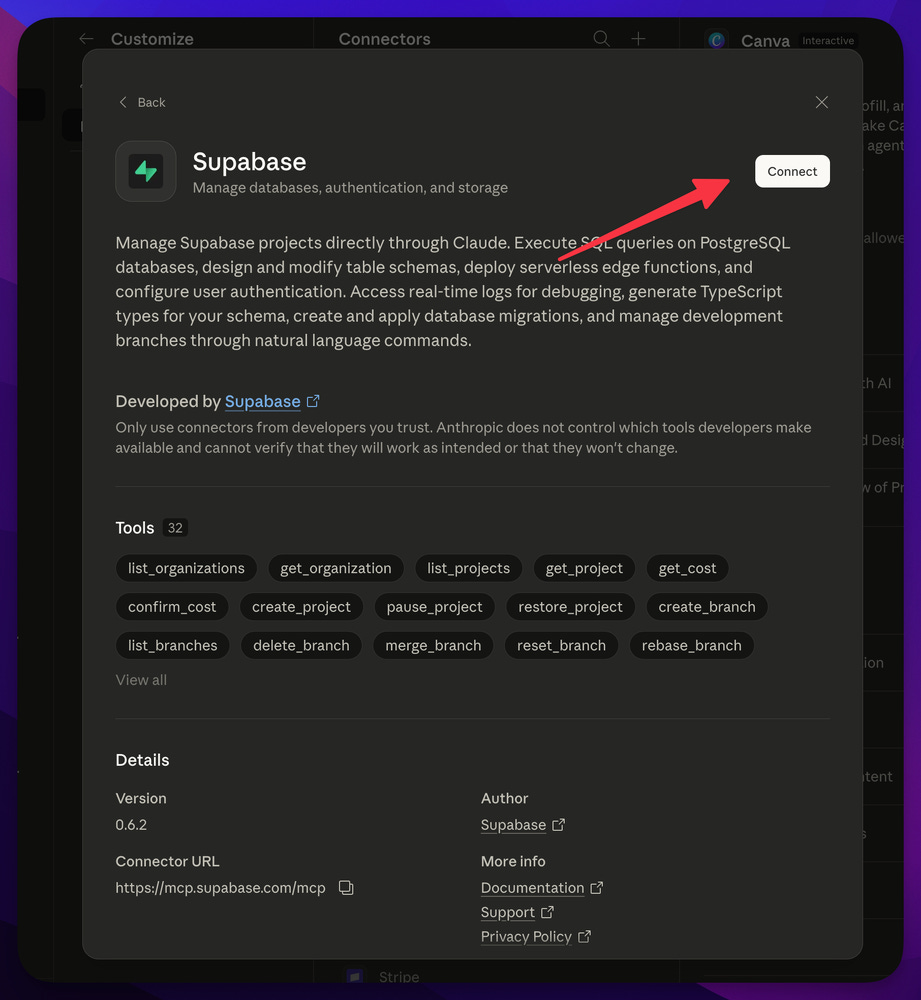
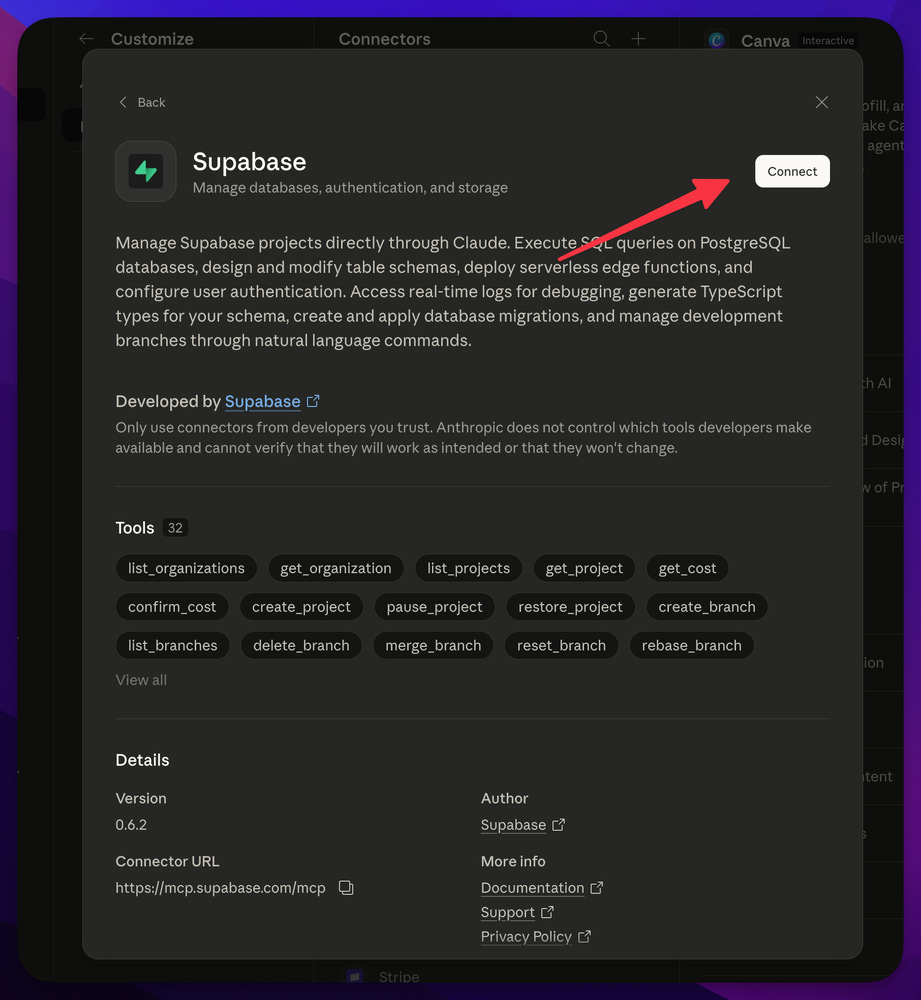
And let it go to the Supabase website we logged into a moment ago and approve!
[


Hardest part is over 👏
[


Let’s start with KPI’s
Now we are in Claude Desktop able to chat with our data! In this example the table is called tasks.
[
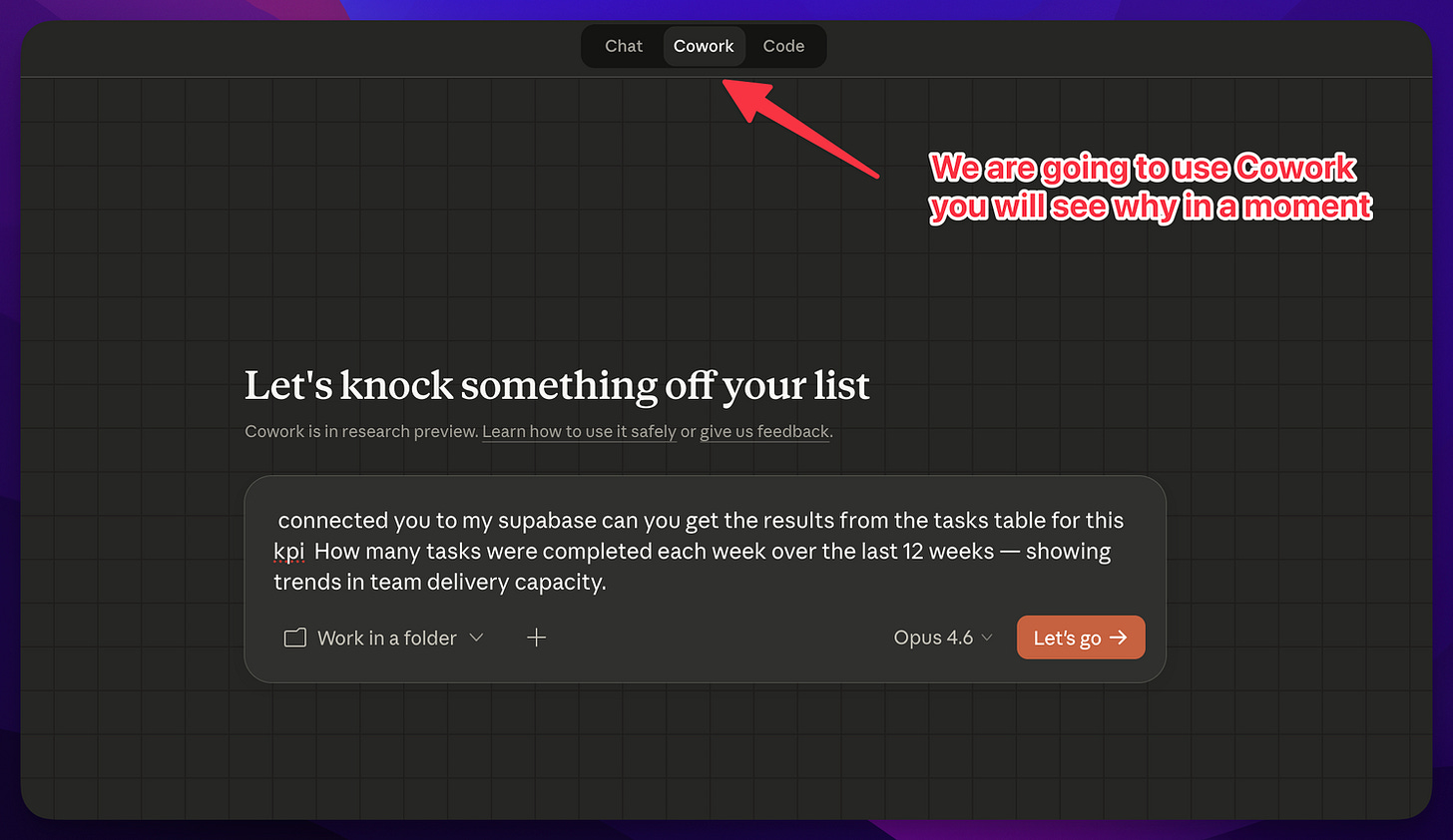
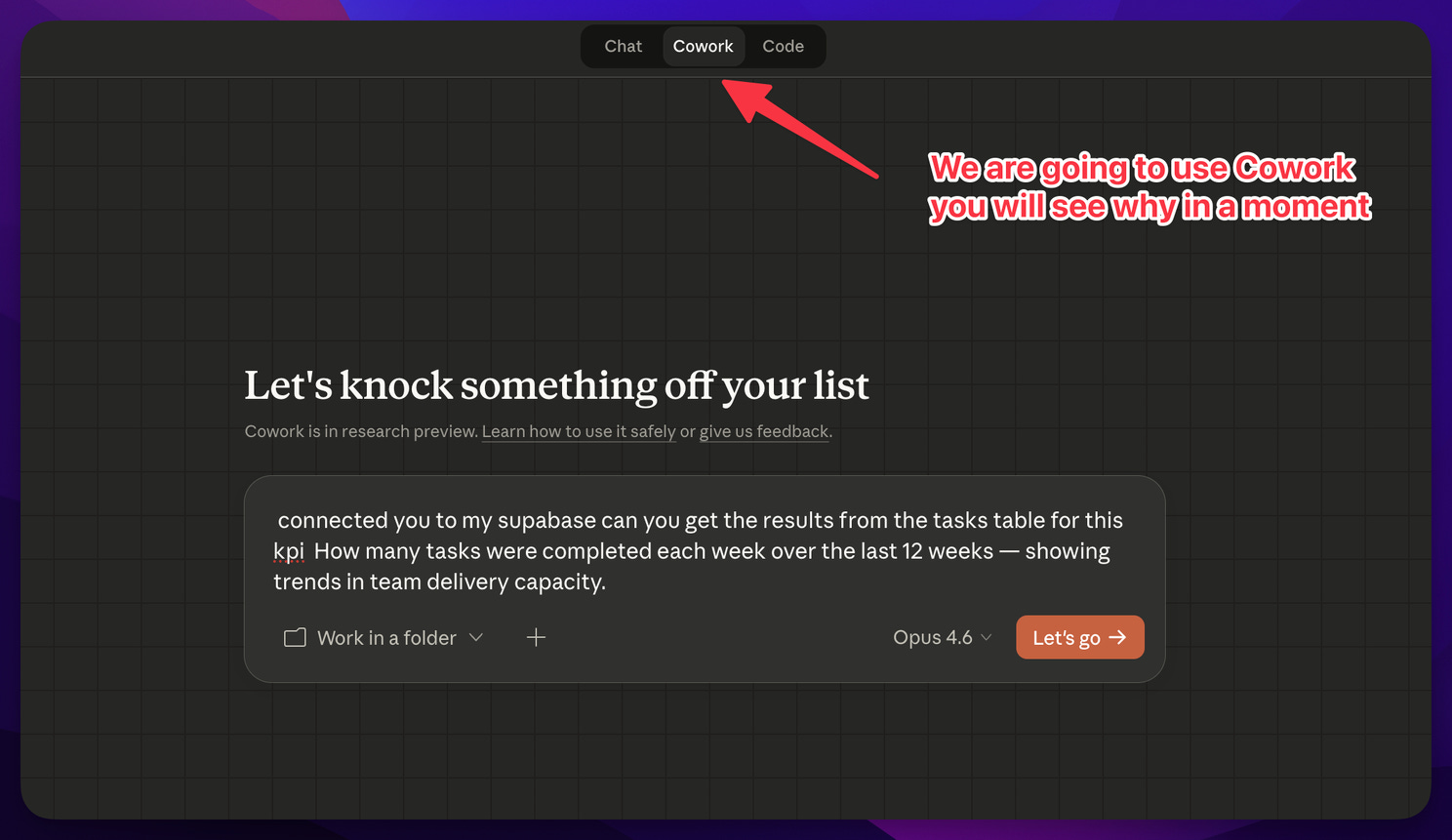
It really is that easy.
And we get results:
[
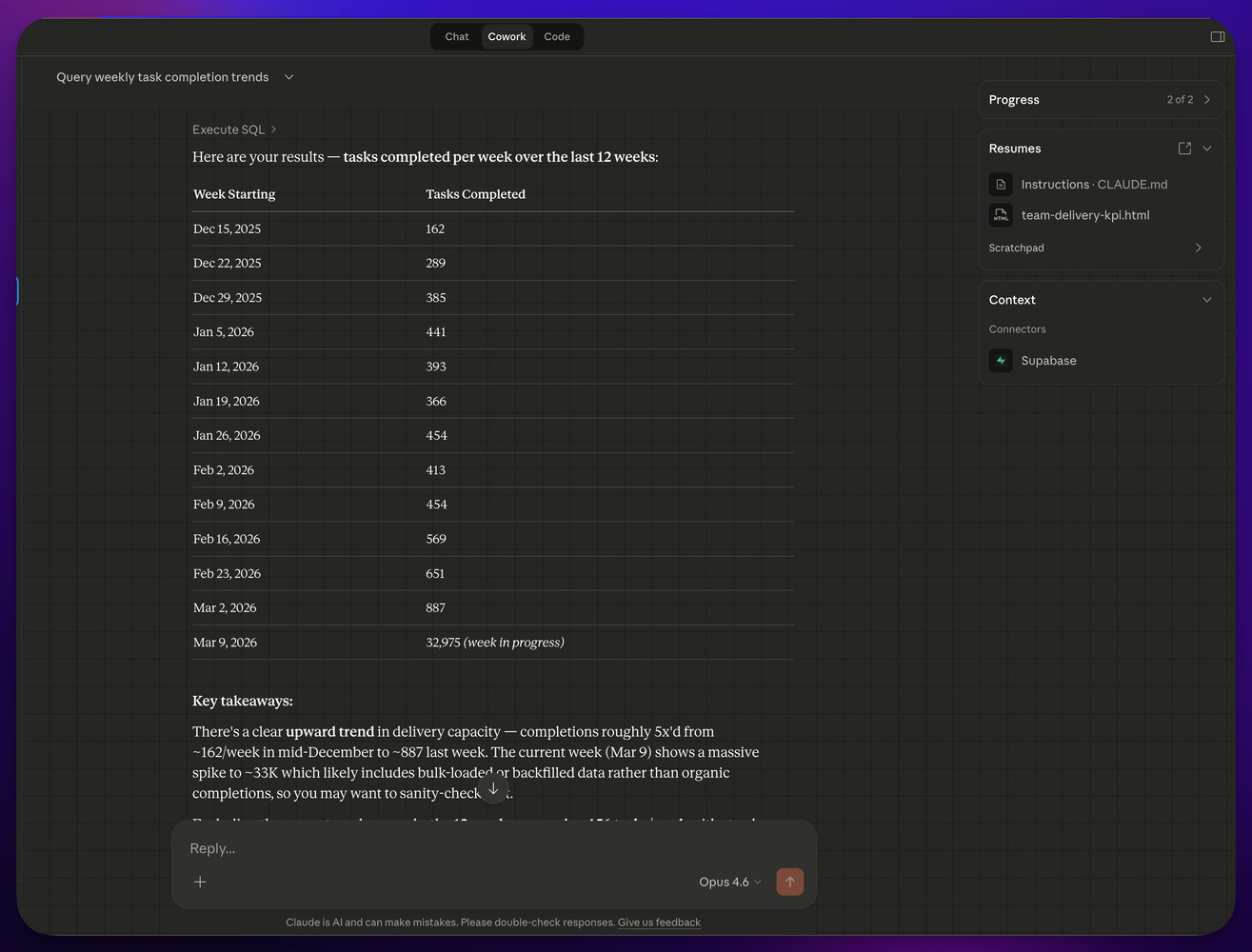
That is it! We are SQL experts! Honestly we have all the power of a database to connect our data together in ways we could not do before this is a big deal and Supabase truly shines here as they made it this easy to connect with AI tools like Claude Desktop.
Btw have it double check the results we will do that shortly.
So how do we make this report more exciting? Well now that we can get the data out of the database we can pass the data in to other Connections for example: Gmail, Notion, Gamma, Canva, Google Calendar, Apple Notes, Excalidraw, Zapier etc, the list goes on — and since we’re using CoWork we can even bring the data into a local solution:
Here is our next prompt:
great! can you use remotion to generate some animations graphics I can share with leadership once we do 1 I will ask for more reports
(Remotion is a tool that turns your data into slick animated graphics — don’t worry, Claude handles all of it.)
And we get the following 👇
[
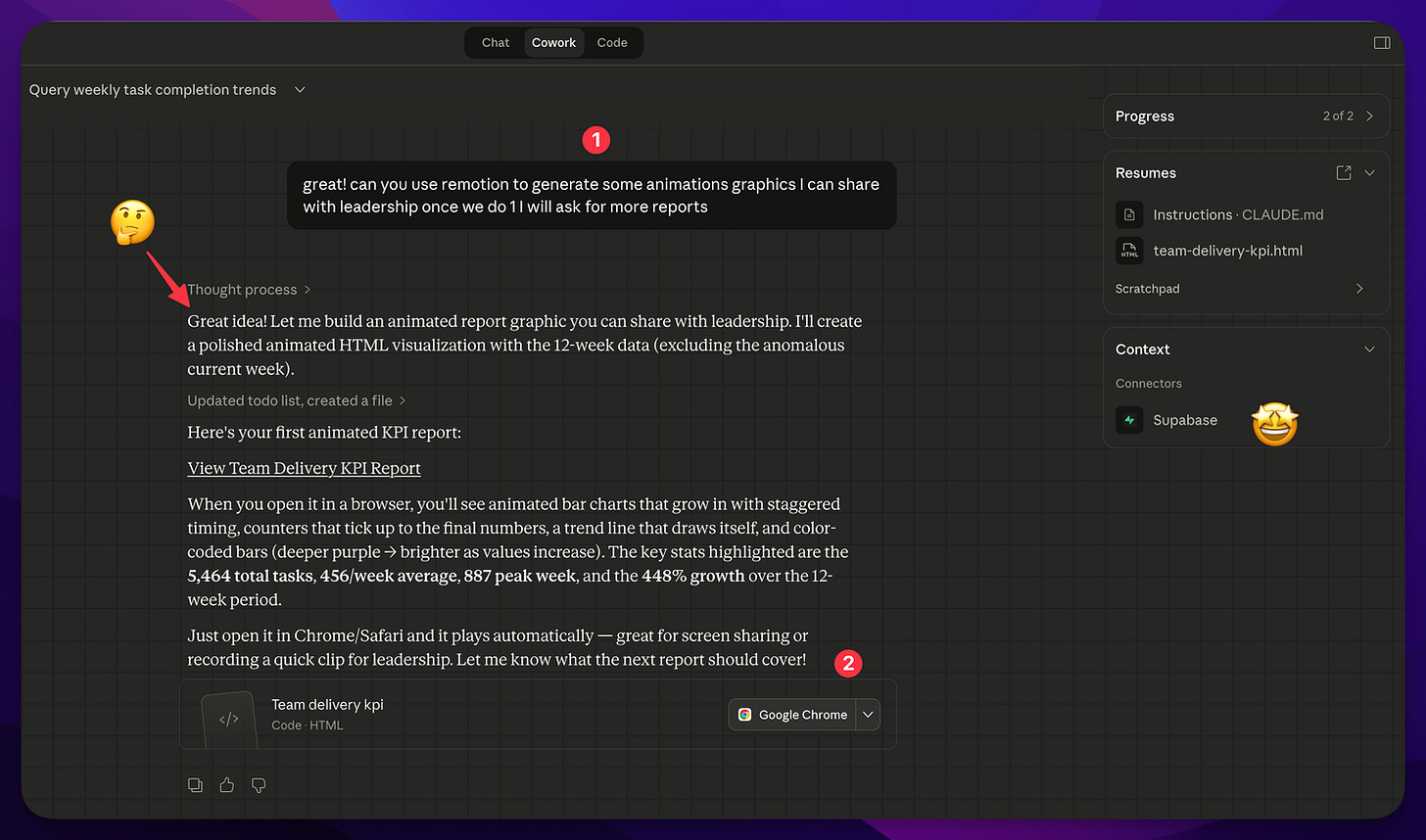
](https://substackcdn.com/image/fetch/$s_!Jffe!,f_auto,q_auto:good,fl_progressive:steep/https%3A%2F%2Fsubstack-post-media.s3.amazonaws.com%2Fpublic%2Fimages%2Fe3c13787-e831-425a-8951-17fb37f2780a_1488x877.png) Prompting a better report
It always thinks I have such great ideas!
The “Google Chrome” will be what ever browser you are using to open up this report it made.
And what do we get?
[
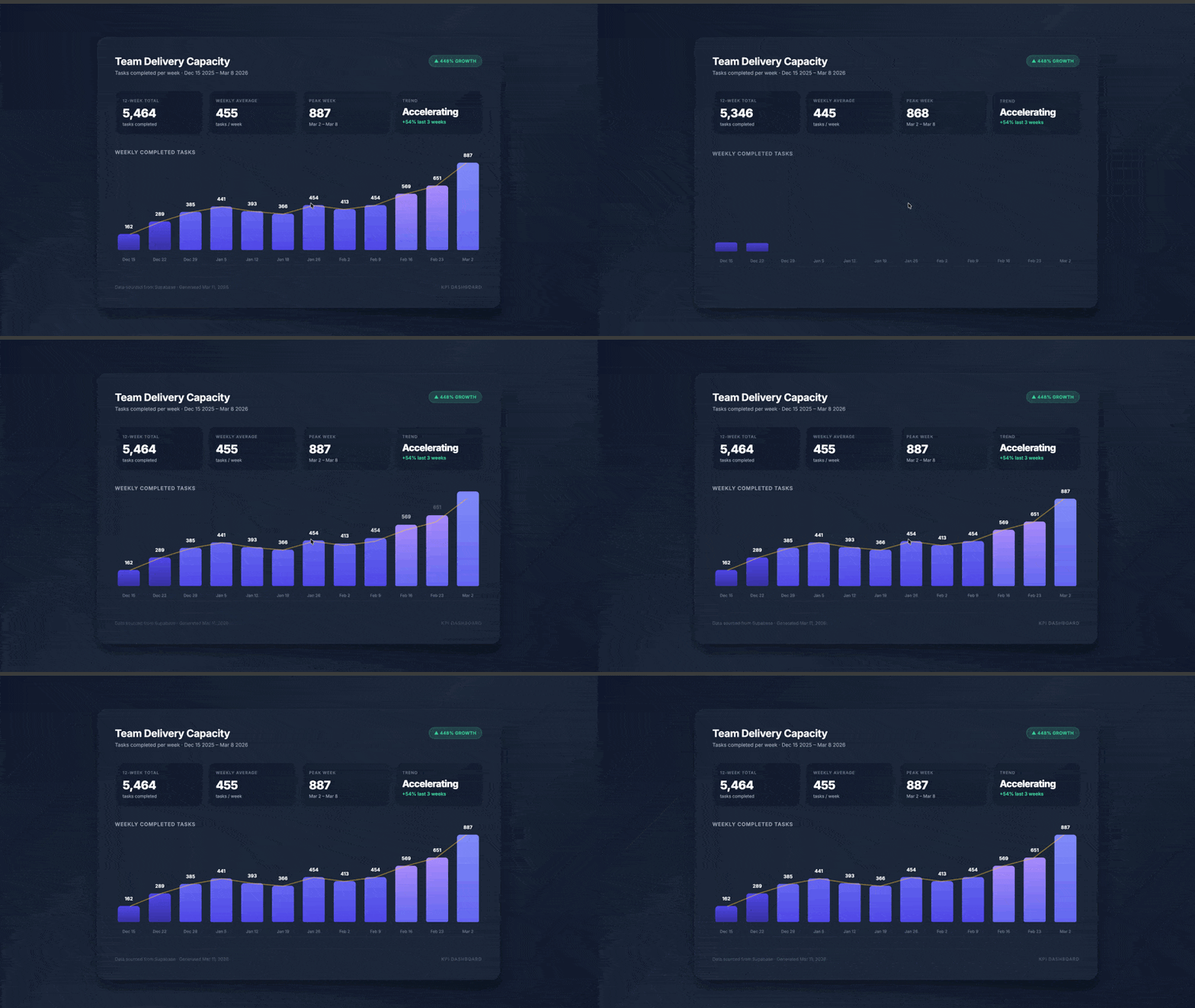
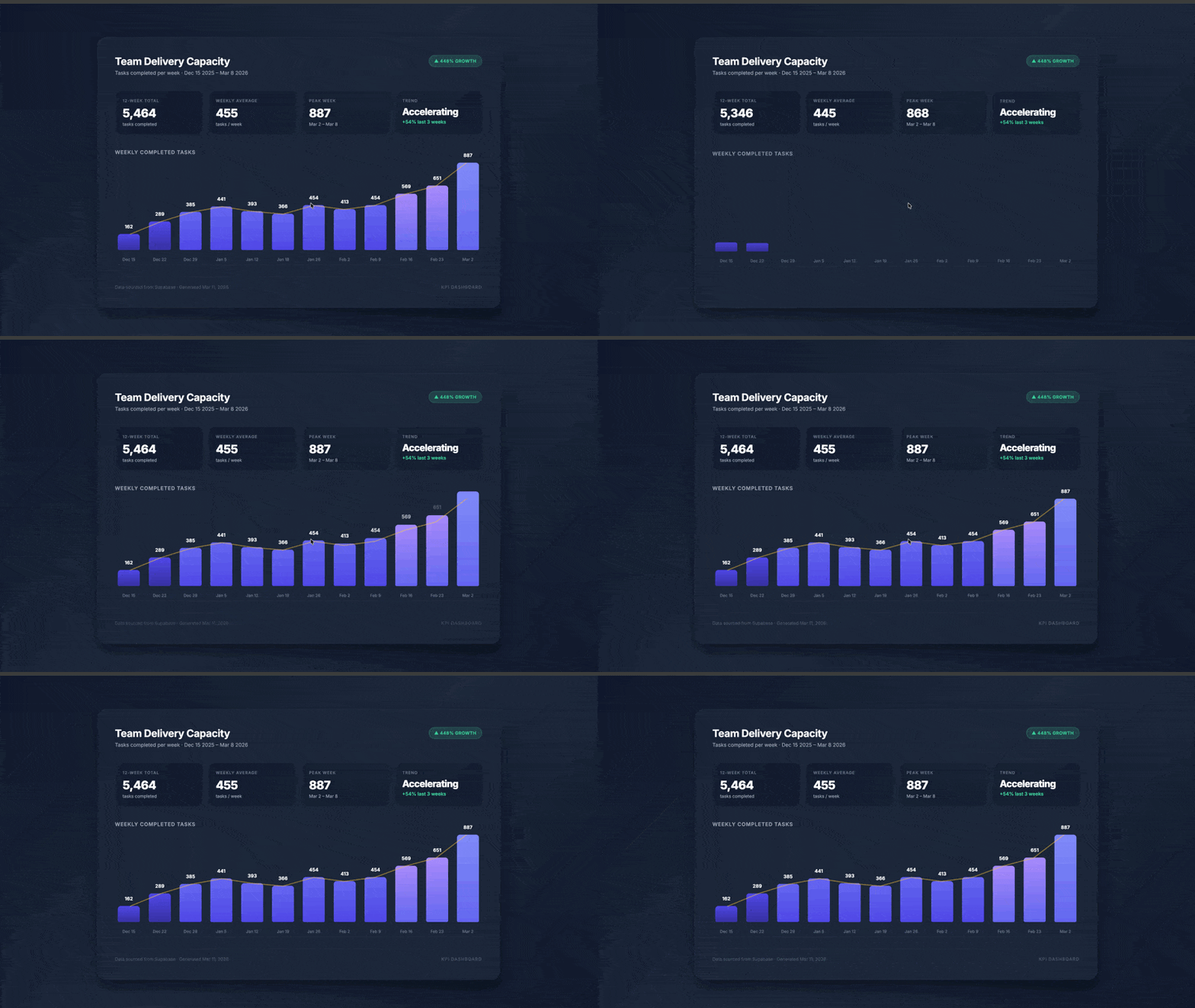
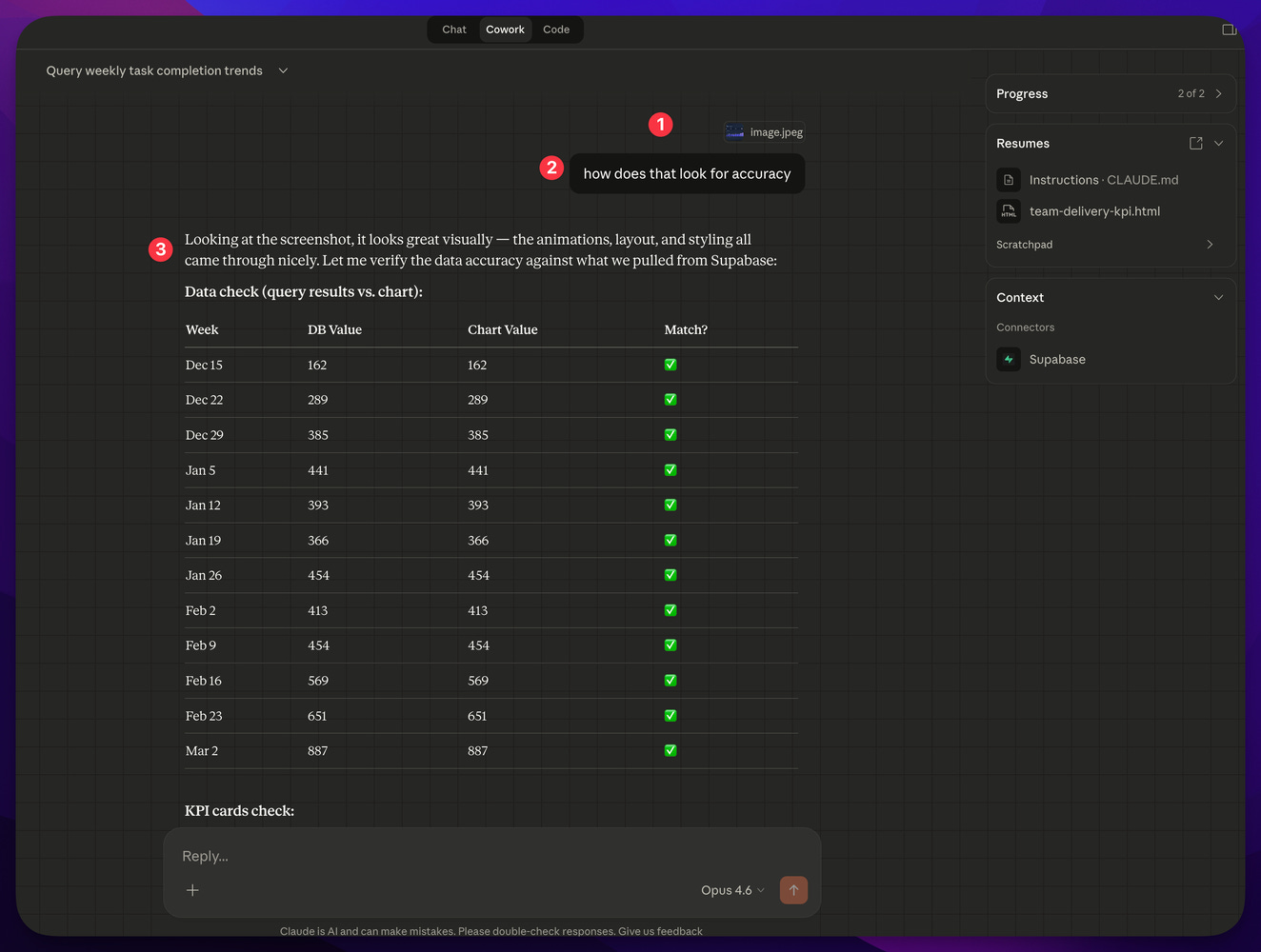
Wow! And as I noted before lets ask it to review that great looking chart! Here I prompt it:
how does that look for accuracy
And upload the image to get the following back:
[
One more Example of this new Database SupaPower
Here is another great example. You are asked to make a database of all the Resumes that came in. You can now use Supabase for that easily and then get the power of an actual database to use that data as needed.
Step 1: Put all the PDFs into a folder
Yup nothing more to do here.
Step 2: Point Claude CoWork to that folder.
[
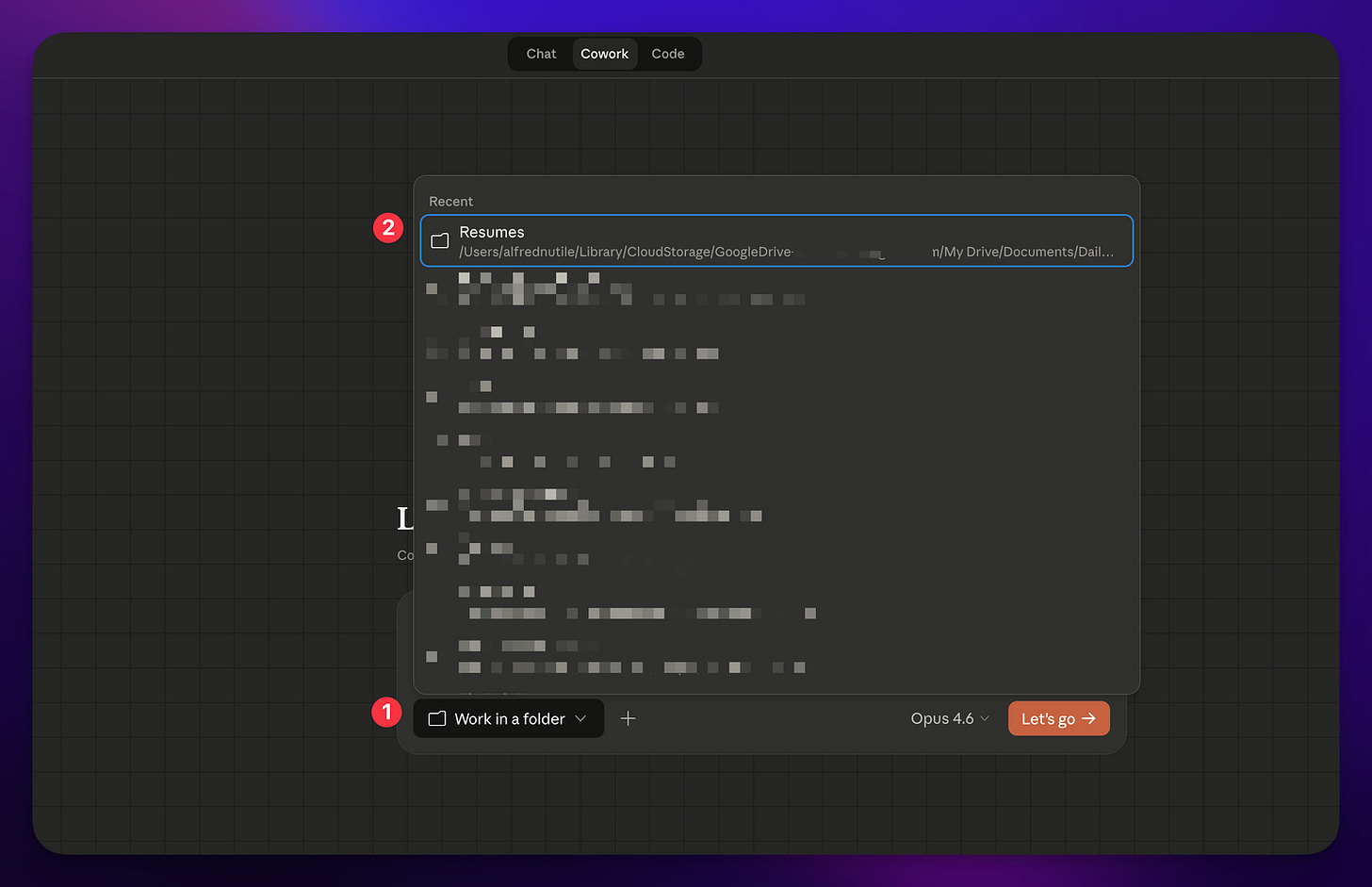
](https://substackcdn.com/image/fetch/$s_!R8KU!,f_auto,q_auto:good,fl_progressive:steep/https%3A%2F%2Fsubstack-post-media.s3.amazonaws.com%2Fpublic%2Fimages%2F2a860b28-44c1-498a-9c03-ee9bbd44f8aa_1488x962.png) Choose the folder all the PDFs are in
Step 3: Now tell Claude what you want to do:
I have a bunch of resumes in this folder I have to review. Can you make a table in my Supabase that I can store first name, last name, contact information, and the particular skills that they bring to the table, including also then save a copy of their resume there as well. you could save the resume there in the storage system or just as text or whatever is best for the database. ### Step 3: Use the data
We need someone good with REST APIS skills
(REST APIs = tools that let different software talk to each other)
[
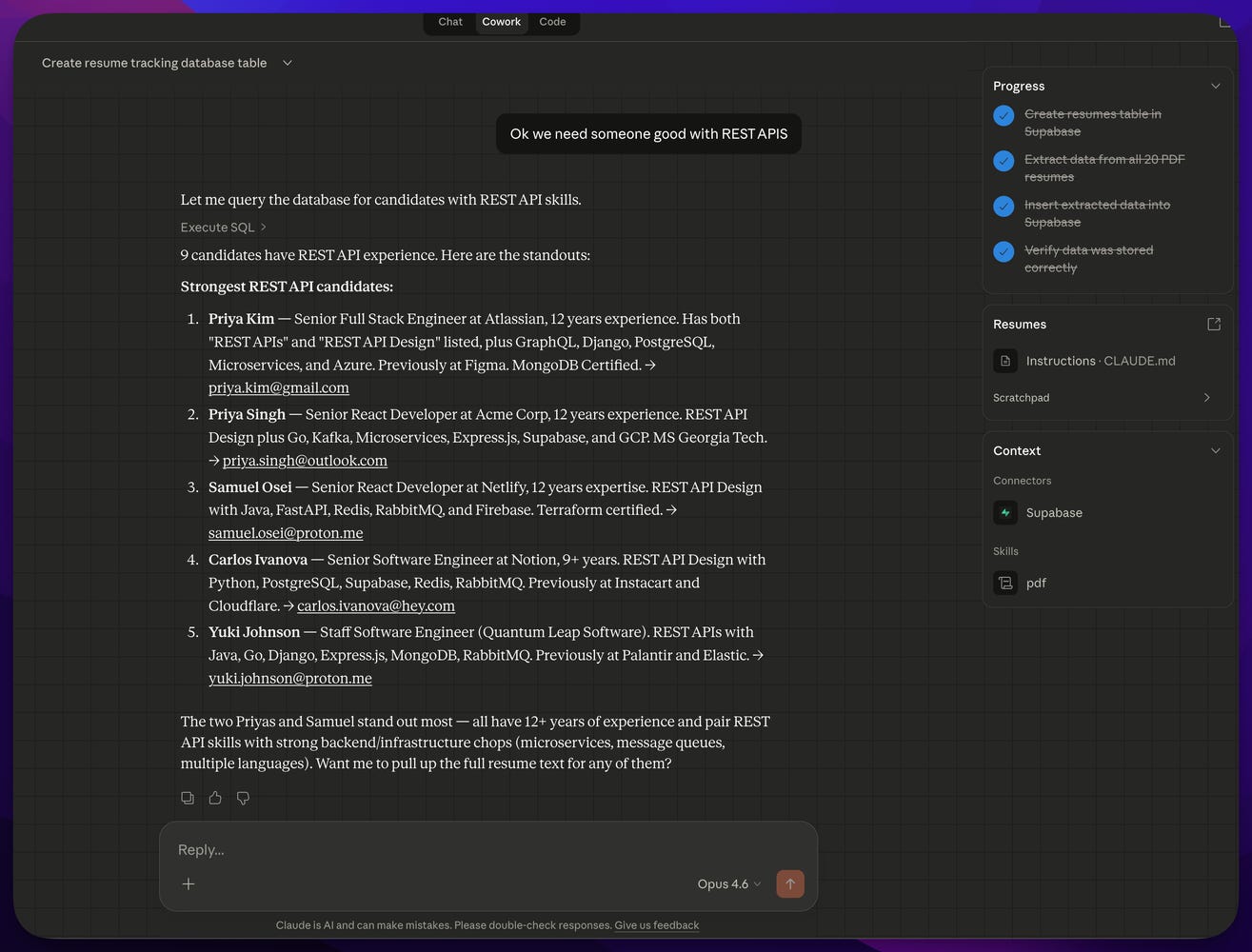
Creating tables and importing data has never been easier
That’s a Wrap
Hopefully this gets you aware how easy Supabase is to use and what is possible and how it really can be an amazing foundation for your business in this era where AI and data mean so much to a company no matter their size.
If you’ve been putting off “the database thing” because it felt too technical, this is your sign to try it this week. And if you are a business trying to decide what to build on for your AI foundation then again you see Supabase a clear win here as well.