Best Way to Use AI Agents Safely in Your Business in 2026 (Zapier + Claude Desktop)
Getting started with confidence that your AI integration is secure and portable
Give your team the power of AI without losing control https://bit.ly/4tnMirJ 👉 Sponsored by Zapier
By the end of this post (part 1 of 2) I hope you get a feel for some key ideas around working with AI and your actual tools, Gmail, Dropbox, ClickUp, whatever you’re using. If you can just start here it you can start building a good foundation for your having AI do some of the work you really do not want to do.
You can get any of the files you need here to try this out, they will make more sense after the article 🙂
Part 1: The Why and What
Say you’re a home renovation type company. You get requests to do jobs that might or might not fit what you can do. You need to write quotes for potential work, reply to those potential or existing customers, find time in the schedule that you can visit them to do the work etc. How can we get the core of that work done for us so we can focus on the details and the actual conversations with customers? Ideally even start every morning with this “report” waiting for you?
This applies to so many different kinds of businesses, non-profits writing grant proposals, web design and development shops, property managers juggling maintenance requests, freelancers buried in inbound emails, or just one-off tasks you might have to do that week.
In this article I want to show you the end result first on a how to use AI to assist you in this, and then we’ll slowly build up to the foundation that makes it work. Part two we will dig into to the details of setting it up.
This is sponsored by Zapier (video coming soon), and the reason we’re including Zapier is because it’s a key layer that the non-technical person, the person who doesn’t have to know all these weird AI things we all talk about nowadays, can use to connect AI systems to your data, workflows and tools safely.
We’re going to set this up so you can work with your data, your workflows, your emails, your task system, whatever you’re using, and get real assistance. In the end, this isn’t about 100% automation, but this is about automating the grunt work, the tedious work, so you can save your energy for all that other work you can’t automate, or the work you enjoy more.
[
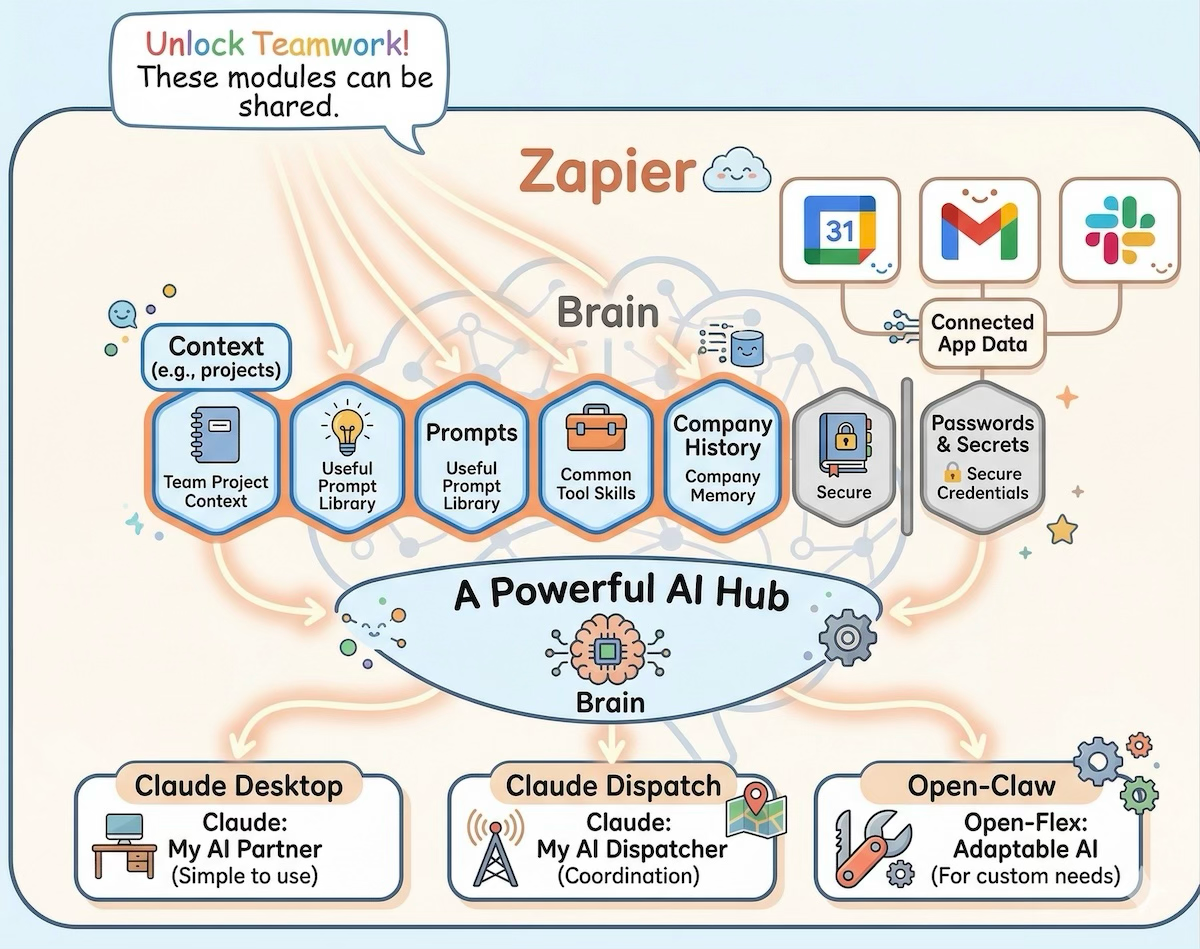
In this case, we’re going to make believe we’re a company called Summit Home Renovations. We’re going to have a scheduled AI automation that checks our email inbox for incoming quotes and customer information. That automation is going to use our system, our context, our centralized brain, to draft replies to those quotes, figure out which jobs are worth getting back eto etc. But it’s going to have me review the replies. All the automations and AI work we do here will require that “Human in the loop” moment.
It’s going to do the estimates. It’s going to flag some things that don’t fit our typical work scope, both for pricing and skills, so we don’t waste time on them. Though, again, we can always review anything it flags. It’s going to use a ticket system so we can track things as a company. And there’s a lot of what we call “human in the loop”, where you get to verify and check things. It’s not just doing things without your permission.
What’s important about this setup is two things. First, we’re putting guardrails in place so the AI doesn’t delete your business or do other weird stuff. It can’t send emails. It just can’t. It can’t delete all your data thanks to the guardrails that Zapier enables us to easily setup.
Second, this setup enables you to use any AI system with your data, tools and context. Right now I’m using Claude Desktop. Later I will use OpenAi and then a thing called Open-Claw. And you’re going to see all these systems integrate with our data and our rules so we can, with confidence, integrate AI into our business.
Giving AI the Context It Needs
Think about what you’d do if you hired an intern tomorrow. You wouldn’t just say “go handle my email.” You’d sit them down and explain: here’s how we quote jobs, here’s what’s in our budget and what’s not, here’s how we use our task system, here’s how we talk to customers. You’d probably hand them a folder of examples, past quotes, email templates, the company price list.
That’s exactly what we’re doing here, except the intern is AI. And you already know how to train someone, you’re just going to write it down in a way that AI can use too. If you’ve ever written a checklist for a coworker, or explained your process to someone covering for you while you’re on vacation, you’ve already done this. It’s not a new skill, it’s one you have.
[
](https://substackcdn.com/image/fetch/$s_!a5Yf!,f_auto,q_auto:good,fl_progressive:steep/https%3A%2F%2Fsubstack-post-media.s3.amazonaws.com%2Fpublic%2Fimages%2F41b79de7-f9b1-4cc6-9362-c46313817dfb_1200x655.png) Coming to terms with some terms
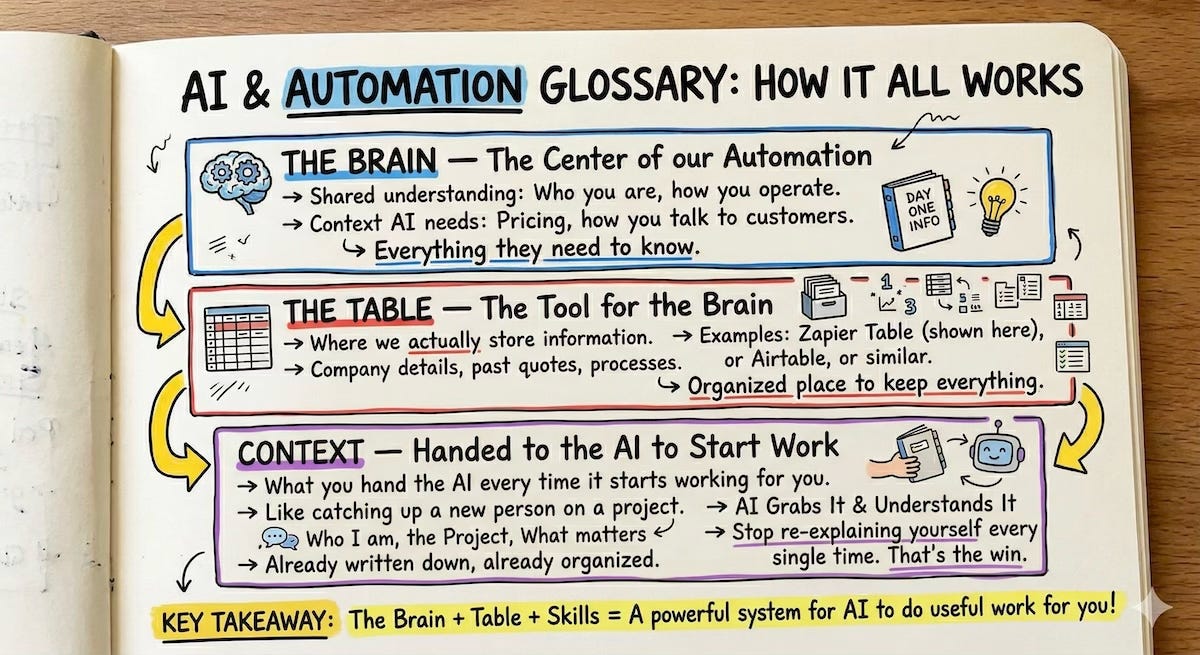
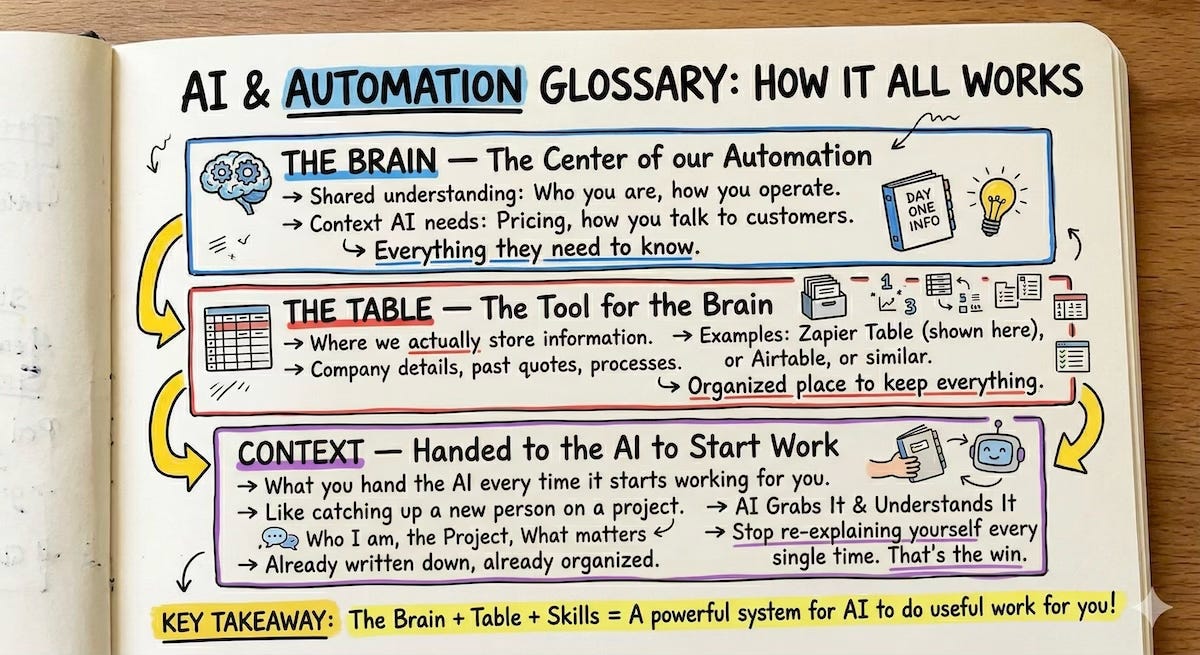
So to do this we are going to build up a “knowledge base” or “context” for our AI to use. Here are some terms I will use and what they mean in this setup.
Brain, This is the center of our automation. It’s the shared understanding of who your company is, how you operate, what you charge, how you talk to customers, all the context the AI needs to do useful work for you. Think of it as that binder you’d hand a new hire on day one. Everything they need to know about how things work around here.
Table, This is the tool we’re using as the brain. It’s where we actually store all that information, your company details, your pricing, your past quotes, your processes. In this example, we’re using a Zapier Table, but you could use Airtable or similar. It’s just a simple, organized place to keep everything so the AI (and your team) can access it.
Skill, This is just a clear, focused, written note on how a task gets done or who you are. “Here’s how we review incoming emails.” “Here’s how we quote a kitchen remodel.” “Here is our weekly scheduled hours for taking on work”. That’s a skill. Nothing fancy, just instructions written down, the same way you’d write them for that intern.
Context, This is the big one. If Brain is what you know and Table is where you store it, Context is what you hand the AI every time it starts working for you. Think of it like this: every time you open a chat with a new person, you have to catch them up. “Here’s who I am, here’s the project, here’s what matters.” Context is all of that, already written down, already organized, already ready to go. The AI grabs it, understands it, and works from it. You stop re-explaining yourself every single time. That’s the win.
NOTE: I know nothing about the “home renovation” area of work (other than I can never find someone to do the work around my house) so if my business examples are not accurate, that is why. But for me, I know I can get AI to quote web development work, job postings etc that I can review, saving me more than enough time to make it worth it.
Morning Report
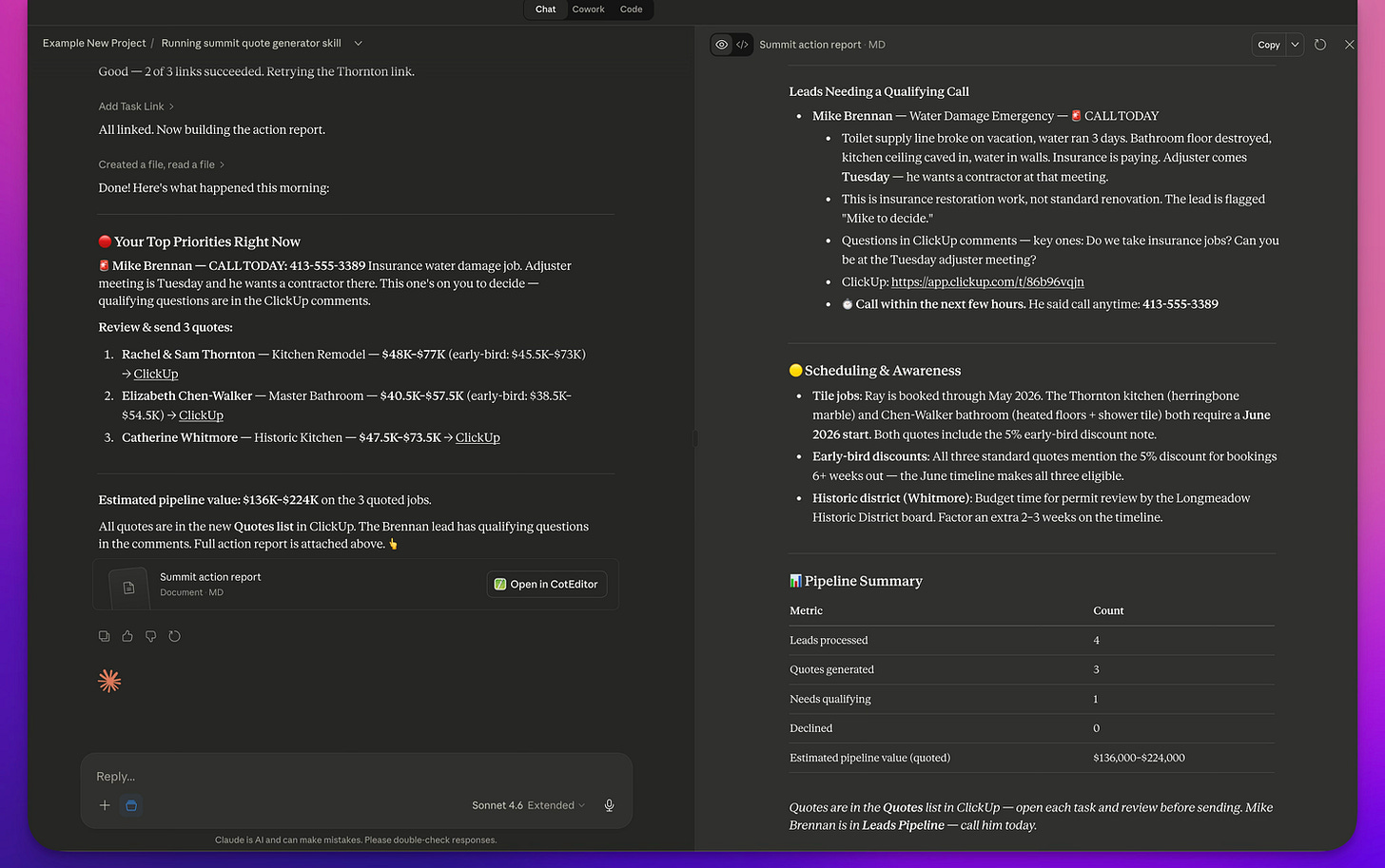
Lets start with the Chat interface of Claude Desktop. This chat window represents the report you get start your day, and everything is ready for you to review. You grab your coffee, you sit down, and you look at what’s in the summary report. In this case I chatted with Claude to work this out of the system. But you will see we can “train” it with skills to do this on it’s own.
[
](https://substackcdn.com/image/fetch/$s_!LRj3!,f_auto,q_auto:good,fl_progressive:steep/https%3A%2F%2Fsubstack-post-media.s3.amazonaws.com%2Fpublic%2Fimages%2F8863a9a9-16d2-43bc-98aa-2d37daaadec0_1488x933.png) Chat in Claude Desktop
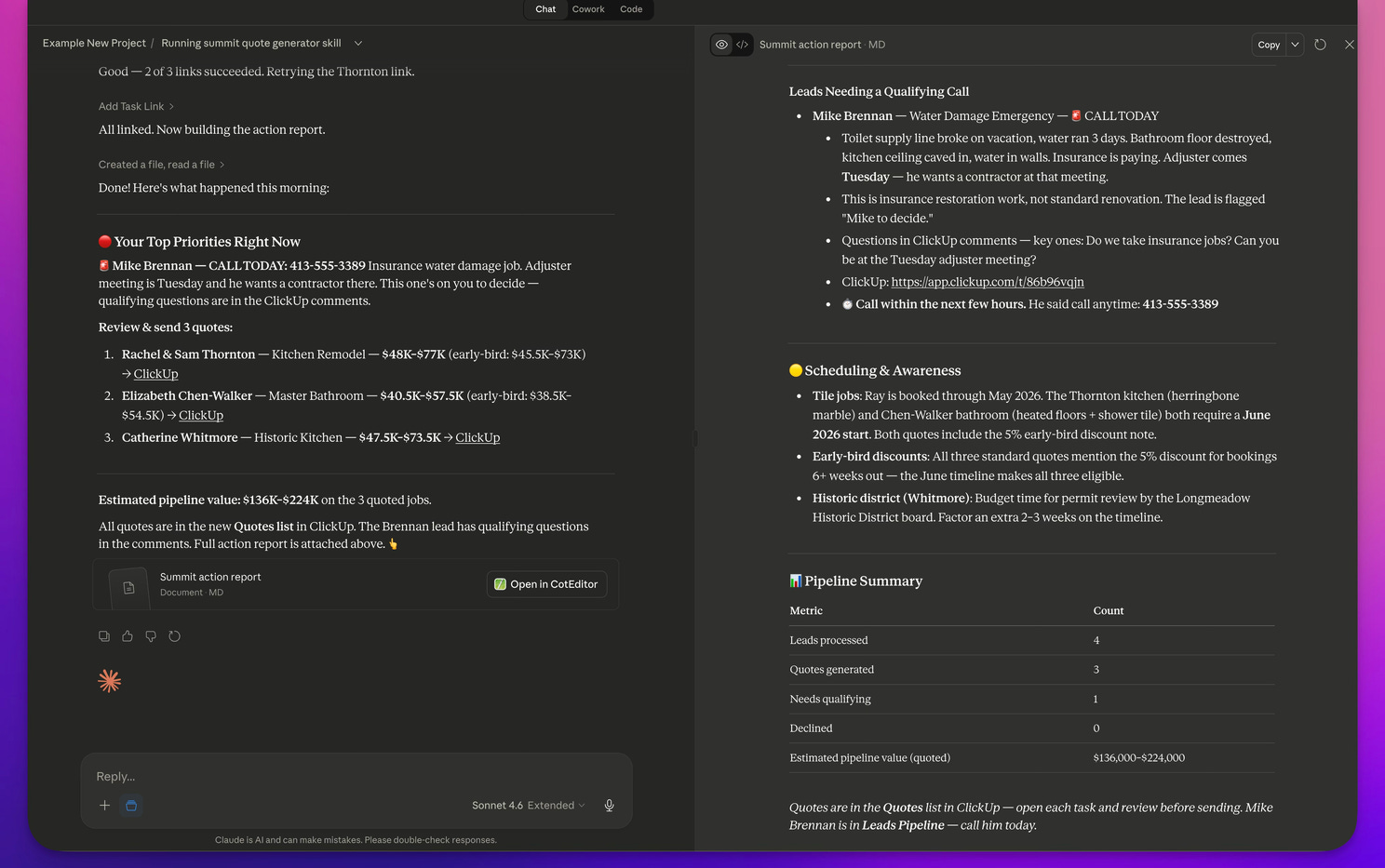
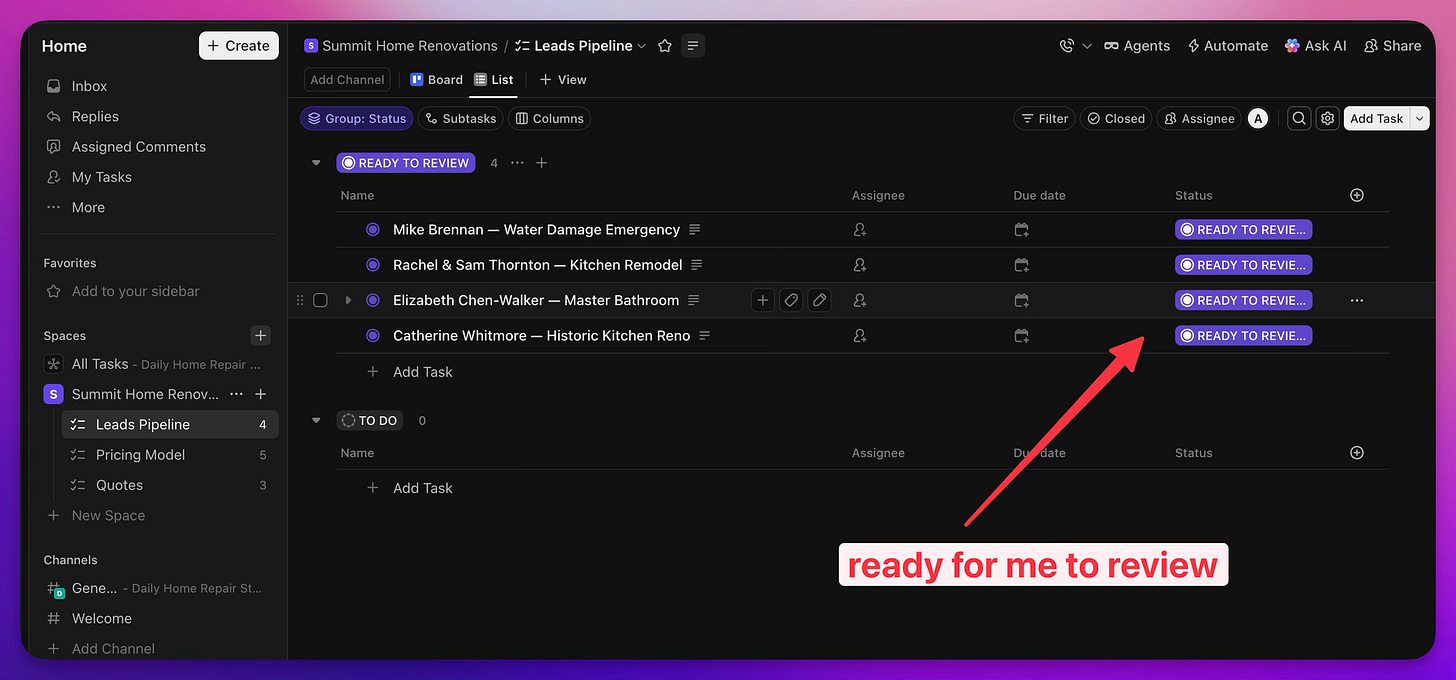
Notice too, in the image, not only do you have potential jobs you might want to take, but there are some in here you don’t want, because of budget, time, or your lack of skill. Also, since I’m not that great at organizing my calendar it has access to my calendar and can help me figure out when I can do the work even email the customer schedule suggestions! And on that note, it did the quoting for me. It used what I have for a system of quoting, took that information, and generated a quote that I’m going to review before giving to the customer.
[
](https://substackcdn.com/image/fetch/$s_!4Gzb!,f_auto,q_auto:good,fl_progressive:steep/https%3A%2F%2Fsubstack-post-media.s3.amazonaws.com%2Fpublic%2Fimages%2Fda0912ec-9853-4fc3-a977-ec7449eda35d_2232x1042.png) ClickUp and Human in the Loop
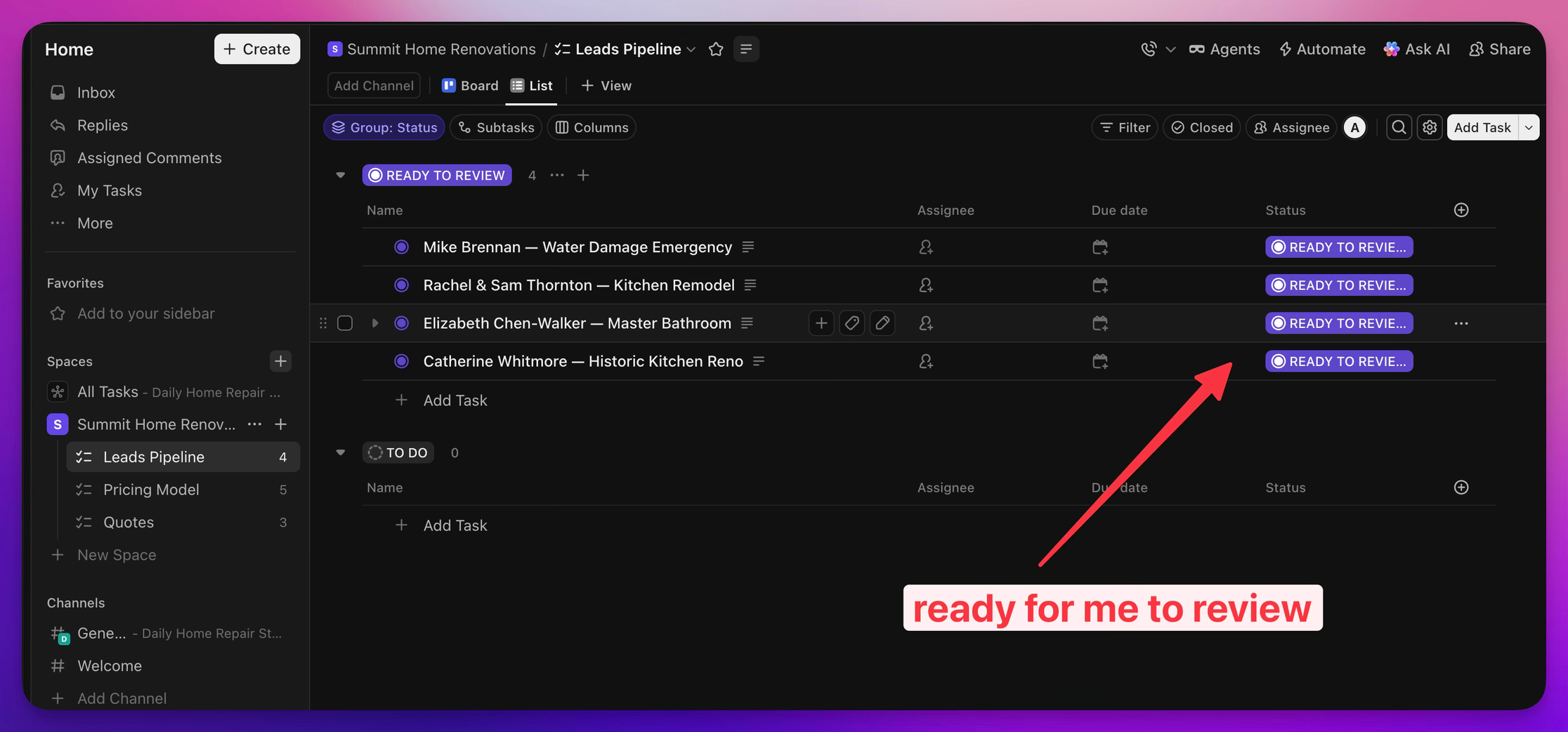
For now we can review all the quotes and email drafts and manually send them. But if it gets it right every time, at what point, a year later, six months later, am I not reviewing every quote? That’s an interesting thing to keep in mind as we progress.
Claude Desktop, Scheduling, and the Zapier Connection
Like I said a moment ago, it’s Claude Desktop that I’m using here. I’m going to show it working with OpenAI, and then Open-Claw. But the point is you can just start chatting with it. And it is from there I can ask it to make a “skill” and it creates this file for me that I can then save.
[
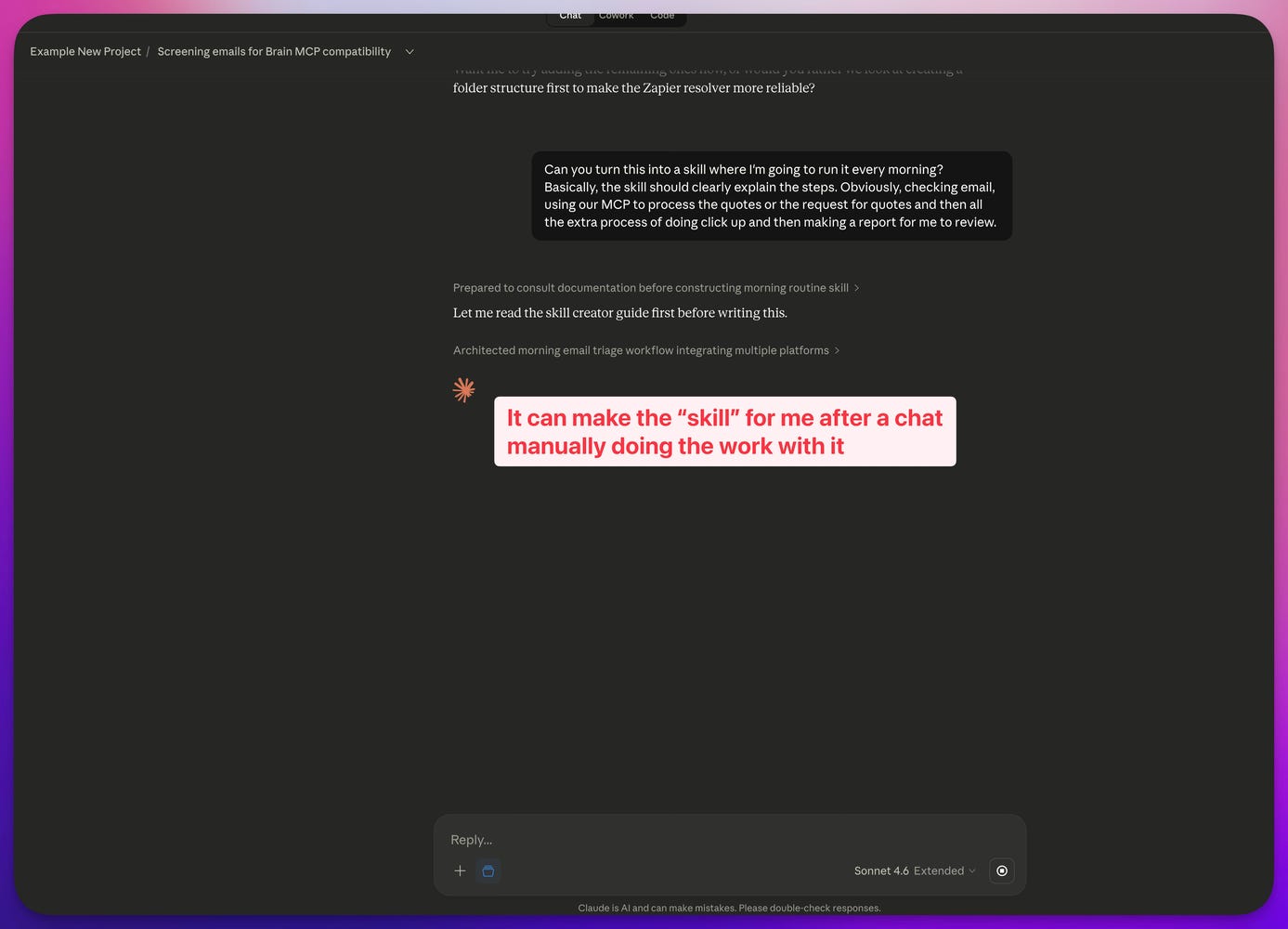
](https://substackcdn.com/image/fetch/$s_!5j4j!,f_auto,q_auto:good,fl_progressive:steep/https%3A%2F%2Fsubstack-post-media.s3.amazonaws.com%2Fpublic%2Fimages%2F8399235f-6eaa-495c-bbc3-5486d02d9fb7_1387x1000.png) Sudo make me a skill
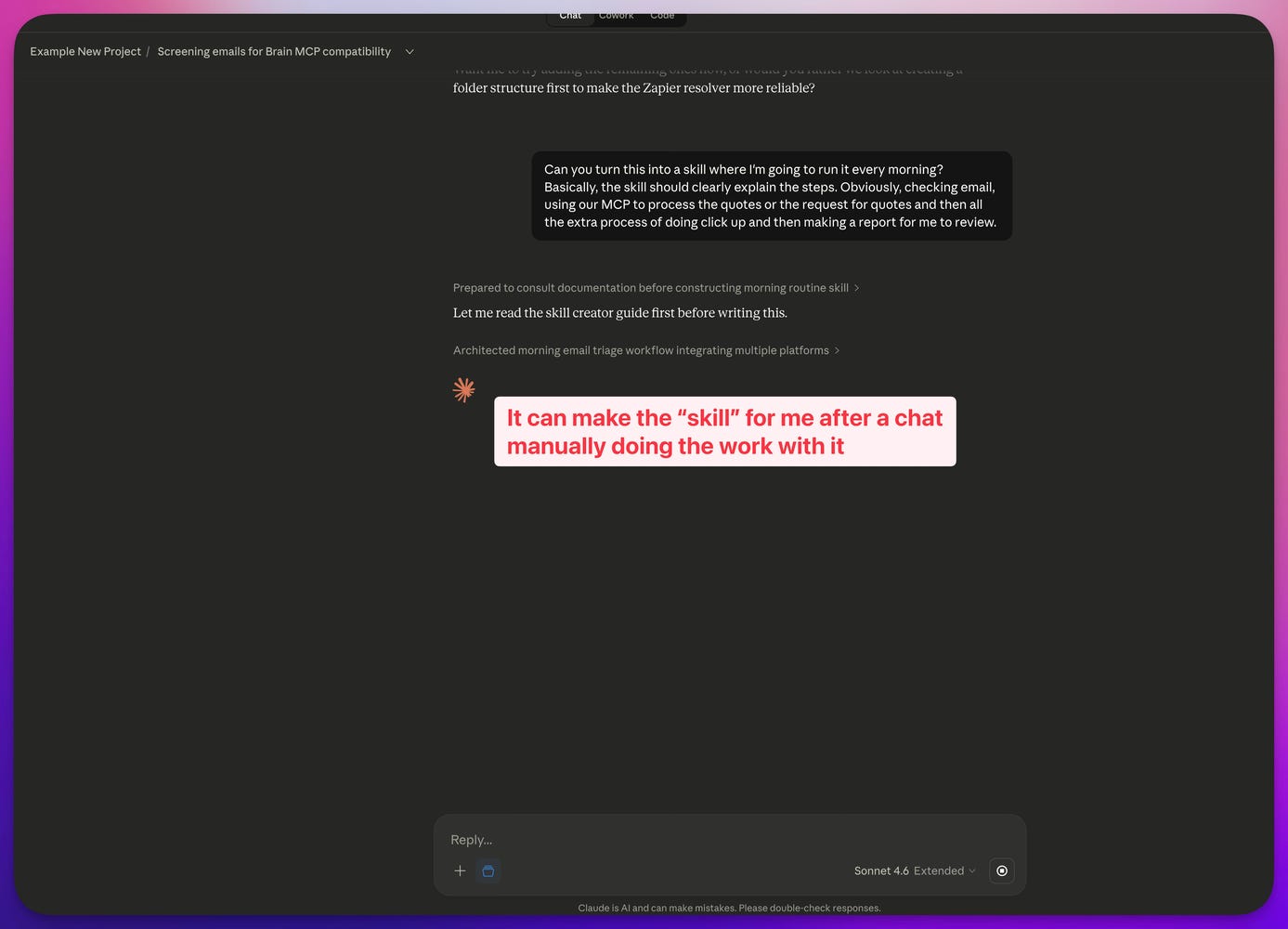
and it will do this:
[
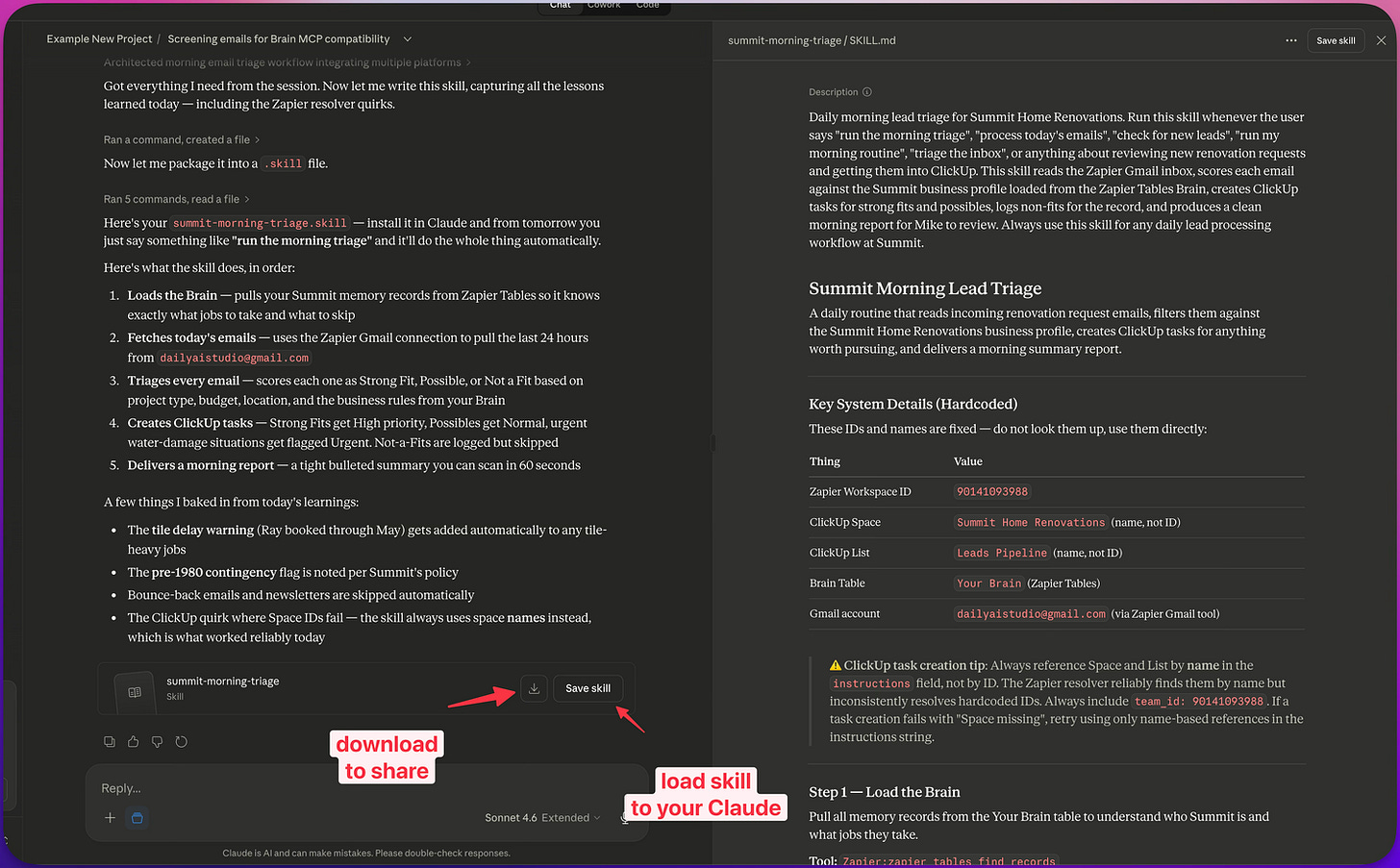
](https://substackcdn.com/image/fetch/$s_!73Fj!,f_auto,q_auto:good,fl_progressive:steep/https%3A%2F%2Fsubstack-post-media.s3.amazonaws.com%2Fpublic%2Fimages%2F8c8716da-b63a-4a6e-bdb3-8c245c0c6568_1488x923.png) Skill Made and Ready
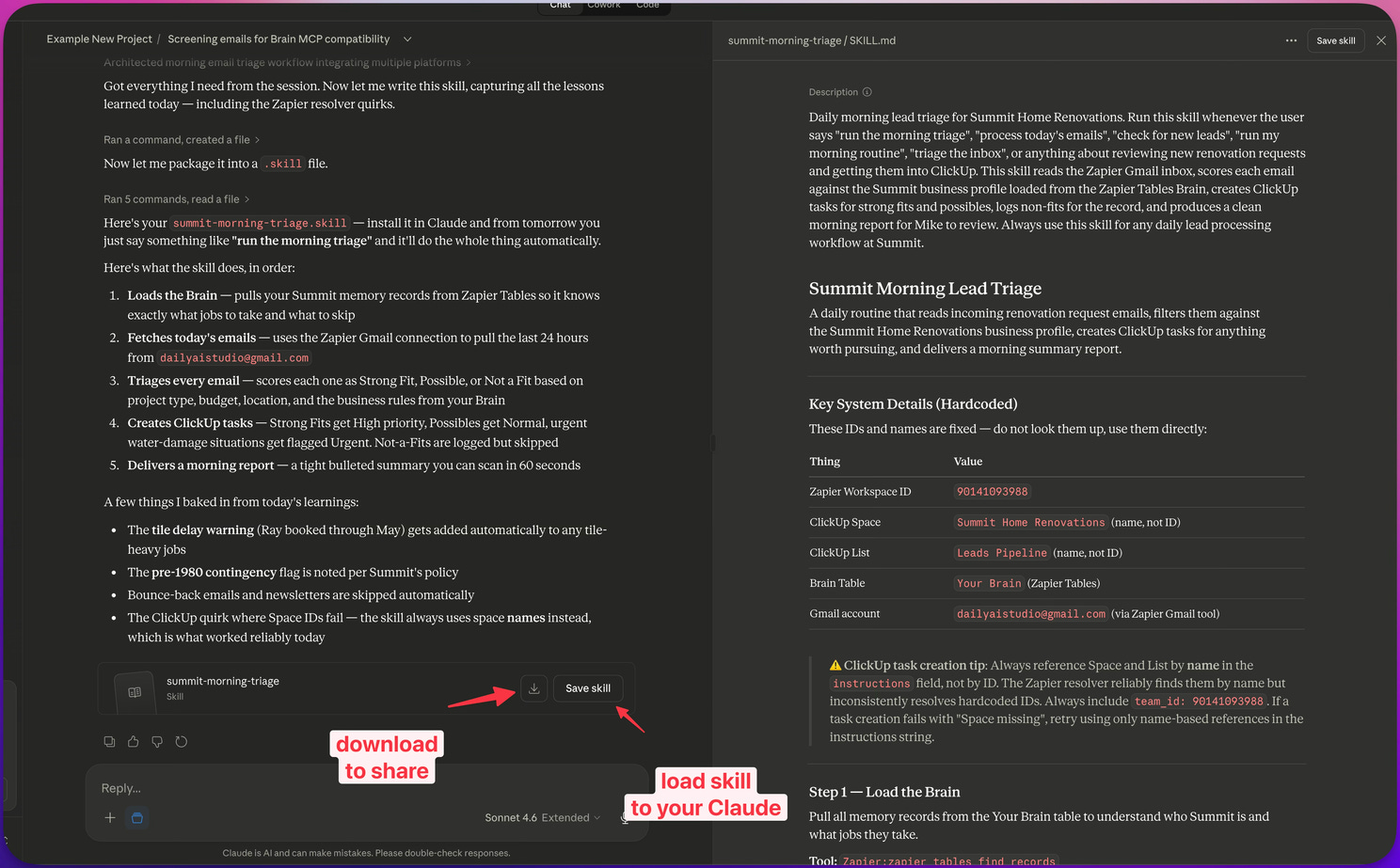
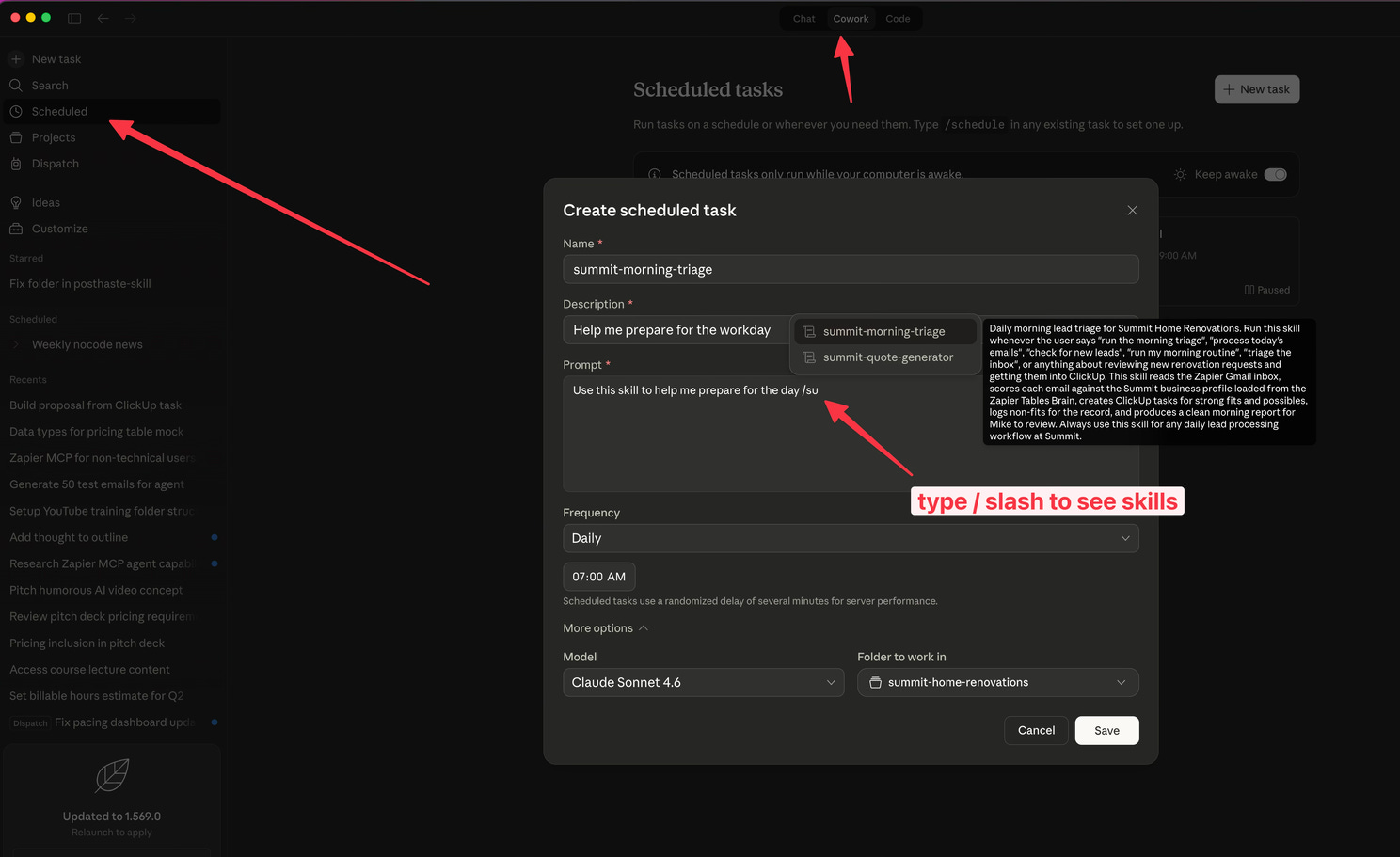
Finally If you click into these screenshots below, you’ll see I set up Claude’s scheduling feature so I can run this skill every morning or many times a day.
[
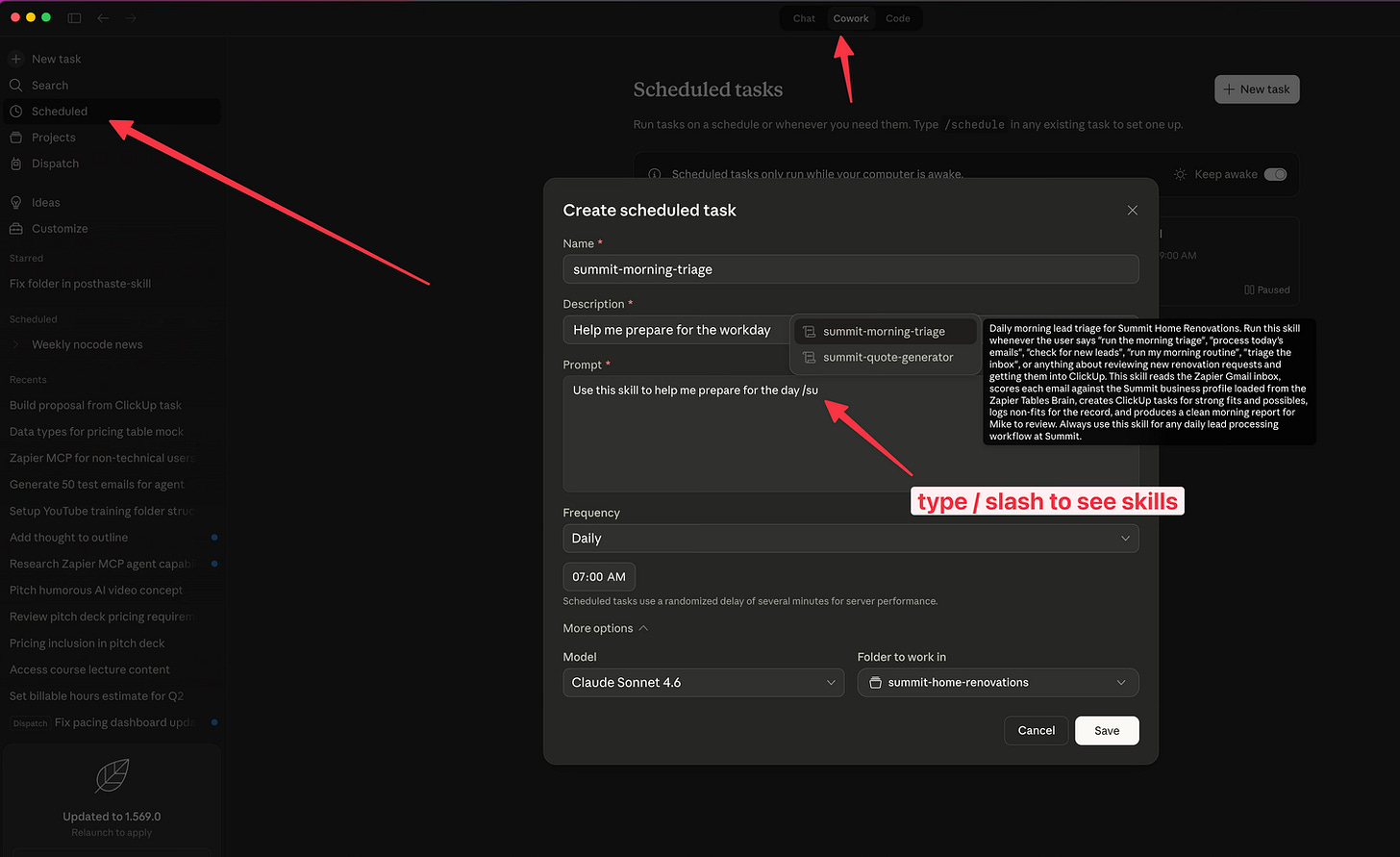
](https://substackcdn.com/image/fetch/$s_!2vre!,f_auto,q_auto:good,fl_progressive:steep/https%3A%2F%2Fsubstack-post-media.s3.amazonaws.com%2Fpublic%2Fimages%2Fe62dd324-fd23-4a36-91f2-cd6b8dd30a46_1488x911.png) Setup Scheduling Feature
But the question then becomes how is it doing this? How does it know how I like to quote projects, how does it know what my company is? How is it checking my inbox? How do I know it’s not replying to these people? Let’s first zoom out one more layer and talk about how it’s talking to my data safely.
Zapier Tables as the Brain
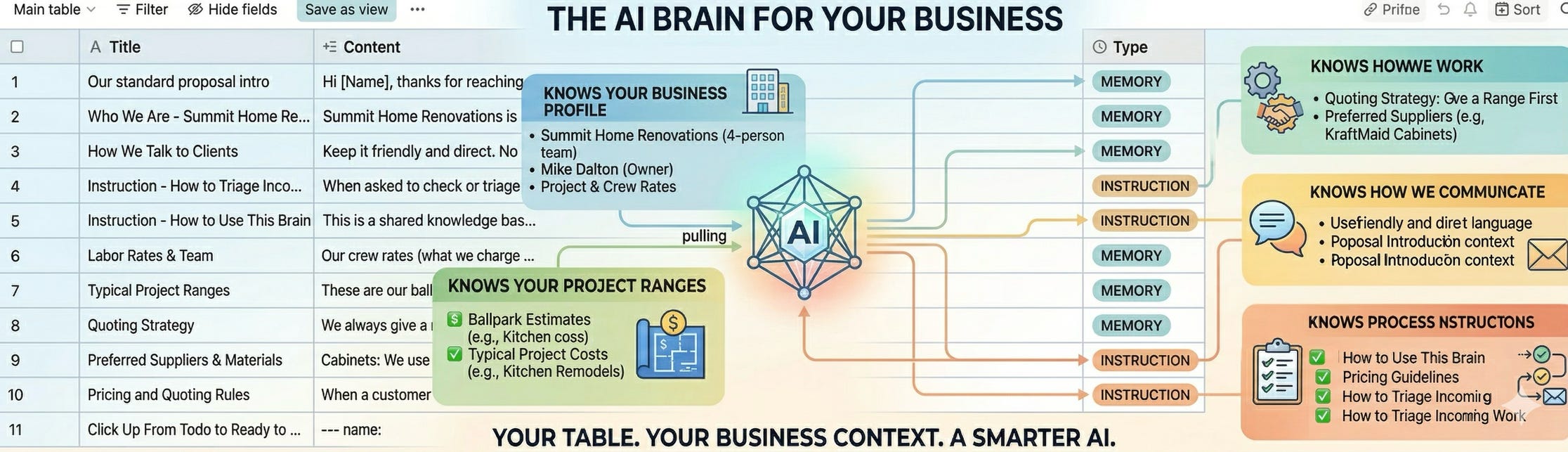
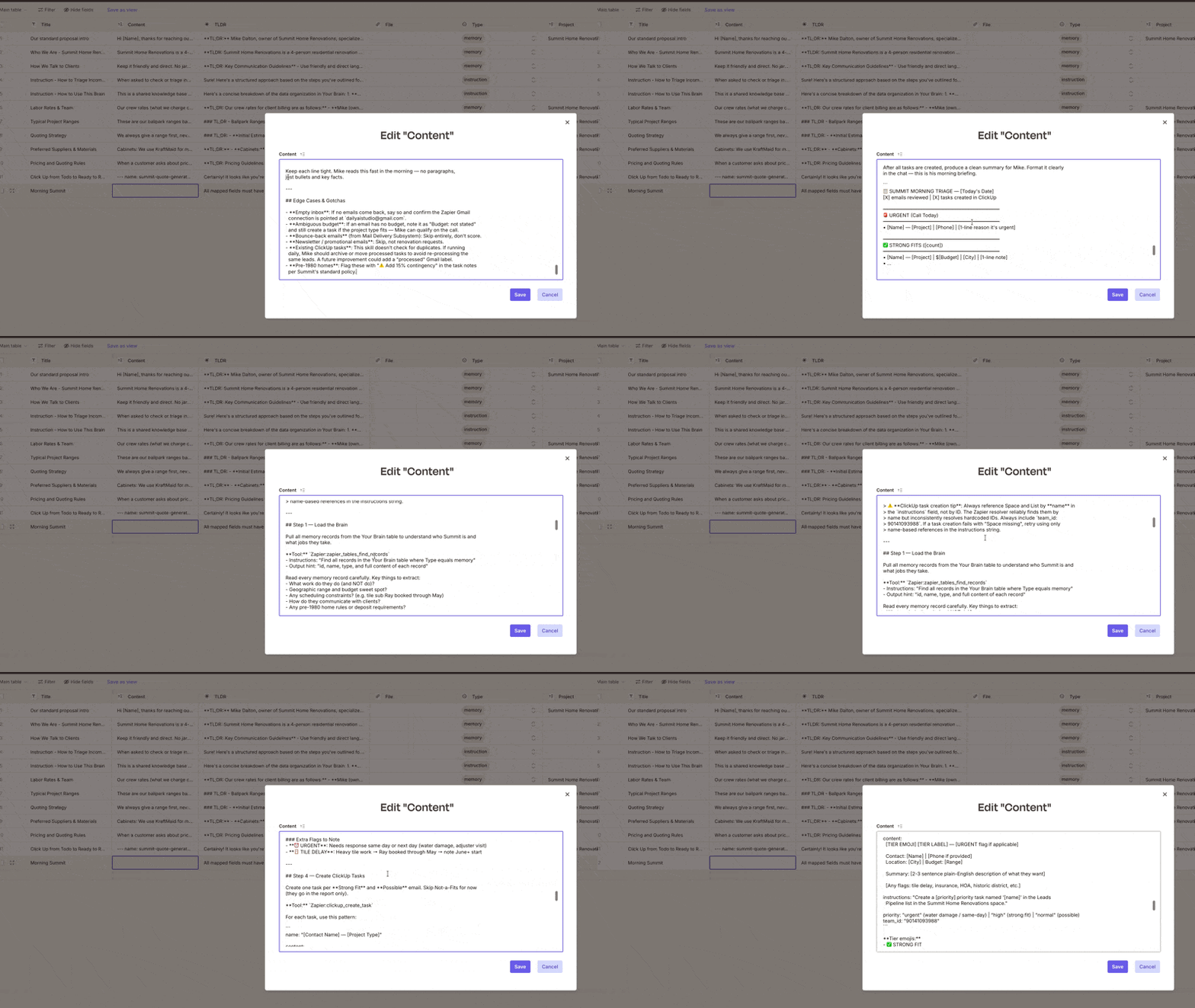
This is where Zapier Tables come in. This is the place we will store all the information about our business and workflows etc. In this example I’m going to save the same Skill to the Zapier Table as well, because I want anyone on the team to have access to it. There are many ways to share skills, I’m trying to approach this less technical way, but we can consider some other options as we move forward. Also we will make this table in the next article but you can see some skills here to get going
[
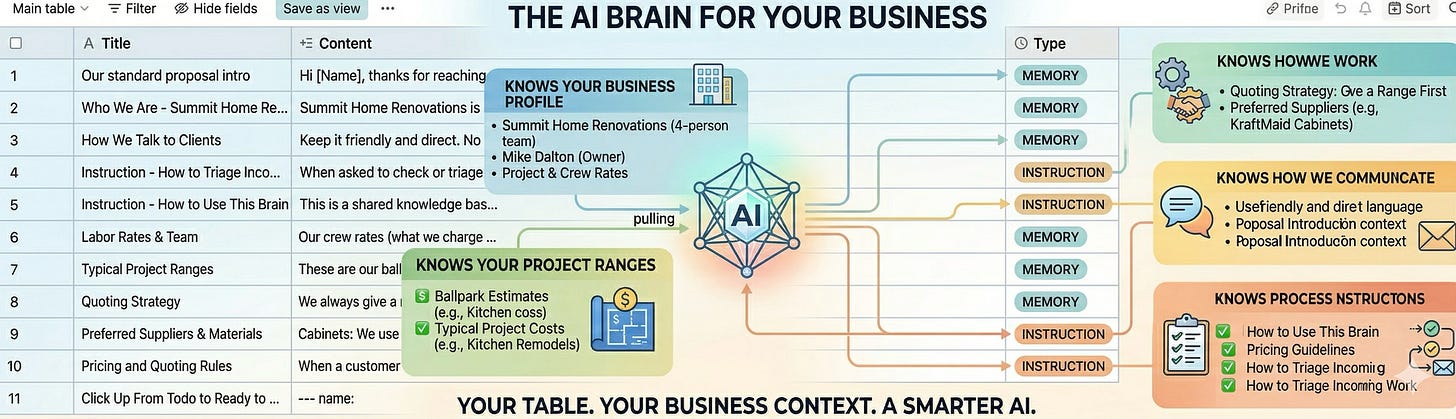
and you can see below me adding the text into the table.
[
](https://substackcdn.com/image/fetch/$s_!mQfF!,f_auto,q_auto:good,fl_progressive:steep/https%3A%2F%2Fsubstack-post-media.s3.amazonaws.com%2Fpublic%2Fimages%2F4a8d7972-425b-495f-b8bc-17c27b2316ec_800x450.gif) Adding to the Tables
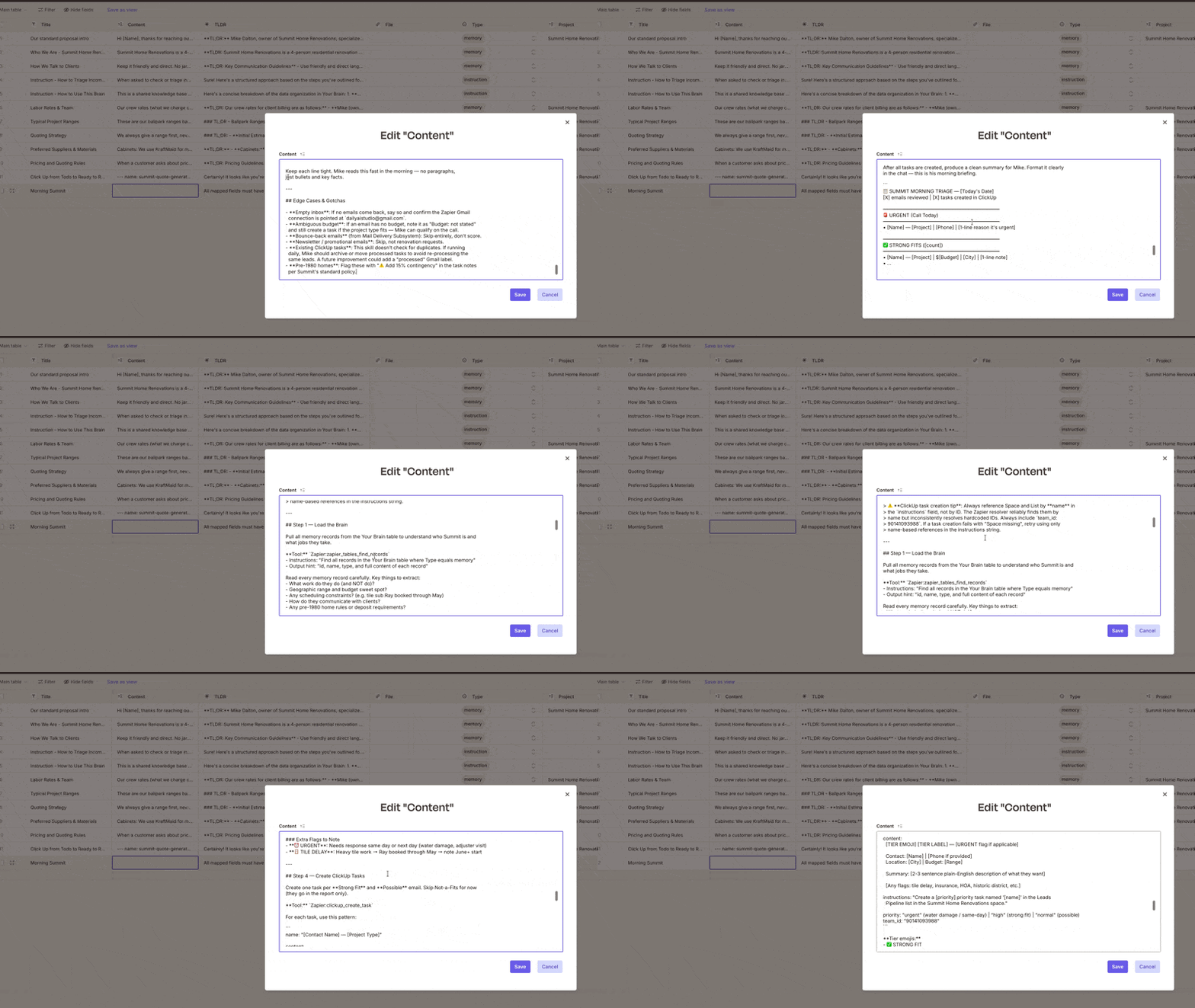
Every time then that you chat with Claude or schedule a task it will connect to Zapier Tables finding our information. Who we are as a company? How do we like to do things? What’s our pricing? We could even have past successful quotes in there so the AI has a sense of how we like to quote. It could have other data about who we are, what we do, past work. It’s kind of like when you bring in an intern and you have to teach them how things work, you introduce them to examples and context. We’re giving AI that same kind of information to help us run the show.
Zapier, MCP, Guardrails, and Tables
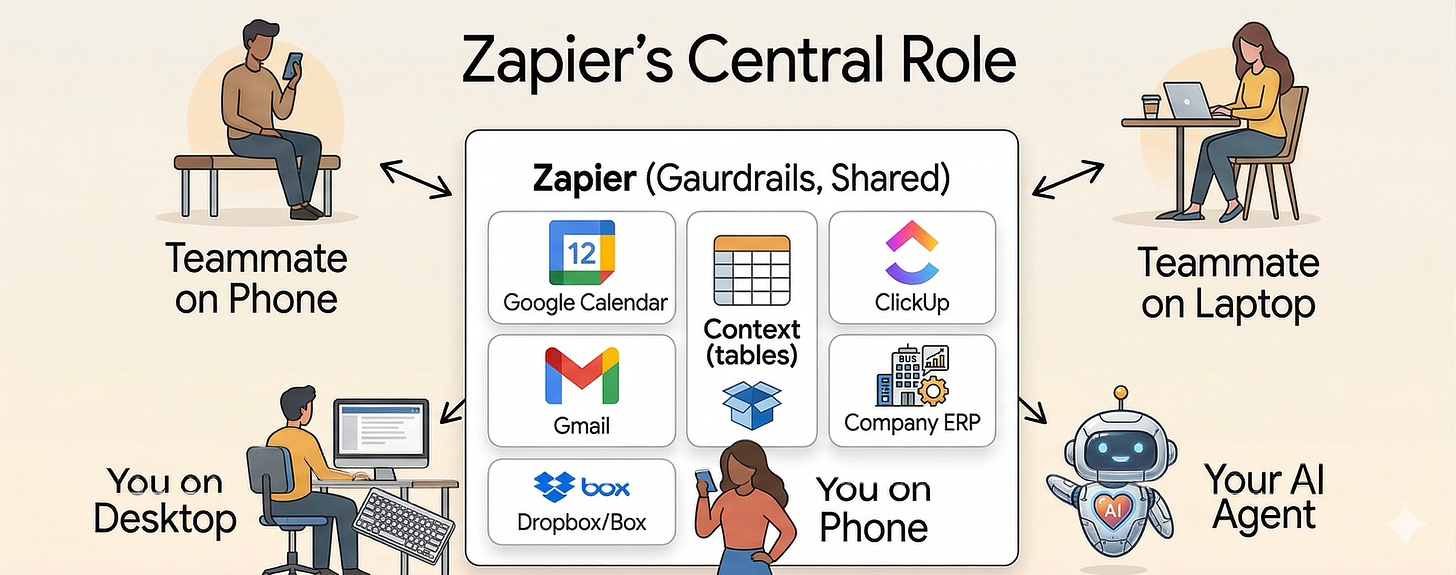
The above starts to show you how to use this Zapier AI Integration “bridge”. This is where we get all the benefits we’ve been talking about, security, integrations into your mail, calendar, and of course sharing with your team or later on an AI Agent.
[
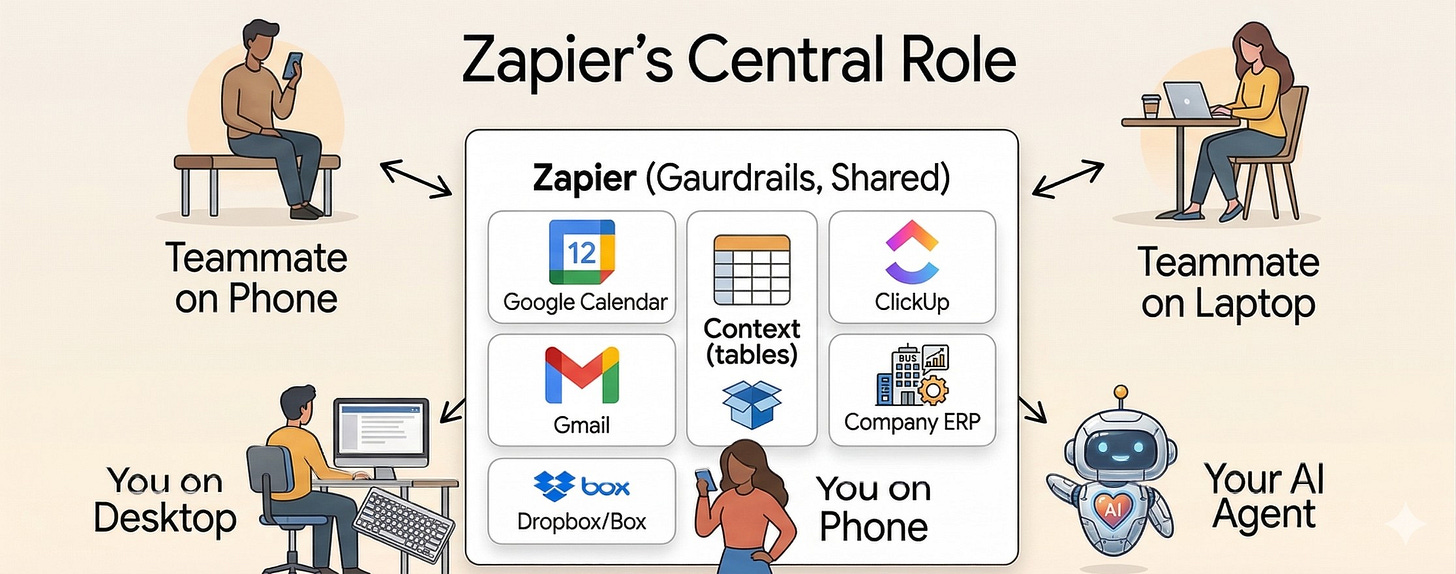
](https://substackcdn.com/image/fetch/$s_!l4XJ!,f_auto,q_auto:good,fl_progressive:steep/https%3A%2F%2Fsubstack-post-media.s3.amazonaws.com%2Fpublic%2Fimages%2F79652a1d-81a0-4ee7-8a29-a7afb0fb0786_2232x881.png) Services are protected
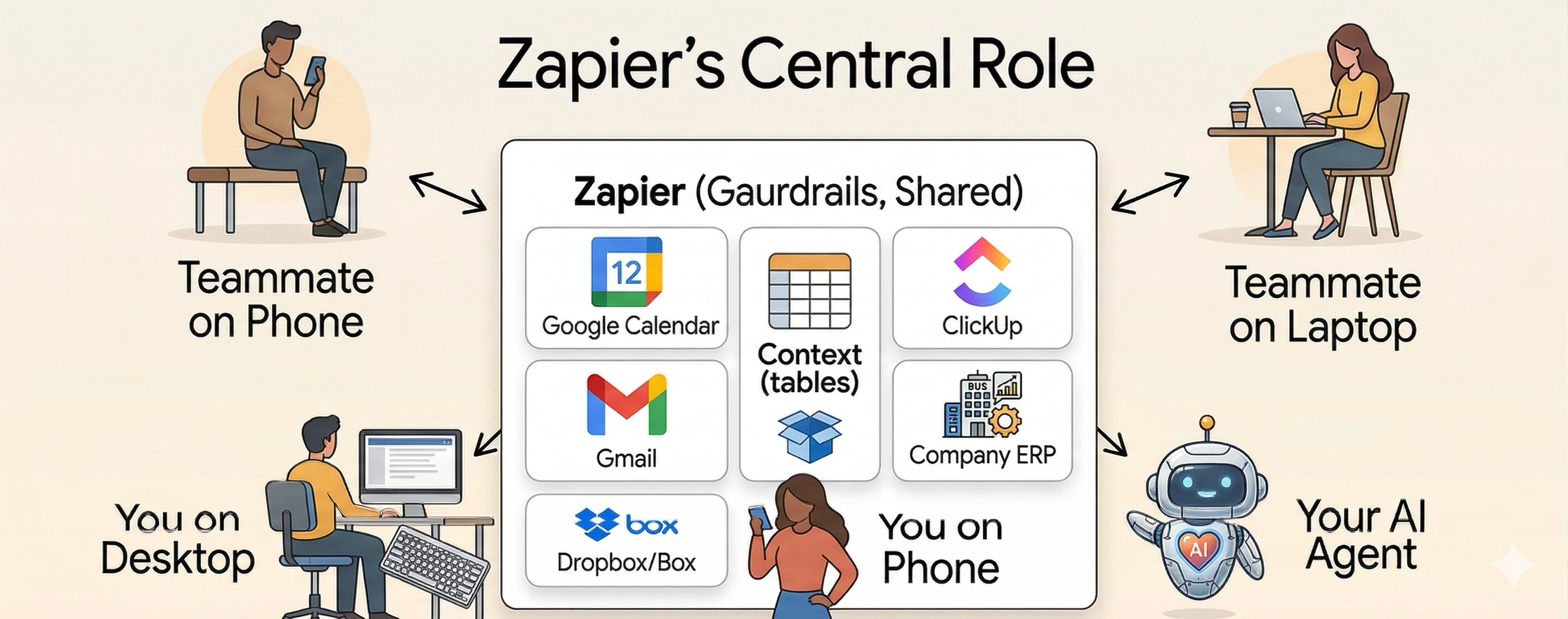
The integration with AI is not AI to Gmail, or AI to Google Calendar, it is AI to Zapier MCP and then to these tools that it will have the right amount of access to. Each teammate or agent does not have unique or individual access to each system.
And when you read in the news about AI deleting a company’s work, emailing the wrong people, etc., you do not have to worry about that here. You are getting the security and guardrails so that when your team, your AI or you access your data and tools this way everyone has the right access to the data, to any internal systems, to the pricing table, to the ERP you might have etc.
Now, the bridge that makes this connection, the thing that connects AI to your systems, has a terrible name. It’s called MCP. All that really means is you’re letting AI connect to your systems and tools. And through this thing that Zapier sets up for you (in one click!), your AI can now talk to your systems with the right amount of access.
For example, if you look at the Gmail connection, you can see that it can’t send an email.
[
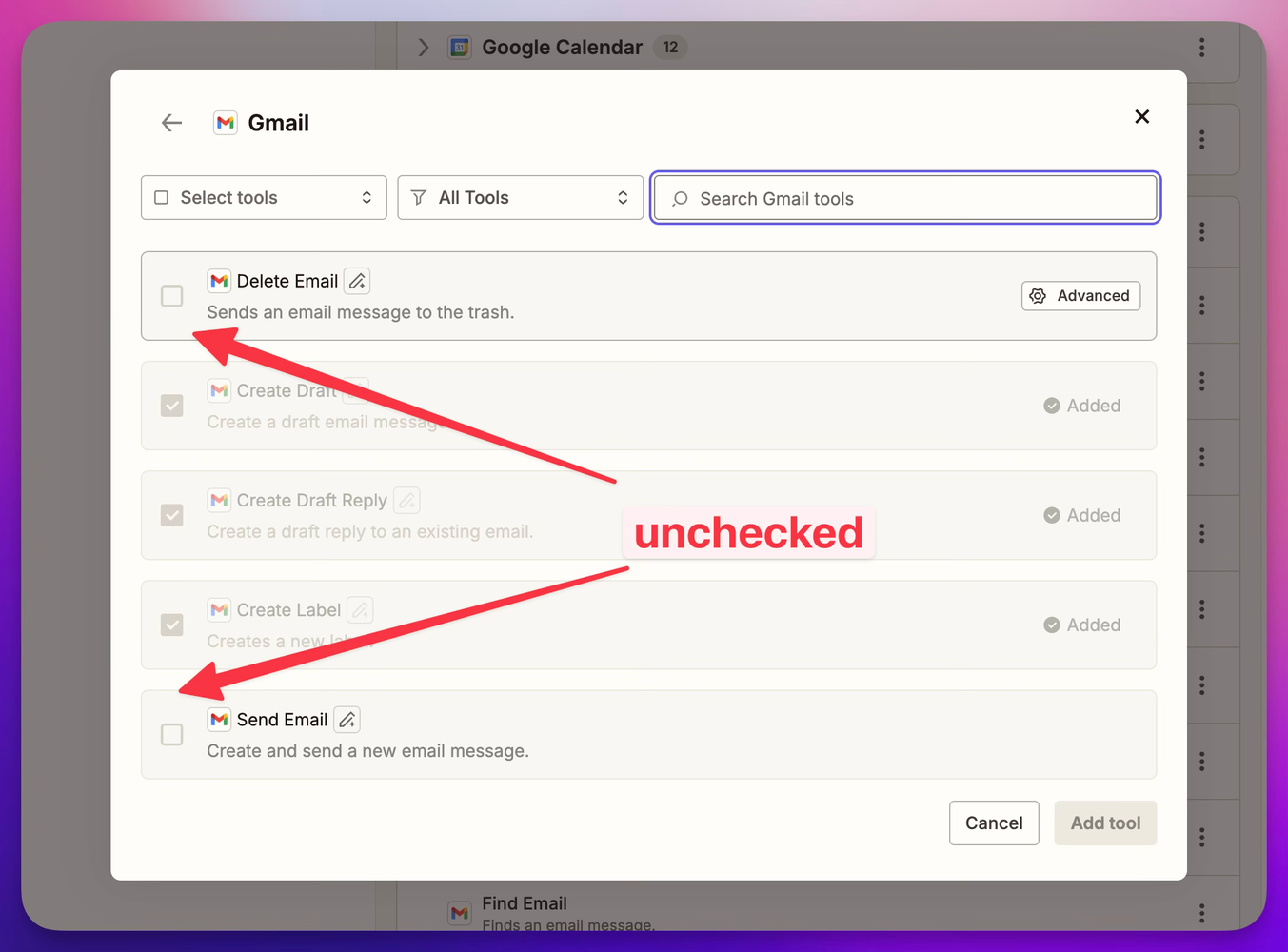
](https://substackcdn.com/image/fetch/$s_!dsqh!,f_auto,q_auto:good,fl_progressive:steep/https%3A%2F%2Fsubstack-post-media.s3.amazonaws.com%2Fpublic%2Fimages%2Fe565e98f-644a-46d8-97c7-9e8c50148095_1353x1000.png) You decide what AI can do
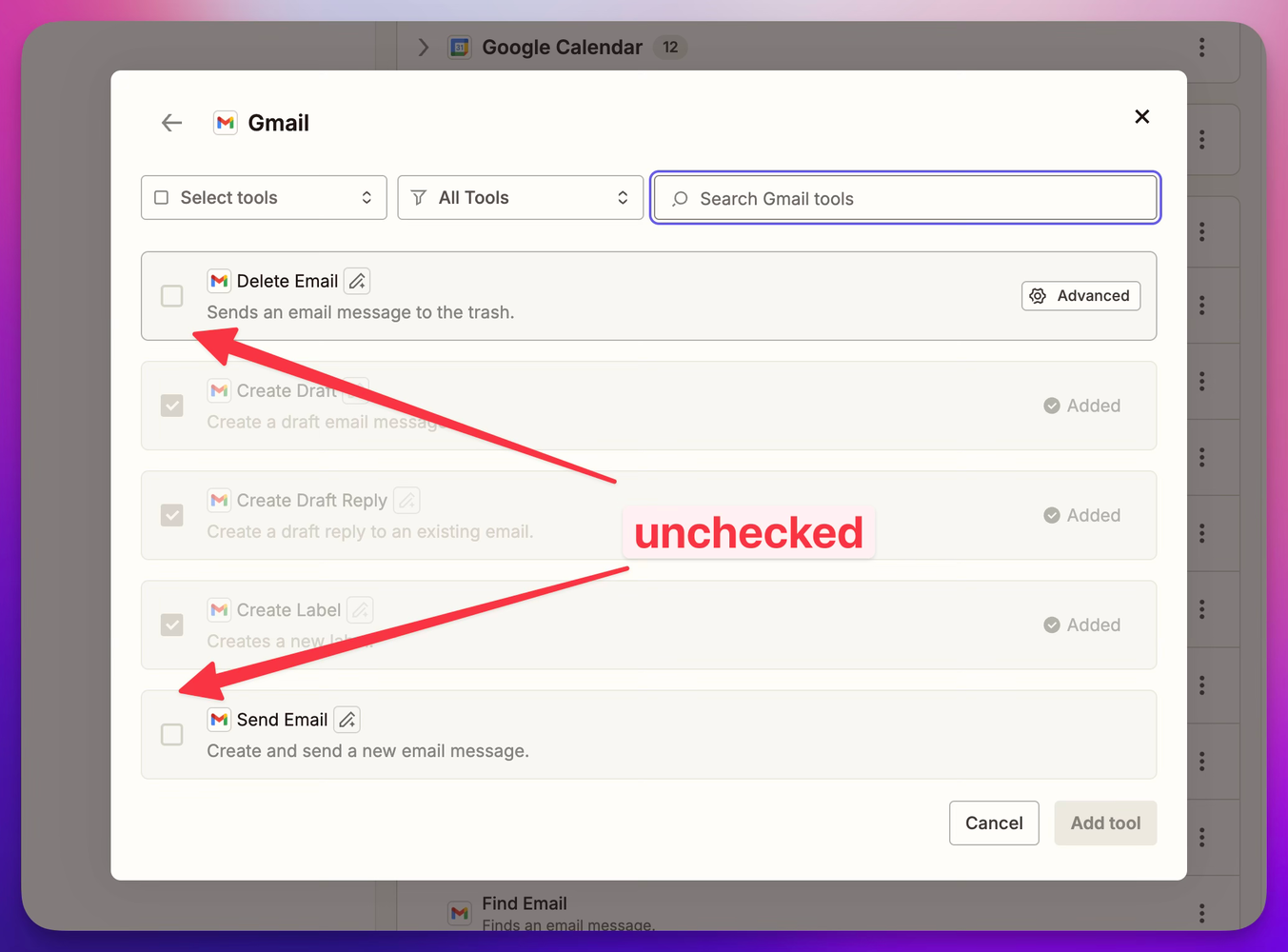
So the AI cannot send an email if we don’t give it permission. That’s something to really remember, you do have control. There’s no such thing as runaway AI here (or at least nothing customer-facing or internally destructive). It’s usually just a misconfiguration, it was allowed to do too much.
With those guardrails, you can share that access accordingly. You just go down the list of what’s possible, and that’s what really sets this apart, you’re using AI in a way that you know has guardrails that won’t just be mistakenly bypassed.
Your Tools, ClickUp, Gmail, and Whatever Else You Use
[
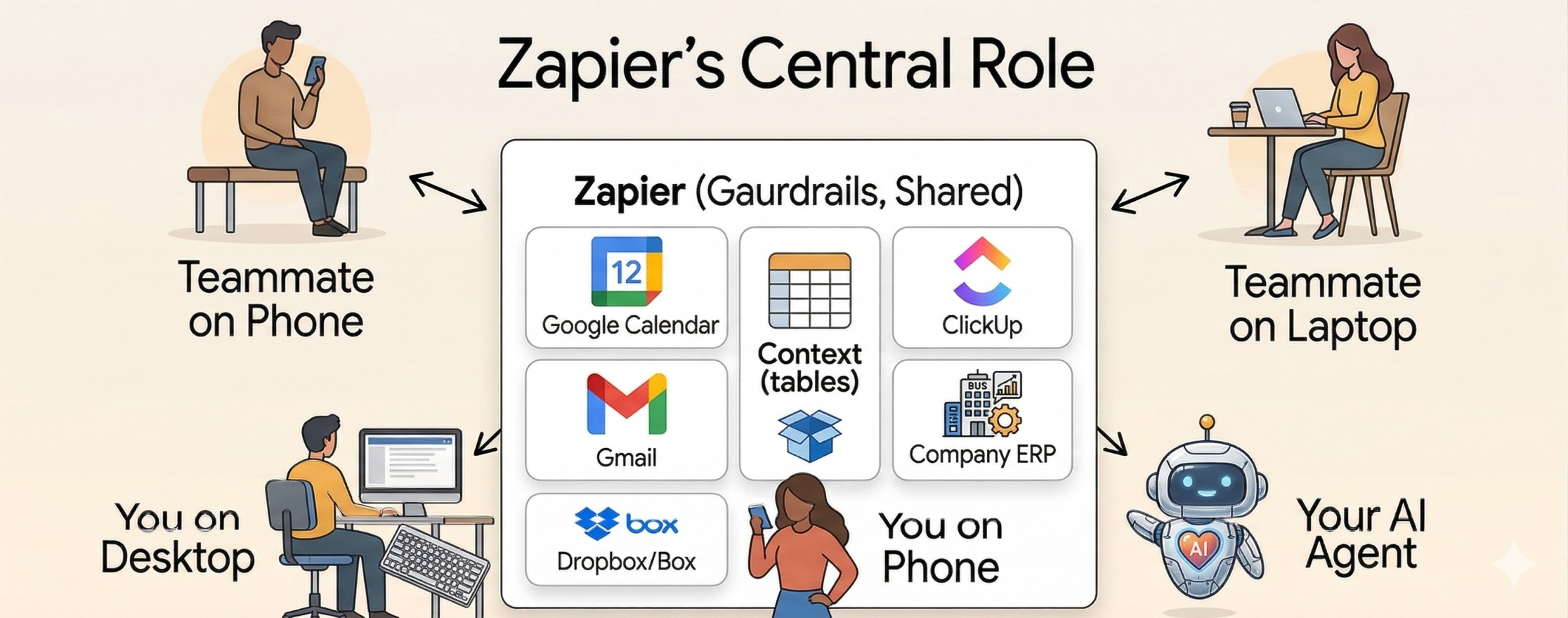
Now, if we zoom into some of these items, we have ClickUp, which is just a task management system. But you could have Jira, you could have Trello, you could have Monday, it doesn’t matter. We can then have one of our skills describe how we like to use ClickUp. To a degree the AI knows how to use ClickUp thanks to this MCP but the skill helps to take it further and explain how our business likes to configure tasks and more. That’s a big win too, because you don’t have to tell everyone how to enter tickets they can just chat with Claude or Slack to say “Add a new ticket about x” and it will do it or ask them some other questions to make sure it is entered in the right way.
Also we need email. In this case, we’re using Gmail, but you could connect to other email systems. We just have it reading that particular inbox. This could be a company inbox, an inbox just for bids, or yours, because now you know it has certain guardrails.
[
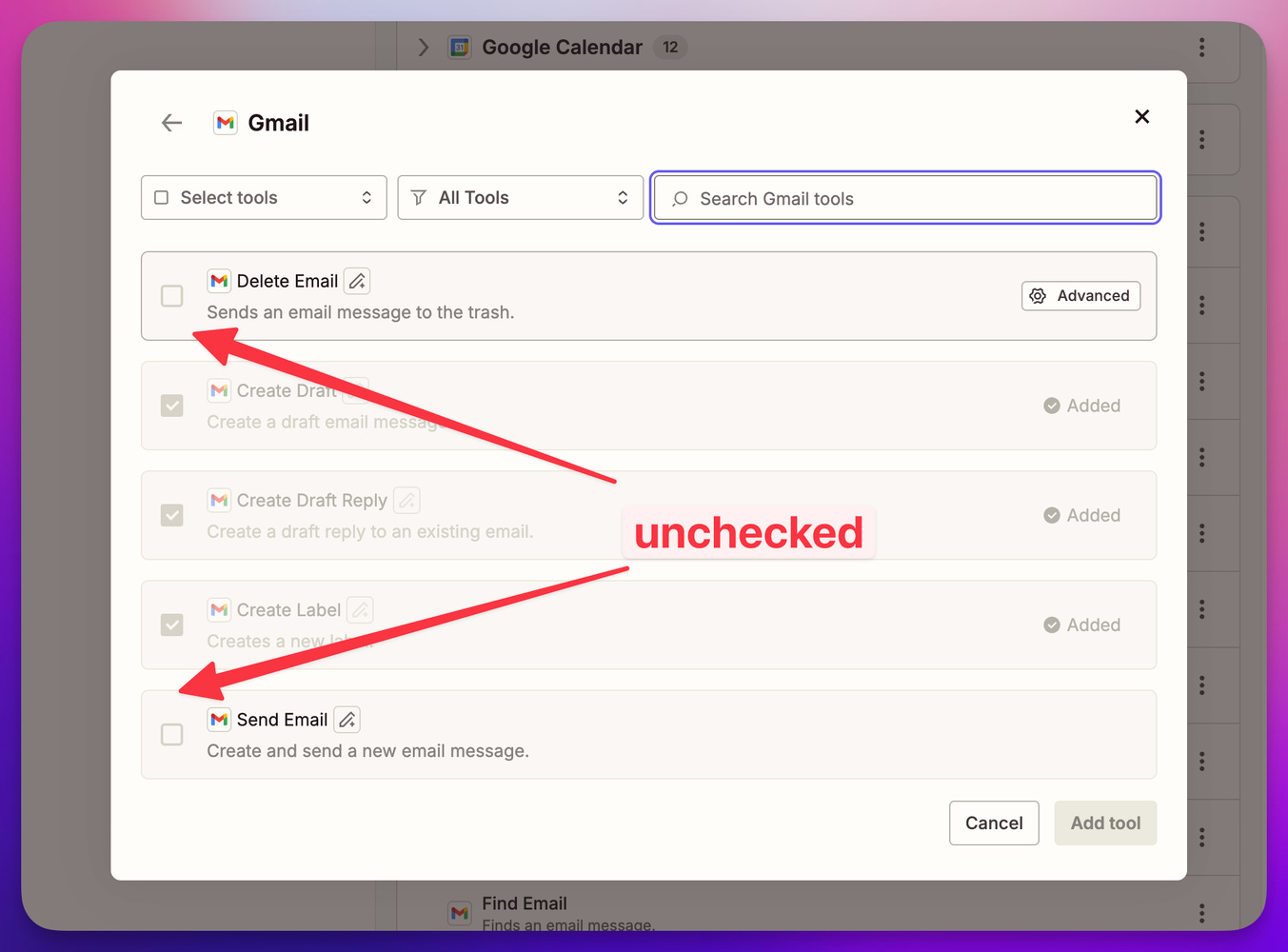
It’s not going to delete emails. And in this case, we’re going to have it not send but only make drafts we can send. But it could send if we want it to.
The Zapier Table
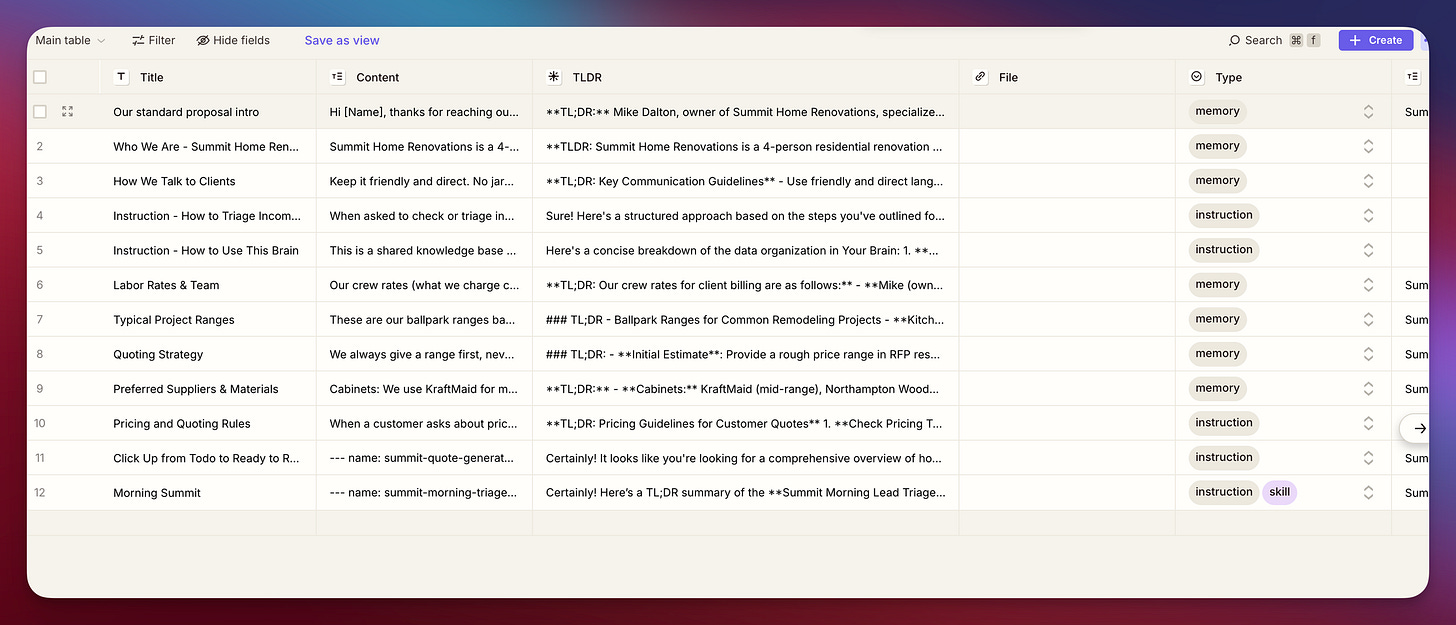
Let’s come back to the table. This is just a place to store reference information. It could grow over time and change over time. You could use different systems for it instead of the Zapier Table. The reason I’m using the Zapier Table is that it’s a very easy way to get started. You can even have more than one table. In the demo we will do next we have a Pricing table and a general Brain table.
[
](https://substackcdn.com/image/fetch/$s_!JU3S!,f_auto,q_auto:good,fl_progressive:steep/https%3A%2F%2Fsubstack-post-media.s3.amazonaws.com%2Fpublic%2Fimages%2F34d6e103-8dfc-4dcd-bf24-36145b86a0b8_2232x958.png) Zapier Table Example Format
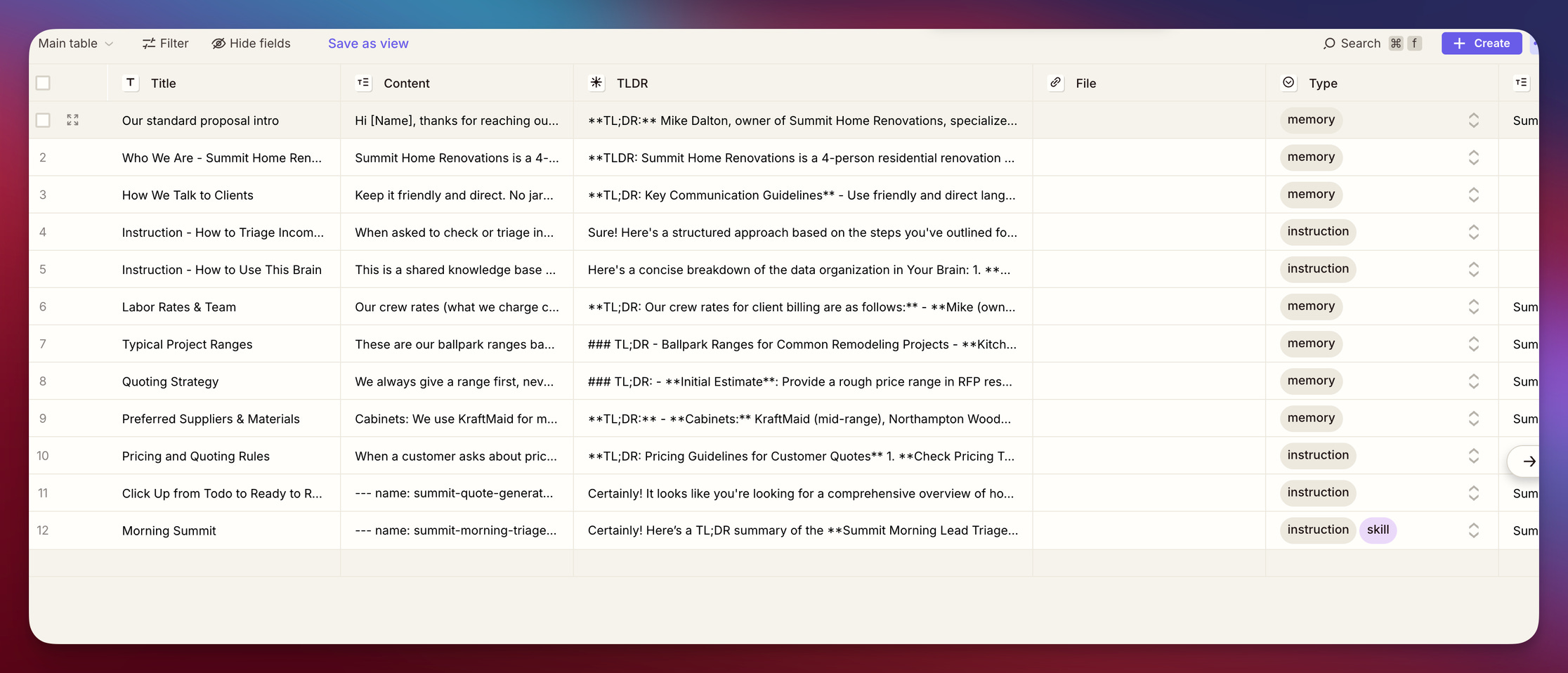
But you could consider Airtable, Softr, or other database-like systems. I wouldn’t use an Excel spreadsheet or Google Sheet just because we lose some of the features we get from more advanced systems. And I wouldn’t use a complicated database either unless it is really needed.
Then you start building up this shared information about your company, about how you like to work, and even shared memories that help the AI know how to work with you, so it knows how you like to do things. This can be a history of quotes that you liked and want to use as examples. It can obviously be information about your company history, the work it likes to do, the people who are there.
And as we noted above there are “skills” are typically markdown files (text), which is just a format for writing a file. And unless you’re really good at certain tech stuff, it can be a little hard sometimes to always share them easily. Even when you use Dropbox or Google, it can get tricky because those files are sometimes just placeholder files and not real files. So what we’re doing is taking the content of that file and putting it into a row here, and then we let the AI systems use it.
[
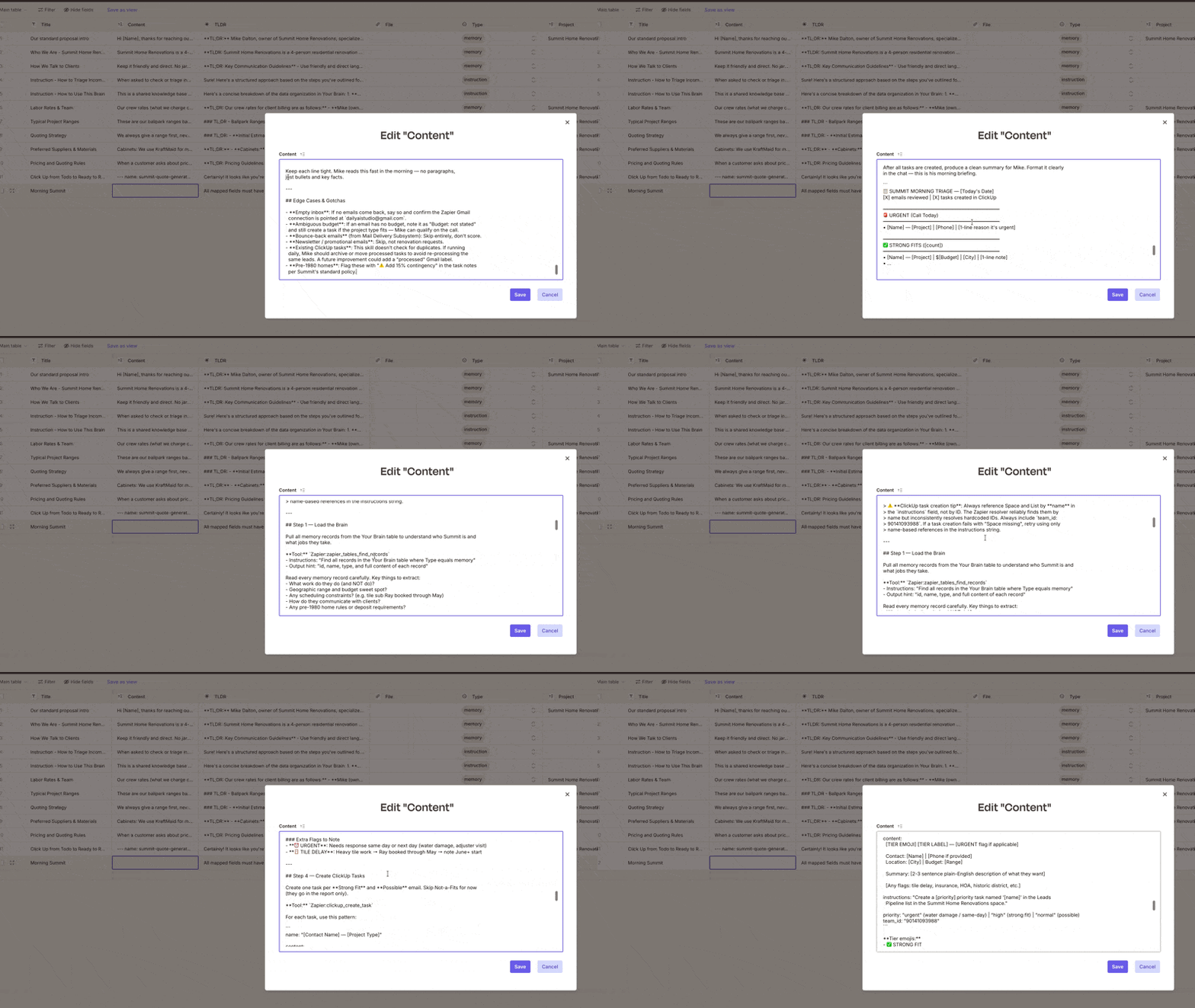
](https://substackcdn.com/image/fetch/$s_!sXTA!,f_auto,q_auto:good,fl_progressive:steep/https%3A%2F%2Fsubstack-post-media.s3.amazonaws.com%2Fpublic%2Fimages%2F09d38221-08ad-4356-b0b4-8f14e8e8d8fa_800x450.gif) We paste the markdown into the table
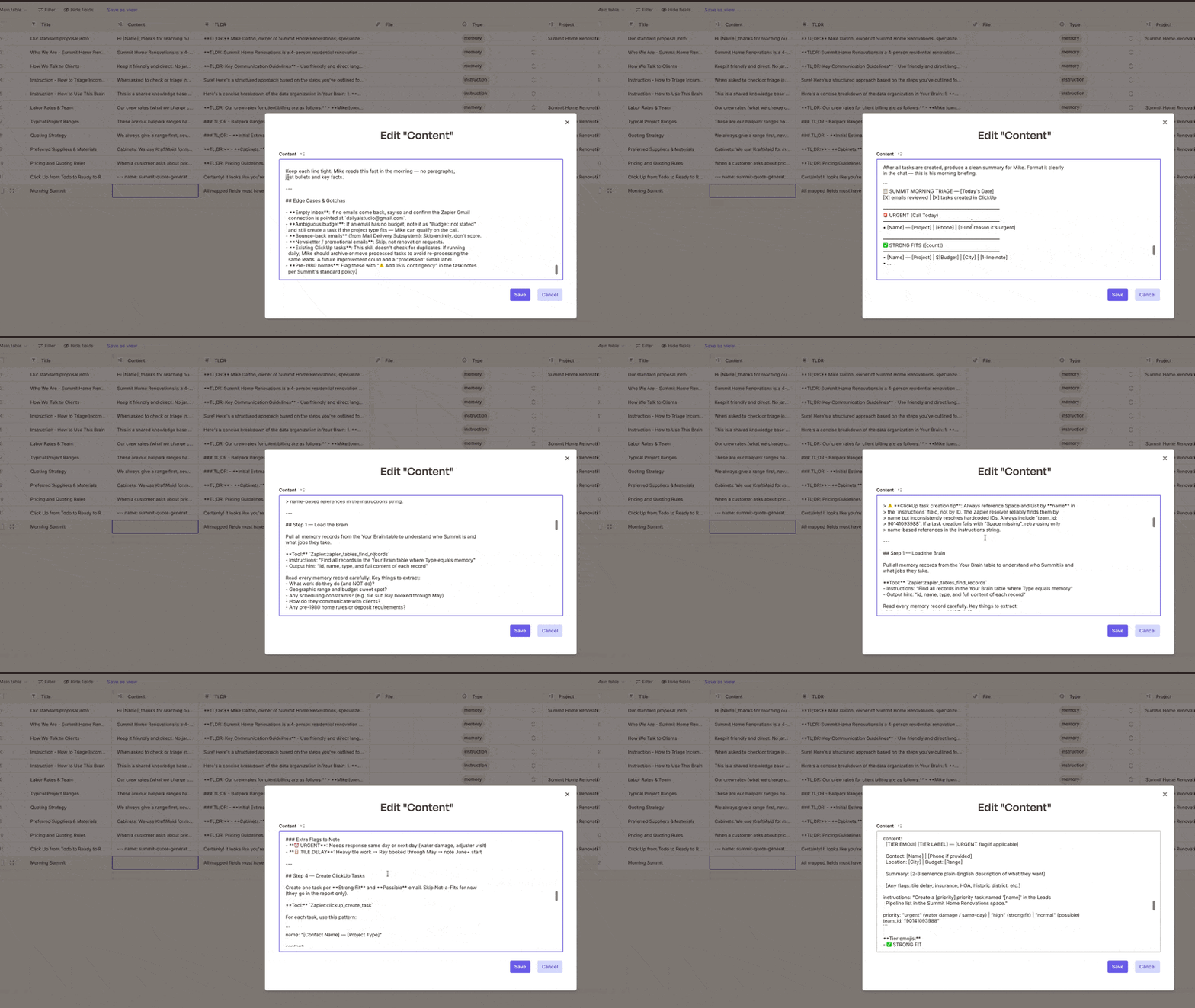
Then setting up a new employee’s desktop is just letting the AI build the things it needs, skills from this table data. For example if I’m using Claude, I might say, “Hey, go use this table data to build your skill,” and then I’ll click save and it’ll make the skill for itself to keep. When we dig into the setup in part two, we’ll go over that. I’m just covering the big picture here.
Now What?
Hopefully you get a sense of what we can do if we put together just a few key pieces. And this is a powerful foundation to build on for a solo business owner or a team.
In part two, I want to dig into how we can bring in an agent, something that can automate things for you. An agent is just a fancy word for an AI that kind of does things on its own. And yes, that’s a scary concept, but not when we know is has guardrails like I cover here.
Whats Next
[
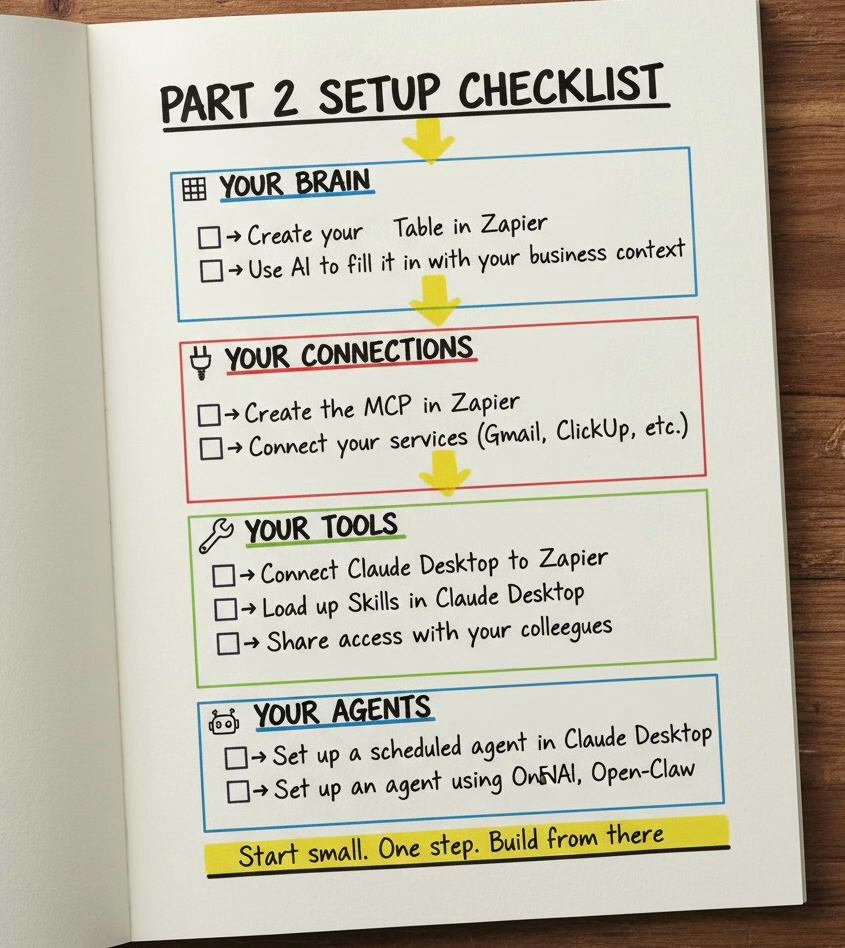
](https://substackcdn.com/image/fetch/$s_!RiYd!,f_auto,q_auto:good,fl_progressive:steep/https%3A%2F%2Fsubstack-post-media.s3.amazonaws.com%2Fpublic%2Fimages%2Fc8285f29-e8f8-45ab-af22-11d7ce476312_845x948.png) Whats Next is How to set this all up
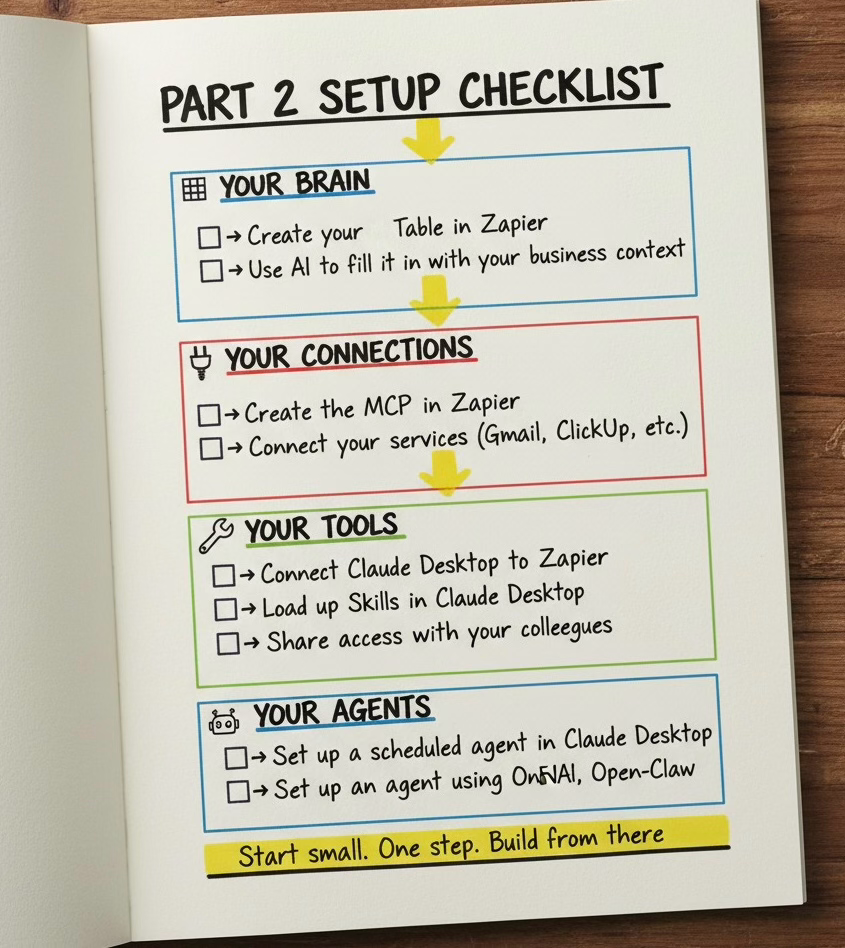
Thanks to Zapier’s MCP and Table you get a sense of what is possible when it comes to using AI securely and pretty simply.
👉 Visit **https://bit.ly/4tnMirJ **to support more articles like this and get started with Zapier!